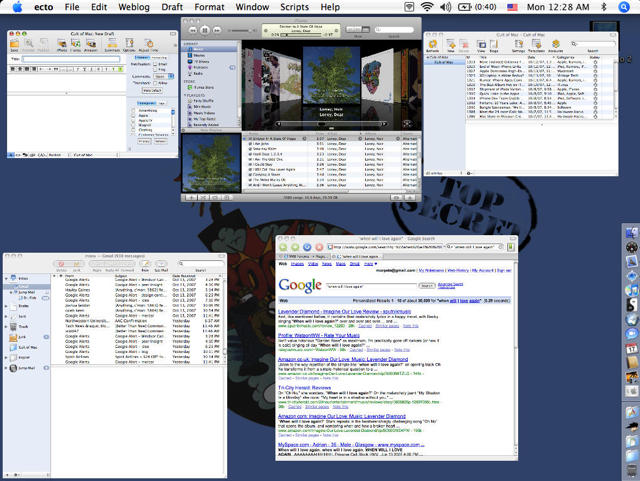
Can you guys keep a secret? This is the first post I’ve written in more than a month that I created on my Mac. Right at the end of August, I opened my faithful 12″ Powerbook only to be greeted by the unwelcome sound of the Click of Death.
If you’ve never had a hard drive die, you might have never encountered the Click of Death. Count yourself lucky. It’s a sad sound. A heart-breaking sound. The sound of things falling apart. A tap, a skip, a whir and failure. Over and over and on into the future. And so, part way through a major writing project, my computer was beloved Mac and constant companion was rendered utterly unusable. Not immediately equipped to pay for the repair, I had to hold off until this last week to get a new drive.
I have walked in the valley of darkness, oh my brothers, and I am more convinced of the Mac’s superiority than ever. Fitted with a new drive, my little Mac feels dozens of times faster than the year-old ThinkPad I have to use at work. It just feels like being home. To make it more like home, over the course of the weekend, I’ve been restoring my Mac to just how I like it. I have five easy steps for doing it yourself, so click through to learn how.
1. Back up. Back up. Back up.
Everyone knows that we need to back up our computers. Virtually none of us do it, except on corporate networks that do it for us. My fiance’s computer nearly died back in February, so we bought a huge external drive for dirt cheap, and we both copied the entire contents of our drives from that era to the big drive. We then hooked it up via USB to an Airport Extreme Base Station, using Airport Disk to share it back and forth. We then moved any new files here and there. Running at normal WiFi speeds was slow, but the big data dump over FireWire did all the dirty work. The rest was incremental updates.
2. Start with iTunes, then move on to iPhoto and your documents folder.
More most consumers using a Mac today, iTunes and iPhoto are where it’s at. We fill up these applications with the music and pictures that make up our lives. They also take up most of our data. Of the roughly 38 GB of usable space on my former hard drive, 28 GB were photos and songs. And neither makes it terribly easy to restore lost libraries. Of the two, iTunes is more intuitive. Simply drag and drop the folder or folders containing the songs you wish to restore, and watch the software work its magic. Then, you can import album artwork, adjust gapless playback and configure your authorizations.
On the other hand, iPhoto is a pain. It takes longer to import photos than iTunes does songs, and it tends to be far less responsive in the process. Its filing system is also absurdly arcane. It misidentified several of my pictures, and I had to re-sort them by hand. Still, once in iPhoto, they’re as good as new. I haven’t tried iLIfe ’08 yet. Has Apple fixed this issue?
Lastly, restore your documents by renaming your old folder on the back-up drive “Old Documents” and dragging and dropping it to the new hard drive’s Documents folder. That way, you’ll have everything you lost in one place, and easily sorted through with Spotlight.
3. Restore individual applications.
A Mac isn’t a Mac without lots of third-party shareware. Unfortunately, that means you’ll need to download a bunch of stuff once you get back in the saddle. On the bright side, this is a good opportunity to explore new options or upgrade if you haven’t in awhile. For example, in the time I was out of commission, Camino got got a critical stability update, and it’s once again the best browser on the Mac, this time with RSS support, ad-blocking and flash-blocking natively built in. Oh, and it flies. But you knew that.
For actual shareware, type in your old registration codes to get back up to speed. Finding a safe place for these most important bits of data on your computer is easier than you might think. Since I register most of my software via a Gmail account, I just needed to search by the name of, say, Scrivener or Ecto to pull up the registration codes for my shareware. This kind of backed-up back-up solution is a great option.
4. Rebuild your Mailbox.
Email directory structures are arcane and terrifying. The best way to get OS X Mail back up and in top shape is to have all the mail you’re interested in living on an external server. I’ve had my current GMail account since April 2004, and it just repopulated my inbox once I put in my account name and password. For all my other messages, I located the folders on the external drive and used the Mail Import feature. Be forewarned, this is incredibly slow and tedious. For whatever reason, e-mail is still a dark art to restore. You’re much better off pulling down from an existing POP3 or IMAP server, if you have enough storage to keep everything backed up.
5. Get a sufficiently rad desktop wallpaper.
I quite like Danger Mouse.
6. Take an Expose Pride shot like the one at the top of this post.
OK, not actually a step. But it’s a day later, and I’m back where I was before it all went to pot. In some ways, it almost feels like my computer has a new lease on life. I was ready to sell my machine two months ago, but the loss of all this crud in the crash has sped it up enormously, and I now have three times the storage thanks to the upgrade. If you’ve got a solid back-up, in some ways I recommend that you encourage such a crash — your Mac will thank you some day.

Pete Mortensen is a design strategist for consulting firm Jump Associates and the co-author of Wired to Care: How Companies Prosper When They Create Widespread Empathy, a book and blog that are significantly more interesting than you might initially think. Pete’s particular Apple avocations are both around design–interface and industrial. Follow him on Twitter!

