Mobile menu toggle

iPhone - page 3

Why did Apple suddenly remove a top fitness app?
By

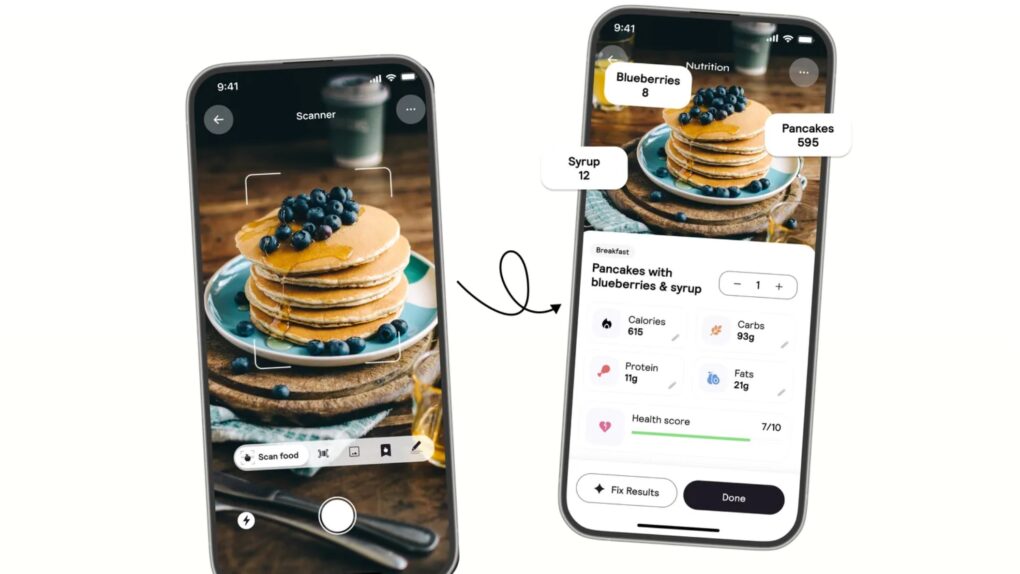
why App Store pulled Cal AI app
The popular Cal AI app violated a handful of App Store guidelines, according to Apple. It's still keeping a close eye, apparently.
Photo: Cal AI
Apple briefly removed the popular calorie-counting app Cal AI from the App Store last week. The episode offers a clear message to developers everywhere, according to a new report: The company is still very much in charge of how apps handle payments — even in the wake of a landmark court ruling that loosened some of its long-standing rules.

How to invite Android and Windows users to a FaceTime call

By

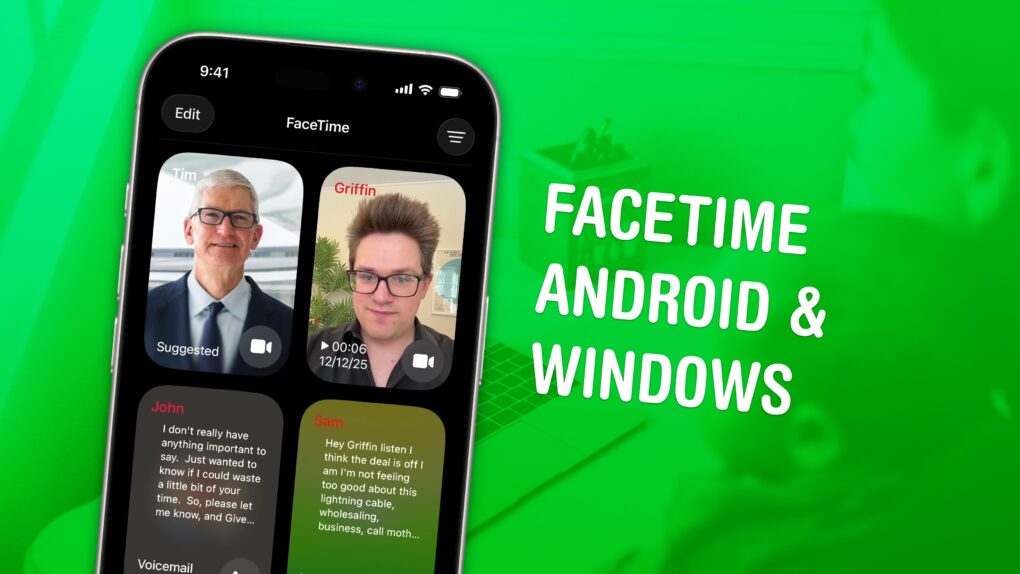
FaceTime Android and Windows graphic, showing the FaceTime app on iPhone and two people on a FaceTime call with their laptop
FaceTime everyone, not just your best iPhone friends.
Image: D. Griffin Jones/Cult of Mac

You can FaceTime with Android and Windows friends, too — you don’t need to leave them out of the loop. You need to jump through some extra hoops, naturally, but you can video chat with your whole family and friend group. 

While there’s no FaceTime app for Android or Windows, if you have an iPhone, you can initiate a group call by creating a link. Others can join the call from their web browser. It will be end-to-end encrypted, just like regular FaceTime calls, for maximum privacy. 

Here’s how it works. 

Save your iPhone by unlocking with an old passcode

By

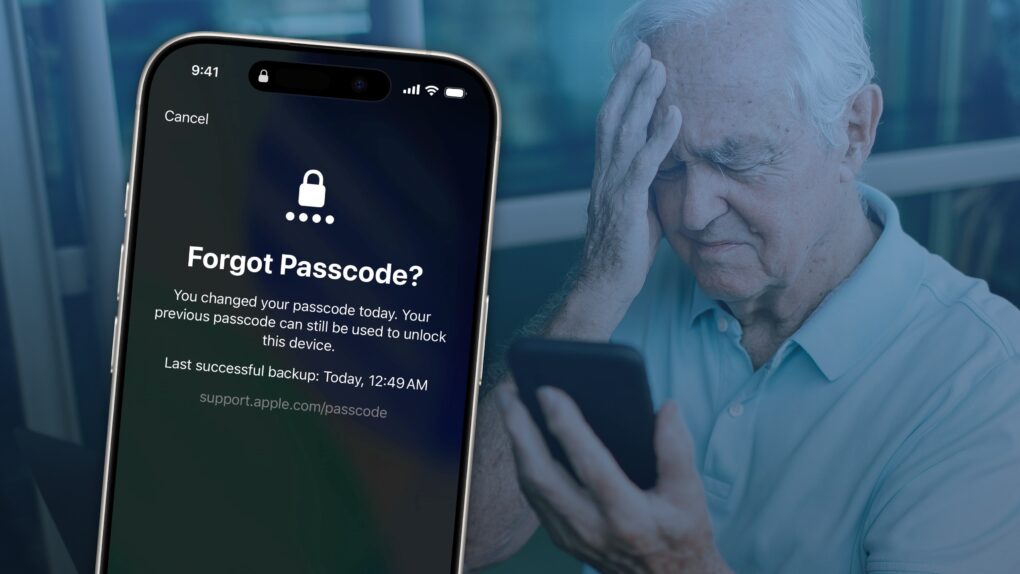
Forgot iPhone Passcode graphic, showing the Forgot Passcode screen and an image of a man looking at his phone confused
Apple offers an easy path forward if you forget your iPhone's new passcode.
Image: D. Griffin Jones/Cult of Mac

If you forgot your new iPhone passcode, you can reset it with your old one up to three days later. This can save you hours of trying to remember the new passcode, or worse, resetting your phone from a backup.

You just have to tap Forgot Passcode? on the Lock Screen after you enter it several incorrect times.

Keep reading for a detailed walkthrough. And don’t worry — if you change your passcode intentionally to keep someone out, you can instantly expire your old one.

Folding iPhone could include feature many assumed was off the table

By

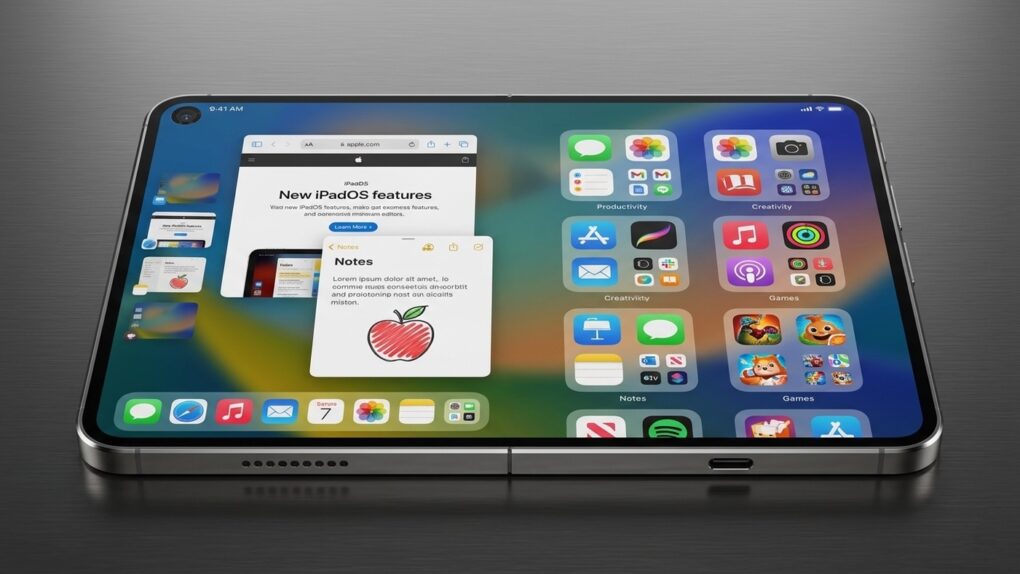
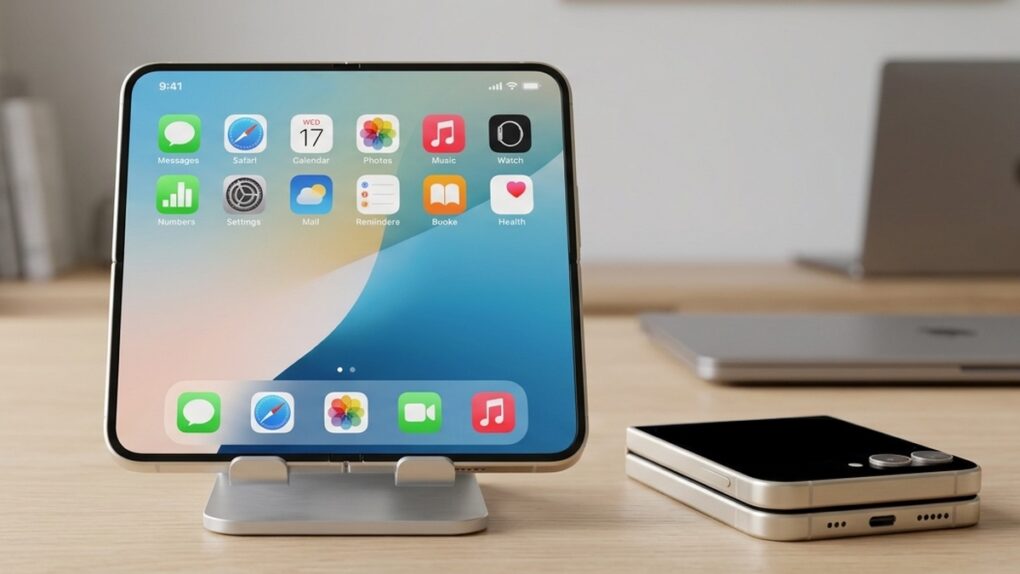
The folding iPhone Ultra could include a feature many though it would lack
The folding iPhone Ultra could include a feature many though it would lack.
AI image: Gemini/Cult of Mac

Potential folding iPhone buyers can breathe a sigh of relief. New images of cases for the device — supposedly dubbed the iPhone Ultra — show it including MagSafe. Previously, we saw no sign of this feature in leaks about the much-anticipated handset.

This could have been a deal-breaker for some buyers.

iOS 27 will finally fix a frustrating iPhone Home Screen problem

By

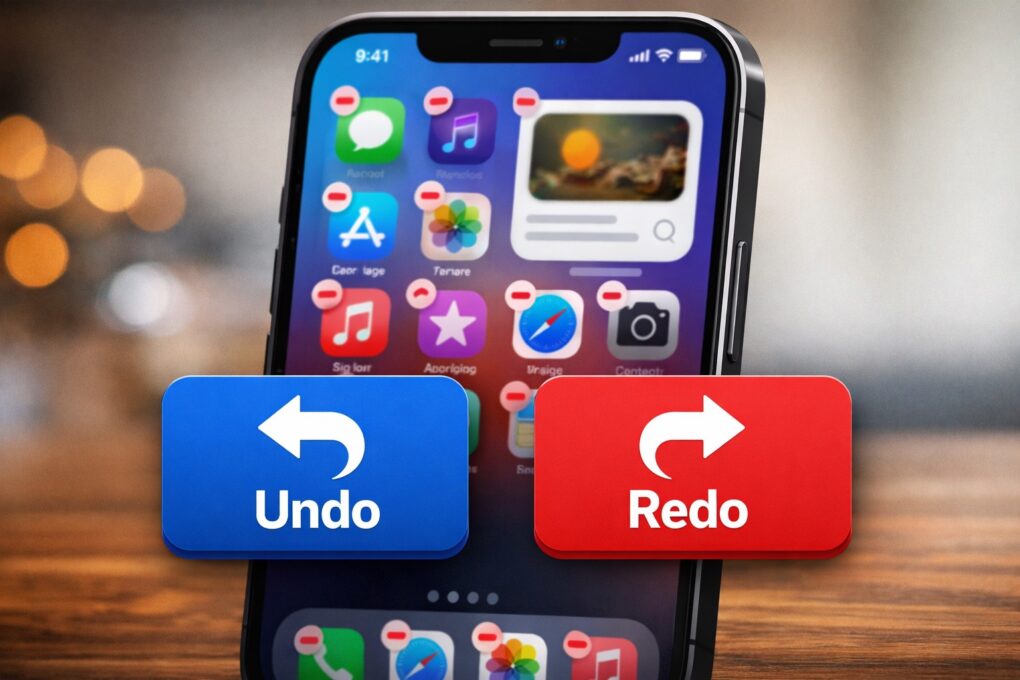
AI-generated image of an iPhone with an iOS Home Screen with undo/redo buttons
Undo and redo buttons could simplify iPhone Home Screen edits.
AI image: ChatGPT/Cult of Mac

Apple will bring a minor but important upgrade to the iPhone’s Home Screen customization experience in iOS 27. It will reportedly allow you to “undo” and “redo” changes to your Home Screen.

This small tweak should make rearranging apps and widgets far less frustrating, especially when you accidentally move or delete something.

Make your iPhone completely hacker-proof — with a huge downside

By

iPhone Lockdown mode: Apple’s most powerful iPhone security tool
You can be confident that Lockdown Mode will keep your iPhone safe from spyware.
AI image: ChatGPT/Cult of Mac

There’s a setting called Lockdown Mode you can activate on your iPhone that will make it virtually impossible to hack. Just by flipping a switch, you can make your iPhone incredibly secure. So secure, in fact, that Apple says no phone using Lockdown Mode has ever been hacked.

Sure sounds great. Surprise — here’s why you don’t want to use it.

How to use the iPhone’s Camera Control

By

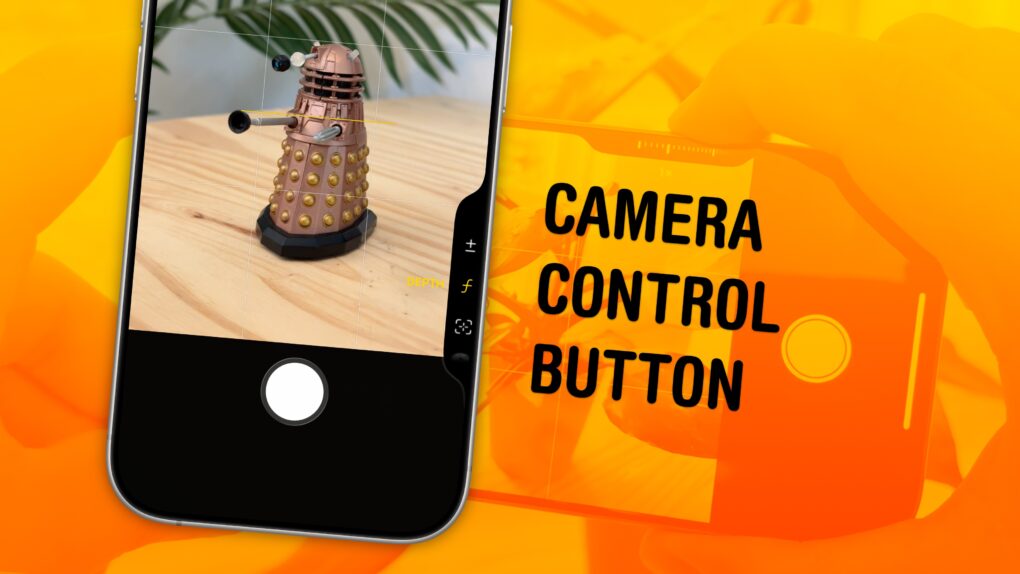
Camera Control Button graphic
The Camera Control packs in a lot of features, and they’re a little fiddly.
Image: D. Griffin Jones/Cult of Mac

The Camera Control button on the iPhone opens the Camera app, takes pictures and can even adjust camera settings on the fly. It offers a quick shortcut to using one of the most popular and important iPhone features.

By default, it’s a simple button to quickly take pictures, but there’s so much more you can do with it — if you choose. The physically clicking button also accepts touch input when you swipe your finger along it. And it utilizes pressure sensitivity and haptic feedback for you to adjust different camera settings. 

Learn how to master the iPhone’s Camera Control button in our guide below, or watch our quick video.

iPhone Game Mode explained: What it is (and how to turn it off)

By

iPhone Game Mode graphic, showing a screenshot of
Game Mode comes on automatically anytime you play a game. Sometimes you don't want that to happen!
Image: D. Griffin Jones/Cult of Mac

iPhone Game Mode enhances graphics and reduces controller latency automatically when you launch a game. This optimizes performance to make your iPhone gaming as fantastic as possible.

Game Mode also reduces the background activities and services running on your phone. Luckily, if you don’t want that to happen, you can turn off Game Mode from your iPhone’s Control Center.

Here’s everything you need to know about how Game Mode works.

iPhone users are more loyal to Apple than ever

By

iPhone loyalty hits a new high
Love your iPhone? You are not alone. Very few iPhone users have any interest in switching.
AI image: Gemini/Cult of Mac

Phone users are sticking with Apple at unprecedented levels, according to a new nationwide survey, underscoring the growing strength of the company’s ecosystem and the challenges facing rivals trying to win them over.

And while Android users’ loyalty to their smartphone maker is noticeably weaker, that doesn’t mean huge numbers are switching to Apple.

5 reasons Apple’s ecosystem is almost impossible to leave

By

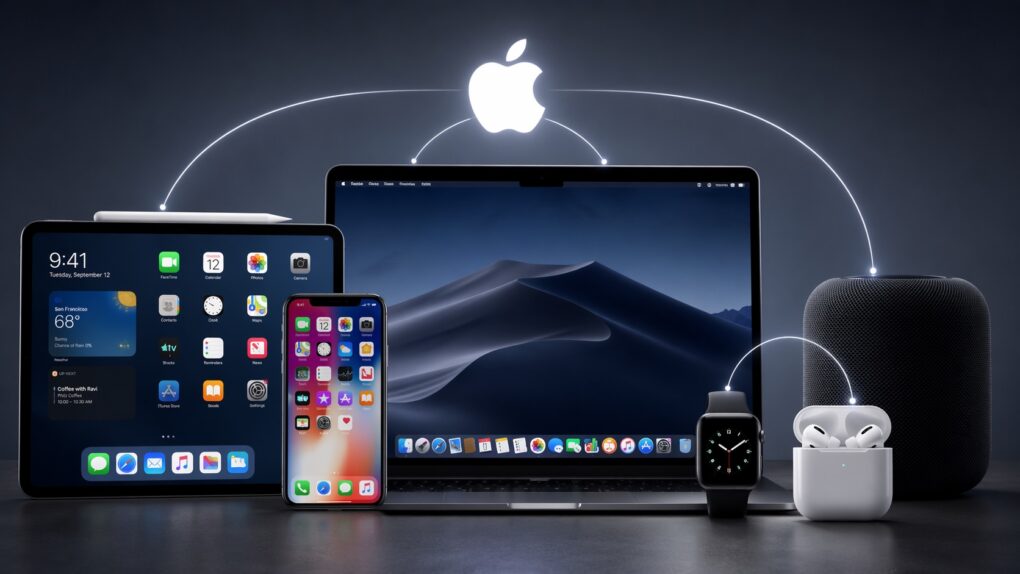
AI-generated image of MacBook, iPhone, iPad, Apple Watch and AirPods, with an Apple logo and lines connecting all the devices, used to illustrate a story about why Apple's ecosystem is difficult to leave.
Can you leave Apple's ecosystem?
AI image: ChatGPT/Cult of Mac

What makes the Apple ecosystem so alluring? Individually, the iPhone, iPad, Mac or Apple Watch might not be the best devices in their respective categories. Yet, when combined, they form one of the best ecosystems in the world.

It’s this Apple ecosystem — the so-called walled garden — that makes it almost impossible to ditch Apple devices. But what makes it so good?

Listen to gentle rain and ocean sounds while you work

By

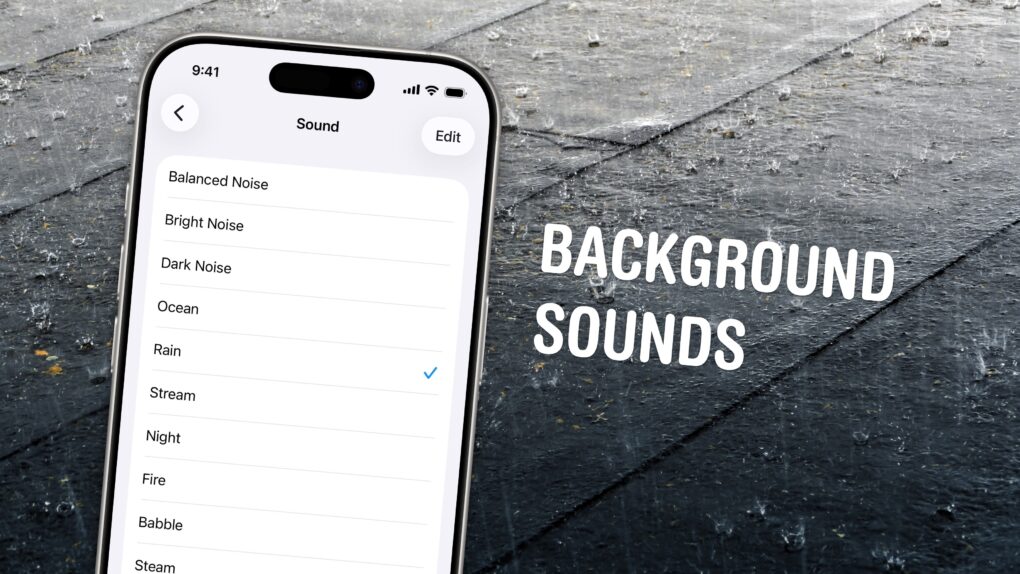
Background Sounds graphic, showing various sound options, with a photo of rain hitting a sidewalk
Chill out and silence the sounds of your environment with the sounds of rain, the ocean, a fireplace and more.
Photo: W.carter/Wikimedia Commons/D. Griffin Jones/Cult of Mac

If you’re working in an office or in the city, you’re probably inundated with noise from people chattering, cars running and nearby music. Your iPhone has a built-in feature called Background Sounds for playing rain noises or white noise to tune it all out.

Or, if you work at home and want some of that office or coffee shop ambiance, you can add some of those chatter sounds back in. You can even simulate a commute, with sounds of a bus, train, airplane or even boat.

You don’t need to download any apps or pay a cent. Background Sounds is a free feature on your iPhone, iPad and Mac. Let me show you how it works.

3 ways to give your old iPhone a performance boost

By

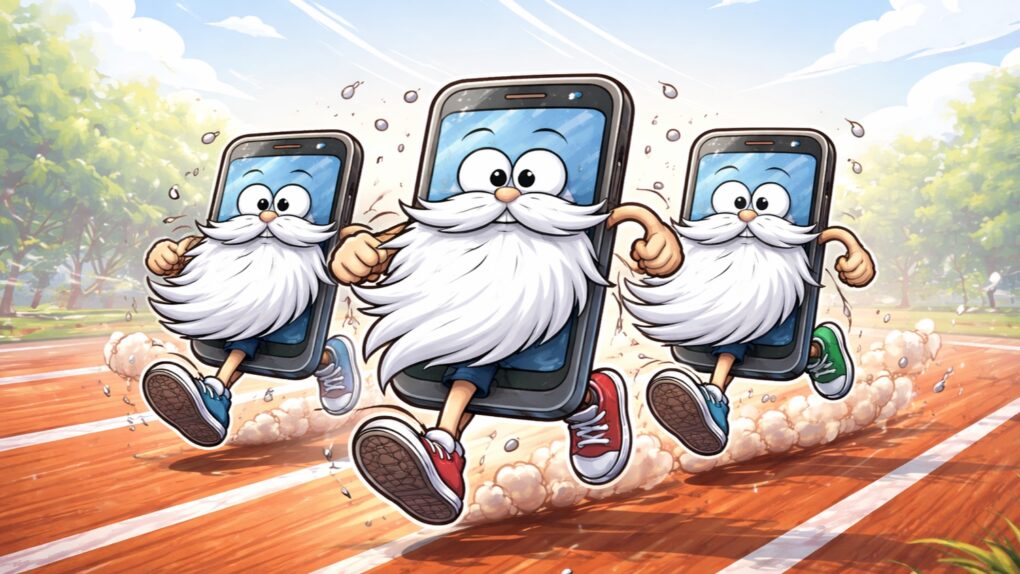
Cartoon image of three iPhones with white beards and tennis shoes running down a track, used to illustrate a story on how to speed up again iPhones.
Simple steps can give your older iPhone better performance.
AI image: ChatGPT/Cult of Mac

Stop me if this sounds familiar: Your old iPhone just doesn’t have the same pep it used to and you’re desperate to speed it up. Ignore the nasty iPhone conspiracy theory — the real reason for the slowdown is rooted in battery chemistry, diminishing amounts of available memory, and the evolving demands of modern iOS apps.

Fortunately, you can take steps to improve the speed of your older iPhone. Here’s what to do.

Apple-Amazon deal keeps iPhone and Apple Watch satellite features alive

By

Apple-Amazon deal keeps satellite features going
As Amazon acquires Globalstar, the Amazon Leo network will meet Apple's satellite needs.
Photo: Amazon

Apple secured a new agreement with Amazon ensuring the satellite features millions of iPhone and Apple Watch users depend on — including Emergency SOS — continue to work, even as the company that currently powers them is set to be acquired, the companies said Tuesday.

“This ensures our users will continue to have access to the vital satellite features they have come to rely on, including Emergency SOS, Messages, Find My, and Roadside Assistance via satellite, so they can stay safe and connected while off the grid,” said Greg Joswiak, Apple’s senior vice president of worldwide product marketing, in an Amazon press release Tuesday.

Swap your iPhone’s standard Lock Screen buttons for something more useful

By

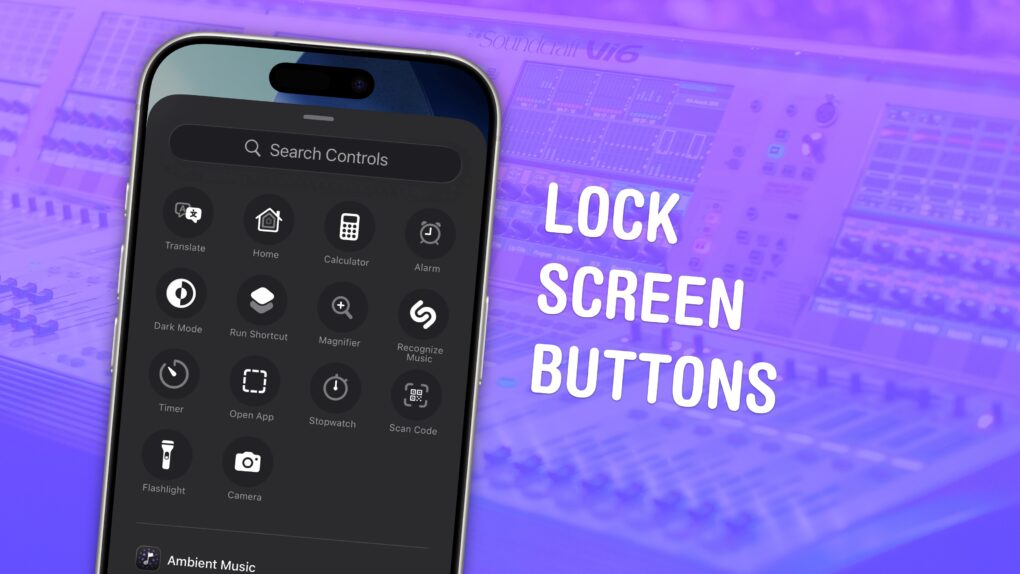
iPhone Lock Screen Buttons graphic, showing button options with a photo of a big sound switchboard
Switch the buttons for whatever you want.
Image: D. Griffin Jones/Cult of Mac

You can change out your iPhone Lock Screen buttons from the standard flashlight and camera icons to whatever you want. There’s a huge selection of buttons you can swap in their place. Just about any button you can put in Control Center is a button you can put on your iPhone’s Lock Screen.

Plus, you can assign different shortcut buttons on different Lock Screens, making them context-dependent (and tied to a Focus Mode if you like). Apple offers a standard selection, but your options will vary depending on what apps you’ve installed.

Here’s how to swap out the iPhone Lock Screen buttons to put whatever you want at your beck and call.

More carmakers race to adopt iPhone car keys [Updated: Lexus is in!]

By

automakers adopt iPhone car keys
Apple wants to make your iPhone into your car key, if it can keep getting automakers to cooperate.
Photo: Apple/Cult of Mac

Update: And just like that, now Lexus enters the fray. Reports indicate the Toyota-owned luxury brand will add support for iPhone car keys in the coming months, according to references found in Apple’s backend code. It joins many others.

From a single BMW model in 2020 to dozens of brands today, Apple Wallet’s digital car key keeps gaining momentum. Could it soon become as standard as a seat belt? It looks to be headed that way, at least — and for good reason. 

Apple’s folding iPhone might ditch expected branding

By

AI-generated image of a folding iPhone concept. The rumored device might be called the
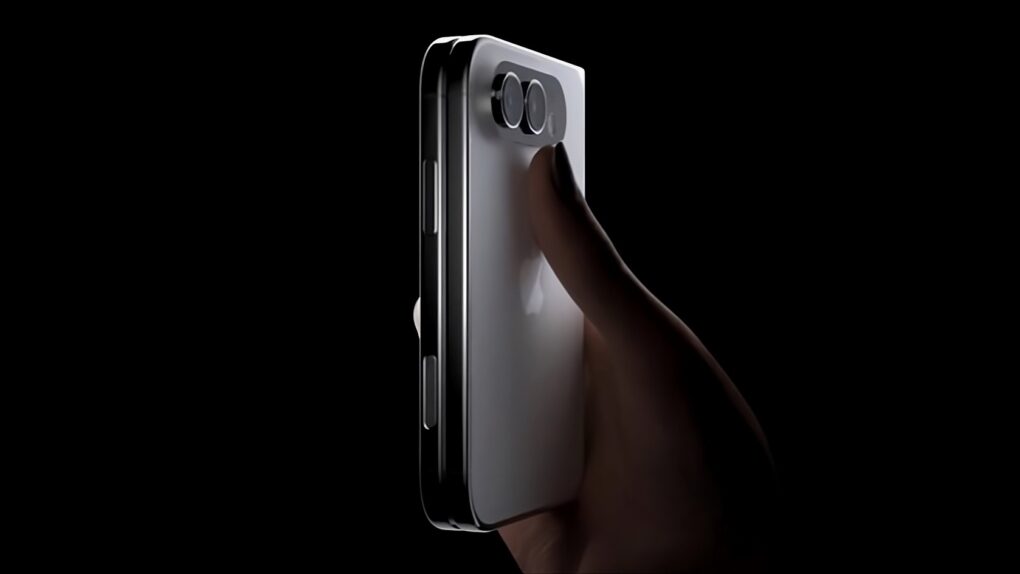
Not the iPhone Fold at all. You could be looking at the iPhone Ultra.
AI image: ChatGPT/Cult of Mac

Surprise! Apple might not release an iPhone Fold this fall.

Wait, it’s a joke. Sort of. It’s still virtually certain that Apple will introduce a folding handset in a few months. However, it reportedly won’t be named what everyone expects. A reliable source says the real name is (drum roll) … iPhone Ultra.

Apple’s folding iPhone redesign looks stunning in new images

By

Latest folding iPhone images look amazing.
The next iPhone might really nail the design of a foldable.
Image: Majin Bu

A new set of leaked images purporting to show Apple’s long-rumored folding iPhone surfaced online Sunday, offering what a tipster claims is a closer look at the device’s final design.

The camera hump has supposedly shrunk considerably. Take a look:

How to use Focus modes to wrangle all your notifications

By

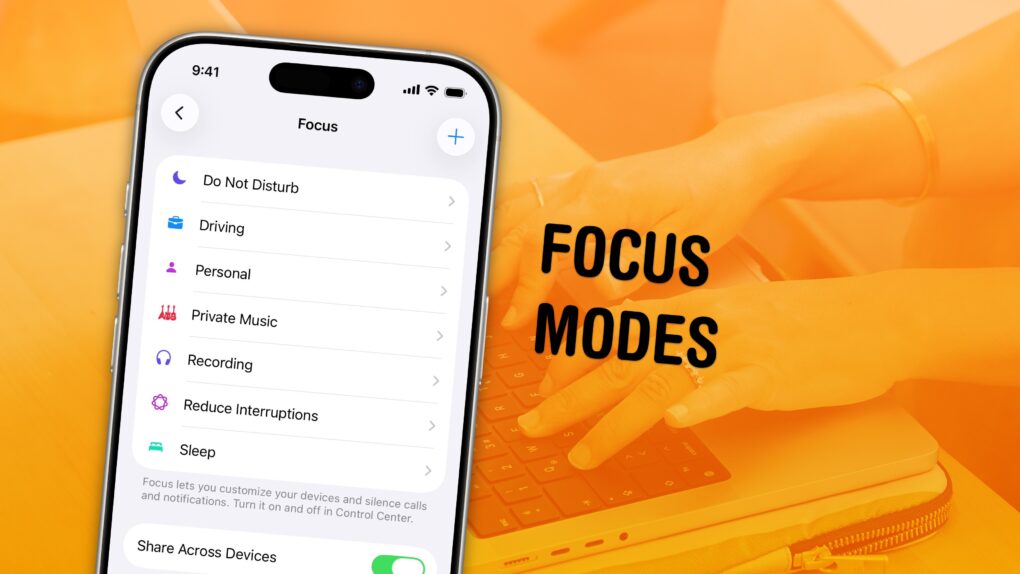
Graphic showing Focus Mode settings, with a photo of a woman working on a MacBook, captioned, “Focus Modes”
Keep your distractions at bay with Focus modes — easier to set up than ever now.
Image: D. Griffin Jones/Cult of Mac

Apple’s Focus modes are a powerful way to change how your iPhone, iPad and Mac look and feel whether you’re driving, sleeping, relaxing or working. It’s all about fully immersing yourself in whatever you’re doing.

You can change all kinds of things: from who can reach you and which apps send notifications to custom Lock Screens, Home Screens and more. The tools can totally transform how your phone looks and works based on context. You don’t need all the same apps and widgets on your Home Screen while you’re at work or yoga as you do at home. 

Setting up a Focus with rich customization makes your phone more personal. Keep reading to find out how.

Apple iPhone USB security: What that ‘Allow Accessory’ alert really means

By

what iPhone 'allow accessory' alert really means
"Juice jacking" may not be much of a threat, but it's easy to avoid just in case.
Photo: Kaboompics, Pexels.com

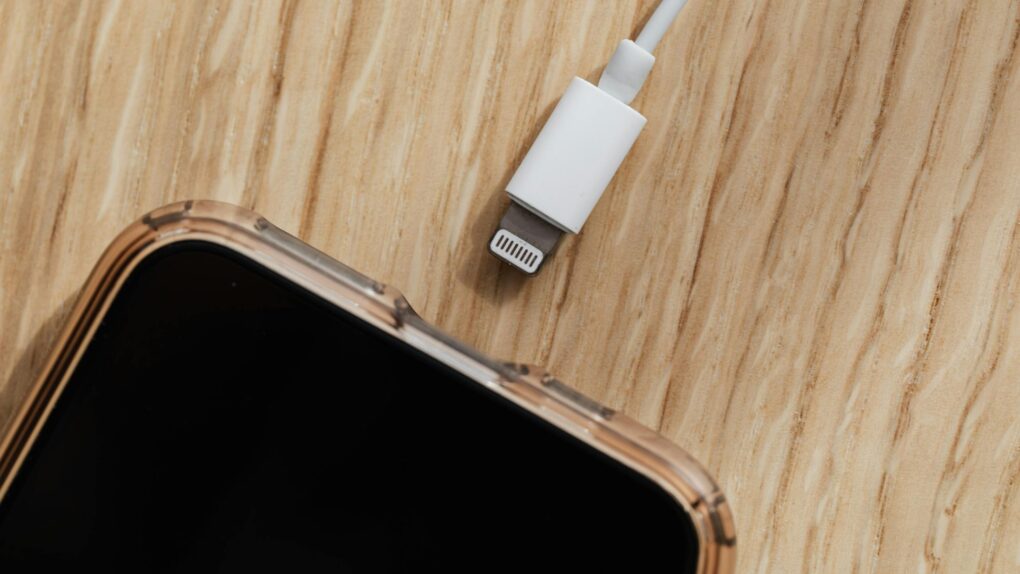
You’re at the airport, phone battery at 8%, and a USB charging port is right there. You plug in — and your iPhone flashes an alert asking whether to allow an accessory to connect. Should you panic? Are you at risk of “juice jacking?” Probably not. But you should know what that allow-accessory message means, and how to make sure you’re charging safely.

Update your iPhone today to avoid a nasty online hack

By

DarkSword targets iPhones with outdated iOS versions
DarkSword looms over iPhones that haven't been updated.
AI image: ChatGPT/Cult of Mac

Your iPhone is at serious risk of getting hacked if you haven’t updated it recently. Apple and security researchers warn that a sophisticated hacking tool known as DarkSword can compromise iPhones through malicious websites.

The fix is easy and available for every iOS device since 2015. Plus, it doesn’t require you to install iOS 26 or put Liquid Glass on your handset.

Go do it now!

Get organized with advanced features in Notes and Reminders

By

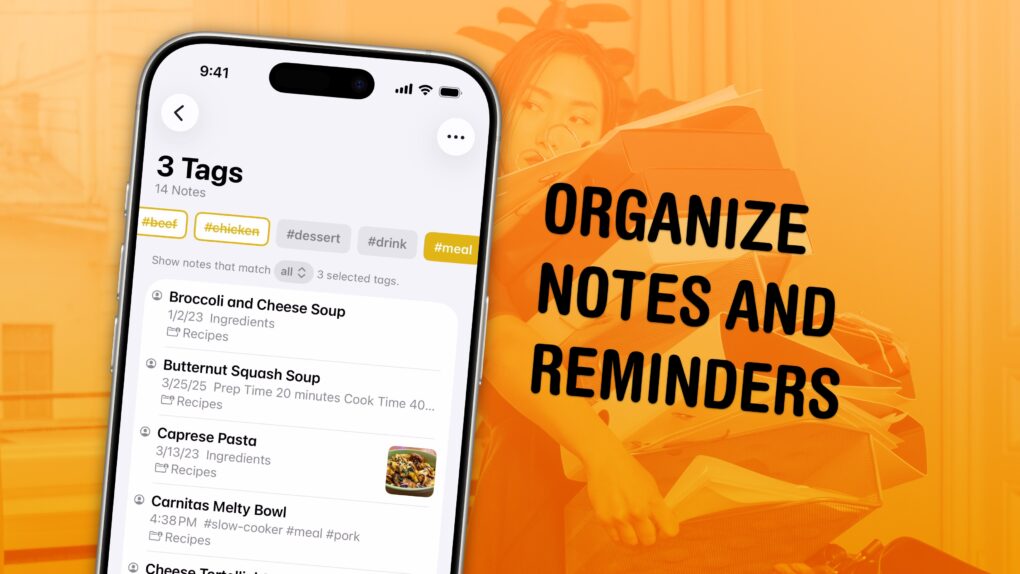
Organize Your Notes and Reminders graphic
Sort out your digital library of tasks and notes.
Image: D. Griffin Jones/Cult of Mac

I have a bunch of pro tips to help you organize the Notes and Reminders piling up in your iPhone. Apple has added tons of powerful new features over time, making them comprehensive tools for all the goings-on in your life. 

With tagging, you can quickly filter and search through a big folder of notes or a long to-do list. You can easily put together a bunch of filters by date, location and tag to create a smart list of everything that needs your attention in Reminders. You can even set up template Reminders lists that you can copy at any time.

Let me show you how to set it all up.

Make an Apple Music playlist automatically with Playlist Playground

By

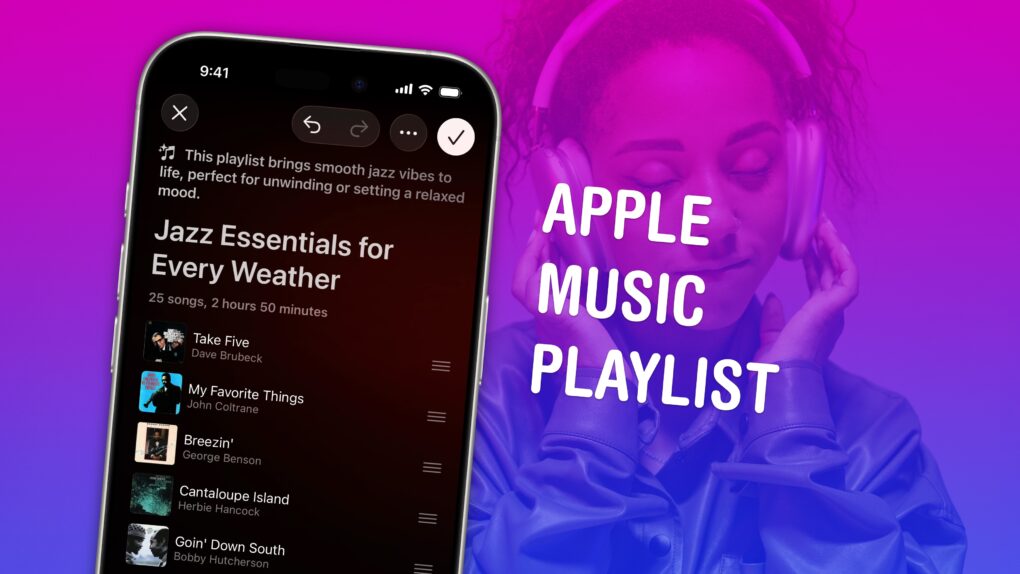
Screenshot of Playlist Playground in Apple Music, with a photo of a woman wearing AirPods Max, captioned “Apple Music Playlist”
Build a soundtrack for specific moods.
Image: D. Griffin Jones/Cult of Mac

Making a playlist in Apple Music is a great way to set the mood for a party, road trip or your own private time. You can create playlists for working, working out, studying, driving, doing dishes, etc. Your friends can contribute to your playlist, too. And you can share your masterpiece on your Apple Music profile.

In iOS 26.4, Apple added Playlist Playground, a new feature that lets you quickly create custom playlists via Apple Intelligence. On supported devices, you can type in any odd request — and your iPhone will do the rest. The results aren’t quite DJ quality, but they’re a good starting point if you want something specific or unique. 

Here’s how to make a playlist by hand — and how to use the new Playlist Playground feature. 

The most important Apple announcement every year, from 1976 to 2026

By

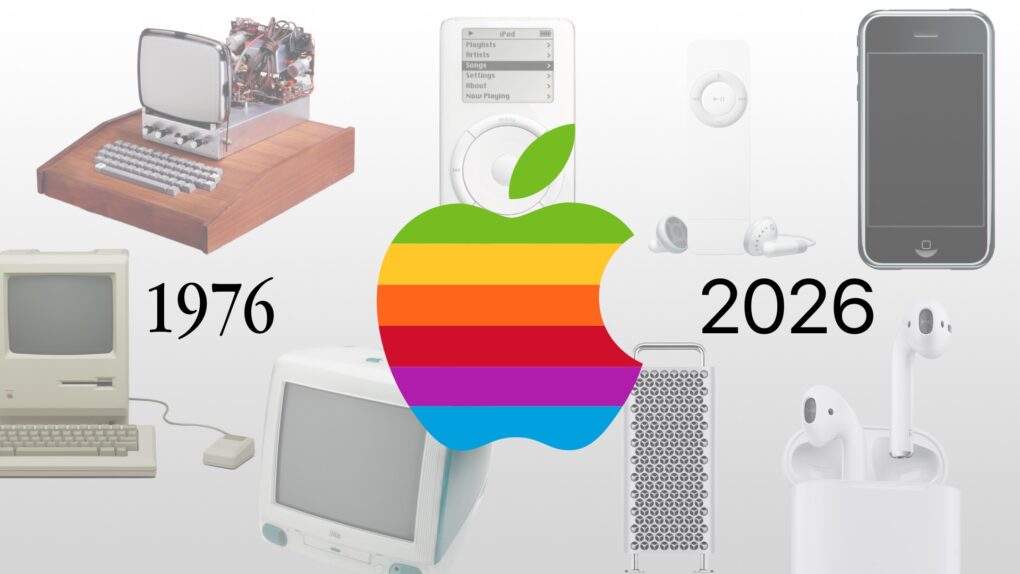
Graphic showing Apple products from 1976 to 2026
It’s a big birthday for the fruit company.
Image: Apple/D. Griffin Jones/Cult of Mac

Apple 50 Years graphicAs Apple turns 50, it’s worth looking back on the company’s greatest accomplishments and lowest moments through history. If you don’t have time for David Pogue’s 600-page epic, Apple: The First 50 Years, maybe you can spare eight minutes to relive the single biggest piece of Apple news every year. 

You can watch 50 years of Apple announcements compressed into a single video. Or, keep reading below for a quick rundown.

50 years of the most important Apple products

By

AI-generated image of the colorful Apple logo, with streaks of colored light running through it.
Some of the most important products from Apple's first 50 years might surprise you.
Image: Midjourney/Cult of Mac

Apple 50 Years graphic Apple produced an amazing string of hit products over its 50 years, but to paraphrase Napoleon the pig: Some are more important than others.

Here are the most important products in Apple’s 50-year history. And no, this list is likely not what you were expecting. They’re not necessarily the biggest or the most well-known.

Today in Apple history: iPhone 4 owners get Antennagate payout

By

Steve Jobs stands onstage with the word
No, you weren't holding your iPhone wrong.
Photo: Apple

March 29: Today in Apple history: iPhone 4 owners get Antennagate payout March 29, 2012: A settlement ends the “Antennagate” controversy, as Apple gives affected iPhone 4 owners the chance to claim a whopping $15 payout. The settlement covers customers whose phones dropped calls due to its cutting-edge design, but were unable to return their handsets (or didn’t want a free bumper case from Apple to mitigate against the problem).

While it’s arguable whether a $15 payout was worth filing all the paperwork necessary to claim the cash, the Antennagate story — and the resulting class-action lawsuit — generated big headlines at the time.