Up next in 10



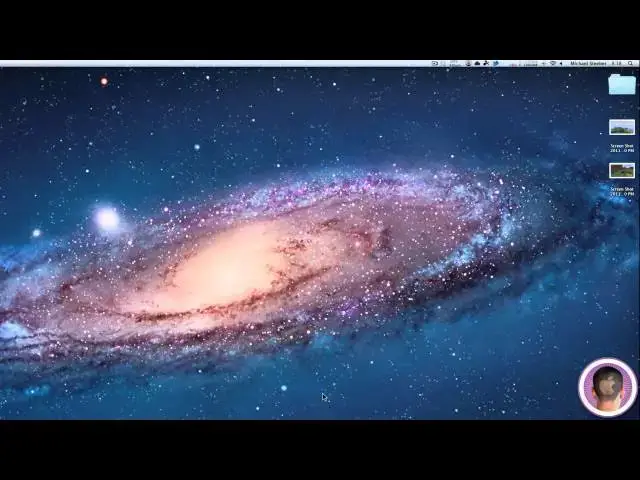
Some handy tips to make your desktop more minimalistic.
Show More Show Less View Video Transcript
0:10
hey everyone today I'm going to show you
0:11
how you can clean up your desktop and
0:12
keep it organized and get all the clor
0:15
out away and just have a very nice and
0:17
clean desktop so there's a couple things
0:19
that you can do first of all I do
0:21
already have a very minimalistic desktop
0:23
as it is uh but there's some things you
0:25
can do to make it even better especially
0:27
if you normally keep a lot of files on
0:28
your desktop and have it cluttered up so
0:32
first of all one of my favorite things
0:34
to do is to hide my Dock and I know it
0:37
might seem obvious but uh you'd be
0:39
surprised by how much uh desktop space
0:43
you regain by just hiding your Dock and
0:46
you can achieve that by just right
0:47
clicking on the separator and turn
0:49
hiding on or off and that really saves a
0:53
lot of space in your desktop and you'll
0:54
find after maybe a couple days of use
0:56
that you don't really need the dock
0:57
always there at the bottom another thing
0:59
you can do if your menu bar is looking
1:01
cluttered you can actually get rid of
1:03
icons in it so say for example I have
1:06
time machine here and I don't really
1:07
have a time machine disconnected right
1:09
now so if I hold down the command key on
1:11
my keyboard and I just click and drag
1:14
time machine icon right
1:16
off and it'll disappear in a puff of
1:18
smoke and it's gone you can't do this
1:20
with everything that's in your menu bar
1:22
uh but a good amount of it you can for
1:24
example a lot of third party
1:25
applications won't let you drag their
1:27
icon off the menu bar uh but it does
1:29
work work for a lot of the default items
1:32
you might see in your menu bar another
1:34
cool tip is to change some of your view
1:36
options so let's say you have a lot of
1:38
files in your desktop which isn't a good
1:39
thing to do in the first place you
1:41
should really clean up your files in
1:42
your desktop uh but if say you do have
1:45
some files in your desktop if you just
1:47
right click and then select Show view
1:50
options you're going to get this little
1:52
viewer and by default in OS 10 the icon
1:56
size is rather large which I mean it
1:58
looks nice but it gets cluttered very
2:01
fast so if you actually just turn down
2:04
the icon size to I don't know a smaller
2:07
size 56x 56 you can save a lot of
2:10
desktop space and everything ends up
2:12
looking more minimalistic you can also
2:14
turn down the grid spacing and that
2:16
makes everything a little bit you know
2:17
squish together a little bit more and
2:19
you can fit a lot more in a smaller
2:21
space on your desktop making everything
2:23
just look nicer and also just another
2:25
handy tip that you might not have known
2:27
if you do right click and then go under
2:30
clean up by there's a lot of different
2:31
things you can clean up your icons by so
2:33
if you have a lot of messy files all
2:35
over your desktop uh you can you know
2:37
clean them up by the size or whatever
2:40
and it organizes them based on that now
2:42
the next thing I'm going to show you is
2:44
probably the best tip and it's a very
2:46
handy thing if you're like me uh what
2:49
I've done in the past is I've had a
2:50
singular folder on my desktop you can
2:53
just see it's name Dash something that's
2:55
very unobtrusive and in there I just put
2:57
all the folders I would normally put on
2:59
my desktop on the files and everything
3:00
that I'm currently working with and it
3:02
helps speed up your machine because you
3:04
don't have all the icons in your desktop
3:06
that I have to render every time you
3:07
start up but if you want to get rid of
3:09
this folder Al together and keep it
3:11
invisible on your desktop what you can
3:13
do is first of all create a new folder
3:16
and you're going to name this folder
3:17
nothing so just hit backspace and then
3:19
hit space a couple times and the folder
3:21
will be named nothing so you can see it
3:24
has no title now I'm going to show you
3:25
how you can make the folder icon
3:27
invisible so it won't be there messing
3:28
up your desktop so if you go to Google
3:31
and you search something like
3:31
transparent PNG uh in Google Images
3:35
it'll be fairly easy to find a
3:37
transparent image like this one right
3:39
here so I can just drag this transparent
3:41
image to my desktop and you can see here
3:43
it's completely transparent and when I
3:45
open it with something like preview you
3:47
can see there is nothing there so with
3:49
this transparent PNG you're just going
3:50
to want to open it up in preview and you
3:53
can see there's nothing here it's
3:54
completely transparent and from here
3:56
you're going to want to just on your
3:57
keyboard hit command a this will select
3:59
image in this case it just looks like a
4:01
border cuz there's really nothing there
4:04
and now you're going to want to hit
4:06
command C this just copies it and then
4:09
you can get rid of preview now select
4:10
your folder here that you're going to
4:11
want to make invisible and then right
4:14
click on that and hit get info and if
4:16
you go up here and you select the folder
4:18
the folder icon right here uh you'll see
4:21
that it gives this this little blue
4:23
outline tells you it's selected all you
4:25
have to do is hit command V and it'll
4:28
paste the transparent image there there
4:30
uh therefore changing the folder's icon
4:33
and essentially making the folder
4:34
invisible on your desktop so you can see
4:36
I can't see it at all so now with this
4:38
invisible folder on your desktop you can
4:40
see I can still open it up and the only
4:42
way to move it around or anything is to
4:44
actually drag it by its invisible file
4:46
name and you can place any files that
4:49
you want inside of it and they all stay
4:51
stay there invisible now your best
4:54
course of action is to just kind of move
4:56
this somewhere where you know where
4:57
it'll be like the corner of my desk
4:59
desktop for example so that when you
5:01
want to access it you can just select it
5:03
and open it up and then you'll have
5:05
access to all the files you've put in it
5:07
now if by chance you lose this
5:08
folder what you can just do is hit
5:10
command a when you're on your desktop
5:12
and everything will get selected and you
5:14
be able to see exactly where it is uh
5:16
but it's kind of neat that you can have
5:18
all your files just kind of buried uh on
5:21
your desktop without anybody seeing them
5:23
being there and makes your desktop look
5:25
very minimalistic and when I have the
5:27
window open you can see there is no
5:28
title to the window and no icon there
5:31
you can see the the folder is pretty
5:33
much just gone but all your files are
5:35
still there and they're not like hidden
5:37
files they're just normal files in a
5:40
invisible folder so those are some tips
5:43
on how you can clean up your desktop and
5:45
make it more organized and more
5:47
minimalistic if you have anything you
5:49
like to see me do a how to on make sure
5:51
to send me an email I hope you found
5:53
this video useful and thanks for
5:55
watching
#Desktop Computers
#Home Improvement
#Home Storage & Shelving
#Skins, Themes & Wallpapers