Up next in 10



How To Downgrade To Snow Leopard, if you need to.
Show More Show Less View Video Transcript
0:10
hey everyone today I'm going to show you
0:11
the best way to downgrade from Lion to
0:14
snow loard now while Mac OS 10 line is a
0:17
great operating system some people may
0:19
not like some of the new features or
0:21
perhaps there's programs that you use on
0:23
a regular bases that aren't yet
0:25
supported by a lion and in this case it
0:28
might make sense for you to downg
0:30
back to snow leopard so I'm going to
0:32
show you how to do that today so the
0:34
first and best way to downgrade to snow
0:37
leopard is if you have a time machine or
0:39
any type of backup of your entire system
0:42
and it's very easy to downgrade if you
0:44
have this and the backup does have to be
0:46
of when you are on Snow Leopard so to do
0:49
this you're going to restart your
0:51
computer and when you hear the Apple
0:52
chime you're going to hold down the
0:54
option key and this is going to put you
0:56
into the recovery disc that's built into
0:59
Mac OS
1:01
[Music]
1:03
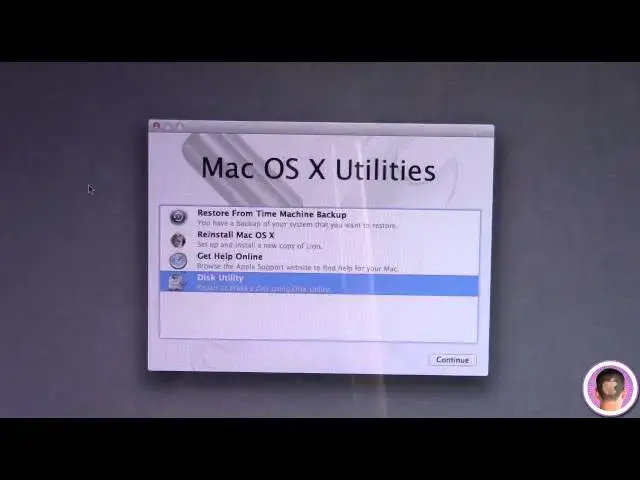
10 from here you're going to see a list
1:05
of your discs and you're going to want
1:07
to select recovery HD and hit enter from
1:12
here you can see that the first option
1:14
is restored from a time machine backup
1:16
and assuming that you have your backup
1:18
connected to your computer from here you
1:21
can just select that option and it'll
1:23
guide you right through to reinstalling
1:25
from a time machine backup now if you
1:28
have a backup from another disc if you
1:30
used a different application to backup
1:32
assuming it has your entire hard drive
1:35
cloned you can select dis utility and
1:38
then hit the continue button to go into
1:41
dis utility and work from there then
1:43
from the sidebar and dis utility you're
1:45
going to want to select your hard drive
1:47
in this case Macintosh HD then you'll
1:49
see these tabs here and you're going to
1:51
want to click on restore and from here
1:53
it gives you the option to select a
1:55
source image to restore your disc with
1:59
so you drag in any disc that you have on
2:01
the sidebar right here into this little
2:04
destination field this is just an
2:05
example this wouldn't actually work and
2:07
then from there you'd click the restore
2:09
button so what you do is you take your
2:12
backup disc and drag it into that field
2:15
to restore from there if you don't have
2:17
a snow leopard backup of your disc
2:19
you're going to need a retail copy of
2:21
Mac OS 10 snow leopard to restore your
2:24
disc with now these do cost $30 but you
2:27
can still buy them so at this point
2:29
you're going you want to pop in your
2:30
snow leopard disc and restart your
2:32
computer while holding down the c
2:38
key now what this is going to do is it's
2:41
going to force your computer to boot up
2:43
from the snow uper installation DVD and
2:46
you're going to see this normal looking
2:48
startup uh sequence here but what's
2:51
going to happen is it's going to boot
2:52
into the snow lard install from here so
2:55
from here you're going to have to select
2:56
use English as the main language then
2:59
from there you're going to have to go to
3:00
the utilities menu and click on Disk
3:04
Utility then from there on the sidebar
3:06
you're going to click on your hard drive
3:08
and this time not Macintosh HD uh but in
3:11
this case the 250 GB internal hard drive
3:14
you don't want to click on Macintosh HD
3:17
and then over here you're going to click
3:18
on the erase Tab and then you're going
3:20
to have to select Mac OS extended
3:23
journal from the dropdown and then you
3:25
can name it if you want I'm just going
3:27
to leave it as Untitled then click erase
3:30
so before you do this you're going to
3:31
want to make sure that you have your
3:31
disc backed up word of warning though is
3:34
if you do this and install snob then
3:37
restore from a time machine backup that
3:39
you did before you did this you'll be
3:41
restoring to Lion again so it's best to
3:43
just back up the files that you're going
3:45
to need so then I'm going to click
3:48
erase and once this is finished
3:50
formatting you can go and you can quit
3:52
dis utility and then from here install
3:55
Mac OS 10 just like you normally would
3:58
so you can see here my disc is entitled
4:00
and here it is and I'm just going to
4:03
click install so here you go it's going
4:05
to take about 30 minutes and then Mac OS
4:07
10 snow leopard will be restored and it
4:09
should be just like before you upgrade
4:11
it to Lion assuming you copy over the
4:13
files you backed up afterwards so that's
4:15
how you can downgrade Mac OS 10 Li to
4:17
Mac OS 10 snow Looper and like always if
4:20
you have any things that you'd like to
4:22
see me do a howto
4:24
on make sure to send me an email and
4:26
I'll see what I can do I hope you found
4:28
this video useful and thank you thank
4:29
you for watching
#Software
#Operating Systems