Up next in 10



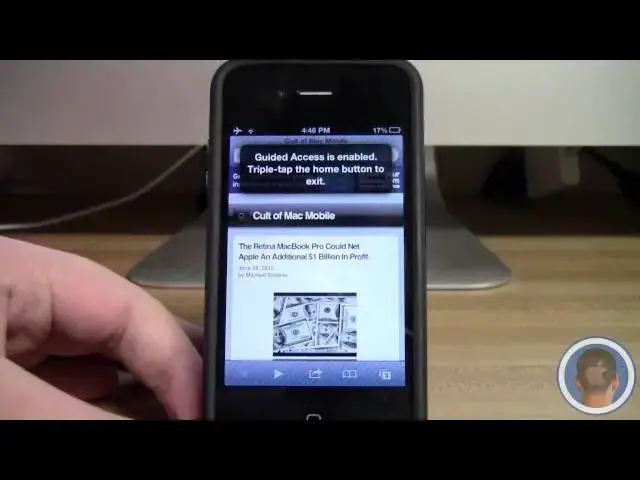
A look at the new guided access features in iOS 6.
Follow me on Twitter: http://www.twitter.com/MichaelSteeber
Follow Cult Of Mac on twitter: http://www.twitter.com/cultofmac
Show More Show Less View Video Transcript
0:04
hey everyone this is Michael with Cult
0:06
of mac and today I'm going to show you
0:07
how in iOS 6 you'll be able to use the
0:10
guided access features so basically uh
0:14
iOS 6 brought to the table a new feature
0:17
that I think is highly underrated uh and
0:19
it's called guided access it's an
0:21
accessibility feature so if you hop into
0:23
settings and go to General you'll want
0:25
to head down to accessibility and then
0:27
scroll down here to guided access um now
0:30
it's called an accessibility feature but
0:32
I think it's much more than that uh it's
0:35
designed for people with disabilities or
0:38
for young children uh but it can also be
0:40
used for a wide variety of other
0:42
applications as well including schools
0:45
and uh even just to limit access to
0:49
physical buttons it's really neat and
0:50
I'll show you some of the features so
0:52
once you turn it on here you can set a
0:54
passcode and for this demo I just have
0:57
it set as
0:58
1111 uh so this prevents you know
1:00
anybody from just going in and changing
1:03
things around and then you can also
1:05
enable or disable screen sleep which is
1:07
kind of neat so you can make it so that
1:09
the device cannot sleep uh so that's
1:12
pretty neat as well so now pretty much
1:14
what you want to do is go to any
1:16
application you want to restrict uh this
1:18
case we'll go to Safari so let's say I'm
1:20
a teacher and I want to use a web page
1:23
in Safari to administer a test uh but I
1:26
don't want the students to be able to
1:28
you know go to another page or do
1:30
whatever and you know Google search all
1:33
different stuff so what I can do here is
1:35
I can just triple click the home button
1:38
and then select guided access I'm going
1:39
to be brought to this menu here which
1:41
lets me disallow
1:43
and you know restrict different parts of
1:46
the screen so let's say that I don't
1:47
want the students to be able to access
1:49
this tab bar on here I can just kind of
1:51
put a circle around it and it guesses
1:54
where I want to restrict and then I can
1:56
refine this area just like that and
1:59
let's see I don't want them to be able
2:00
to use the URL bar either uh you know to
2:03
cheat Google search or something so I
2:05
can Circle that as well and you know it
2:07
works pretty well for how bad I'm doing
2:10
this so now I have those two different
2:12
areas restricted and then I can search
2:14
for I can look at the options here
2:16
rather I can turn off motion let's say
2:18
so that they can't R rotate it into uh
2:21
landscape mode and then you know regain
2:24
access to those areas so I have that off
2:27
and then I can hit start so pretty much
2:30
here now I cannot lock the device by
2:33
myself it says guided access enabled
2:35
triple tap the home button if I try to
2:37
go home it won't let me so if I want to
2:39
go home I'll have to triple tap the home
2:42
button enter the passcode and then it'll
2:45
bring me back to the guided access menu
2:47
where I can end or resume so now that
2:49
I've resumed you can see here I can
2:51
scroll around uh but there's two grade
2:54
out areas now one at the top here and
2:57
one at the bottom and you can see
2:58
there's a little lines to so basically
2:59
if I try to tap in here to go to a URL
3:01
bar or down here to change a page it
3:04
won't let me and that's pretty nice so
3:06
it's a lot of restrictive features like
3:08
that uh that make this application very
3:11
useful so now there's you know other
3:13
things you could do with this too so
3:15
let's just turn this
3:17
off um let's say that you have a small
3:21
child and you want them to be able to
3:24
use your iPhone but you don't want them
3:25
you know going to the App Store and
3:27
searching apps or whatever uh let say
3:30
you just want them to play a game that
3:32
they really like uh for example here
3:35
maybe they like to play Tiny Wings so
3:37
you can go into this app and by
3:40
restricting guided access you can go
3:43
into here and you can make sure that
3:45
they won't be able to you know leave the
3:48
app and you don't have to select any
3:50
areas on the screen uh just by starting
3:52
this now they won't be able to leave the
3:54
app so if they want to go do something
3:56
else they won't be able to until you put
3:58
in the passcode to let them so that's
4:00
pretty neat so now this is also pretty
4:02
good for gaming in my opinion just uh
4:05
for yourself so let's say you're playing
4:07
Temple Run here and uh you do a lot of
4:10
swiping in this game and normally if
4:13
you're swiping around it's very easy to
4:15
accidentally trigger that notification
4:17
center little banner up there and
4:19
sometimes if you're really playing it uh
4:21
you'll accidentally trigger Notification
4:23
Center or maybe you hit the home button
4:24
by accident uh anything like that it's
4:27
really annoying so just by enabling
4:29
guided
4:31
access you hit start now you can't
4:34
access notification center you can't
4:35
accidentally hit the home button uh it's
4:37
really good for gaming if you're really
4:39
into the game and you want a couple more
4:42
controls over you know what you can and
4:43
cannot do now as far as accessibility
4:46
feature goes this is really handy for
4:47
people with disabilities too uh because
4:49
you can enable things such as restricted
4:51
parts of the screen you know limiting
4:53
certain parts of you know the physical
4:55
features physical buttons rather and you
4:57
can also turn on things like voice over
4:59
or Zoom so you know you could use Safari
5:03
very easily like this with uh both voice
5:05
over on like
5:11
thison so you have you know things like
5:14
voice over and you can use them in
5:15
combination with these new guided access
5:18
features and zoom and you know inverting
5:20
the colors in the screen and this really
5:22
makes the Iphone and iOS in particular a
5:25
really powerful platform for you know
5:27
accessibility and there's just a lot of
5:28
features and I think this guided access
5:30
thing is pretty neat and I think it's
5:33
really overlooked with iOS 6 but in my
5:35
opinion it could be one of the coolest
5:36
features so that's about all I just kind
5:38
of wanted to show you you know what
5:41
guided access will be like in iOS 6 as
5:44
always if you have anything that you'd
5:45
like to see me make a video on or if you
5:47
found any new features in iOS 6 beta 2
5:50
assuming you're a developer make sure to
5:52
send me an email I hope you found this
5:53
video useful and thank you for watching
#Teaching & Classroom Resources
#Computer Education