Up next in 10



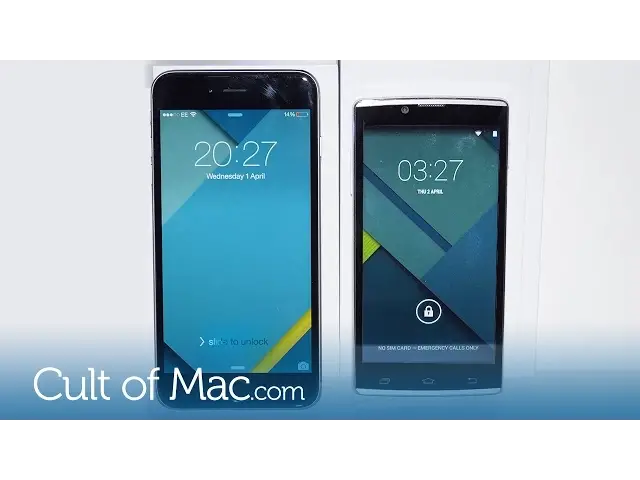
It's easier than you may think to move your contacts and photos from Android to iOS, so if you've finally made the switch to an iPhone this video is for you!
Show More Show Less View Video Transcript
0:00
You've finally made the move. You're getting rid of your Android phone in favour for an
0:05
iPhone. Then the problem is all of your photos and contacts are on your old phone. Well
0:11
it's easier than you may think to transfer from one to another. And today I'm going to
0:15
show you how to do that. So, let's get started. Let's begin by sorting your contacts. If you've stored them on your SIM card, it's as simple
0:23
as inserting the card into your iPhone and they will all automatically show up. But most
0:29
people tend to store their contacts on the actual device. And there are a few methods
0:33
in retrieving your contacts from your Android phone. And it's even easier if you've been
0:38
saving all of your contacts in Google, Yahoo or a similar service
0:43
Firstly, ensure that you've backed up your contacts by going to settings and choose accounts
0:49
and sync. If it's not exactly the same title on your Android device, there will be something
0:54
similar. Follow your details and turn on synchronisation. Now, on your iPhone, go
0:59
to settings, then mail, contacts and calendars. And add your Gmail account. Just make sure
1:05
you've approved contacts to be synced. This will also mean that your emails from your
1:09
Google accounts will now be on your iPhone along with your contacts
1:14
Now to retrieve your precious photos. If you have a computer, you can simply plug your
1:18
Android device in. Locate your photos and then copy them over to your computer and sync
1:23
via iTunes. If you don't have a computer to transfer your images, all is not lost
1:28
There are several apps in both the Google Play and iOS store which will transfer them
1:32
over for you. Such as Copy My Data, which is completely free. And it does work the other
1:37
way round if needed. So there you have it, how to easily transfer all your contacts and photos from your Android
1:43
phone to an iPhone. But I want to know what videos you'd like to see. Let me know in the
1:48
comments down below. Until next time, if you enjoyed this video, please hit the like button
1:53
as it really does help us out. And if you haven't already, hit the subscribe button
1:57
so you don't miss a single video from Cults of Mac. I'll see you next time
#Consumer Electronics
#Mobile Phones