0:01
hey what's up guys Steve from Cult of
0:02
Mac here and in this week's quick tips
0:05
I'm going to show you how to translate
0:06
written text into a spoken track for
0:08
iTunes so you can listen to your
0:10
favorite Cult of Mac articles at any
0:14
started first you're going to need to
0:16
find some text it can be from anywhere
0:18
you like including web browsers and word
0:20
processors once you found the text you'd
0:22
like to save highlight the selection of
0:25
text and right click on your mouse or
0:27
trackpad and choose add to iTunes as a
0:29
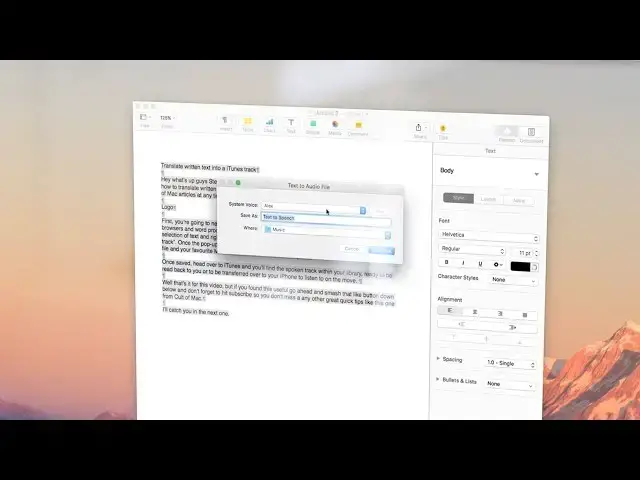
spoken can track once the pop-up window
0:32
appears type in a title choose where you
0:34
would like to save the file and your
0:36
favorite Mac voice to read the text back
0:37
to you once saved head over to iTunes
0:40
and you'll find the spoken track within
0:41
your library ready to be read back to
0:43
you or to be transferred over to your
0:45
iPhone to listen to on the Move hey
0:47
what's up guys Steve from car well
0:49
that's it for this video but if you
0:51
found it useful go ahead and smash that
0:52
like button down below and don't forget
0:55
to hit subscribe so you don't miss any
0:56
other great quick tips from Cult of Mac
0:58
I'll catch you in the next one