live_tv
Livestream Starting Soon
00
Hours
:
00
Minutes
:
00
Seconds
Up next in 10



Library Folder: http://www.cultofmac.com/106199/re-enable-your-library-folder-in-os-x-lion-video-how-to/
Monolingual: http://monolingual.sourceforge.net/
Show More Show Less View Video Transcript
0:05
[Music]
0:10
hey everyone today I'm going to show you
0:11
how you can reclaim dis space on your
0:13
Mac now a lack of disk space is actually
0:16
something that probably wasn't as much
0:18
of an issue a couple years ago as it is
0:20
now believe it or not even though hard
0:22
drives are getting bigger and bigger
0:24
with the widespread adoption of ssds in
0:26
computers especially the MacBook Air
0:28
hard drive space is actually at a more
0:31
of a premium now than it was before the
0:34
entry-level MacBook Air only has a 64
0:37
gig SSD and space on those types of
0:39
machines are extremely limited and it's
0:42
only going to become worse in the future
0:44
as more and more computers move from
0:46
large hard drives to smaller ssds so
0:49
since your dis space might be limited
0:51
I'm going to show you how you can free
0:52
up some space that might be just wasted
0:55
on your computer so a lot of this takes
0:57
place inside the finder so we're going
0:58
to open up a new finder window first of
1:00
all and the first thing we're going to
1:02
do is go to our library folder in our
1:04
home directory so by default the library
1:07
folder in your home directory is hidden
1:10
now I did a video on this a while back
1:11
on how to reenable your library folder
1:14
and I'll put a link to that below this
1:15
video but another way you can actually
1:17
reveal the library folder just
1:20
temporarily is to hold down command and
1:22
shift and then press G then you'll see
1:25
this little drop down where you can
1:26
enter a folder
1:27
path and the paths you get to your
1:30
library folder in your home directory is
1:32
the till day and then SL Library so then
1:36
once you have that typed in you can hit
1:37
go and in here you'll see your library
1:40
folder so then from there you're going
1:42
to want to go into your application
1:43
support folder and in here there's a
1:45
list of all different applications you
1:47
might have installed on your computer at
1:50
some time or another now for the most
1:52
part you don't want to touch many
1:54
folders inside application support just
1:56
because many of these applications are
1:59
probably still in install on your
2:00
computer and you probably still use them
2:03
quite frequently for example I'm not
2:05
going to get rid of my garage band
2:06
folder cuz I still use Garage Band and
2:09
it's still installed on my computer but
2:11
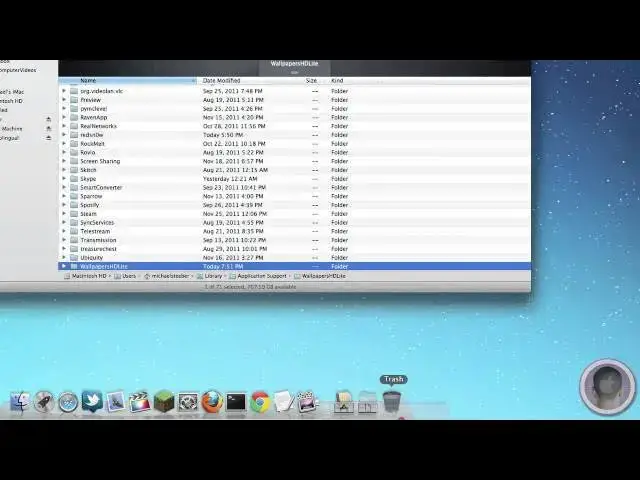
let's say for example this wallpaper's
2:13
HD light is something that I've
2:15
uninstalled and that I don't use anymore
2:17
at all well then you're actually free to
2:19
just drag it out of your application
2:21
support folder and into the trash as
2:23
long as you don't use it it's also best
2:26
that if you don't know what the folder
2:27
is for to leave it in there cuz it's
2:29
probably something you'll need and if
2:31
you do by chance delete one of these
2:33
folders and it belonged to an
2:35
application you still used that
2:37
application will no longer function
2:38
properly and you'll probably have to
2:40
reinstall it so just a word of warning
2:42
now the next thing you can do is go to
2:44
your hard drive so Macintosh HD and then
2:47
from their library and then scroll to
2:50
the bottom and go into the widgets
2:51
folder and in here you're going to see
2:54
all the different widgets that are
2:55
installed on your computer for dashboard
2:58
now no matter if the widgets are active
3:00
on your dashboard or not they're still
3:01
going to be in this folder so let's say
3:03
for example that you've installed some
3:05
custom widgets that you don't use
3:07
anymore you can actually just delete
3:09
these and just like in application
3:11
support if you delete ones that you
3:12
still used or still needed they will no
3:16
longer work and they won't be on your
3:18
system anymore but it is a nice way to
3:20
free up a little extra space assuming
3:22
you've installed a lot of widgets now
3:25
another thing you can do is in Macintosh
3:27
HD and then Library if you go into your
3:30
caches folder there'll be a whole bunch
3:32
of different caches in here now while my
3:34
cache folder is pretty small on some
3:37
systems there may be a ton of stuff in
3:39
the Cash's folder and for the most part
3:41
if you delete anything in here it's not
3:44
going to harm your system because they
3:46
are just caches and sometimes these cach
3:49
folders can reach up to several hundred
3:51
megabytes in size so it can be nice to
3:53
get rid of some unnecessary files but
3:56
once again if you don't know what the
3:57
folder is for you probably shouldn't
3:59
delete it just because you don't want to
4:01
accidentally mess something up now you
4:03
can do the same thing for the caches
4:05
folder in your home
4:06
directory so if I go to my home folder
4:09
here and once again press command shift
4:12
G and go to my library folder I can go
4:16
into the caches folder here too and dump
4:19
some stuff that I don't need and as you
4:20
can see there's a lot of stuff in this
4:23
cach folder that I could probably get
4:24
rid of just for example in my com.
4:27
apple. software update folder there's a
4:30
13.7 megabyte cache file and while it's
4:32
not especially large at all these can
4:36
especially with the software update
4:37
folder once again reach hundreds of
4:39
megabytes in size over time now one last
4:41
thing you can do is remove extra
4:43
languages and this can be achieved by
4:45
using a program called monolingual and
4:48
you can get to this by going to
4:49
monolingual do sourceforge.net
4:52
and over on the right hand side here you
4:55
can download the program and after
4:57
you've installed monolingual open it up
5:00
and from here it's going to give you the
5:02
option to remove several languages on
5:04
your system that you don't use and this
5:07
can free up actually gigabytes of space
5:09
which can be especially useful on
5:11
smaller drives so I don't know any of
5:14
these languages here and I have no
5:16
reason to keep these on my system so I
5:18
can check any language I want and as
5:20
many as I want and then remove all these
5:22
languages and it strips all the apps of
5:25
their language files which can be very
5:28
large for all these languages I can also
5:31
remove several different types of input
5:33
methods as well as
5:35
architectures so once again as with
5:37
everything else you should always be
5:38
careful when you're uninstalling
5:39
languages so you make sure you don't
5:41
uninstall an important language such as
5:43
English so there's some ways to free up
5:46
quite a bit of disk space on your Mac
5:48
and if you follow all these tips you
5:50
should be able to free up up to
5:51
gigabytes of space which can be very
5:53
useful in some cases and as always if
5:56
you have anything you like to see me do
5:57
a howto on make sure to send me an email
5:59
I hope you found this video useful and
6:01
thankk you for watching
#Computers & Electronics
#Software Utilities