0:00
today I'm going to show you how to
0:01
create a voice memo inside a note and
0:04
how to automatically transcribe your
0:06
recordings this feature is available on
0:08
iOS and iPad OS 18 or later on the
0:11
iPhone 12 or later on a note you just
0:14
tap the attachments button this
0:16
paperclip icon and tap record audio
0:20
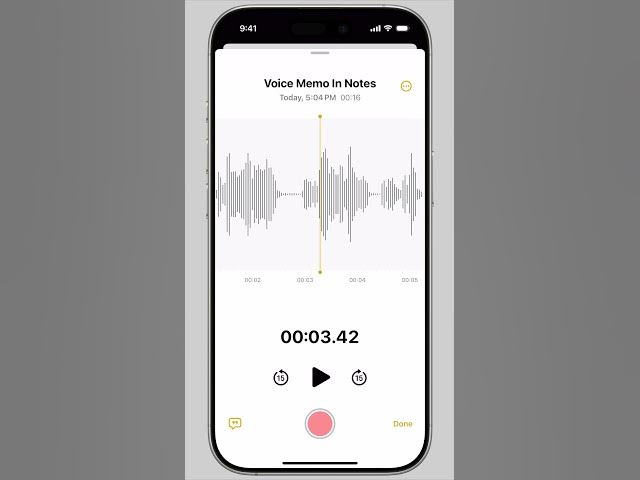
you'll see a very familiar interface to
0:22
The Voice Memos app with a big red
0:24
record button and your playback
0:26
controls start recording whenever you're
0:29
ready and while you're recording you can
0:31
swipe down on the window and continue
0:35
notes you can pause resume or stop
0:39
recording right from the widget tap on
0:42
the recording widget to bring it back up
0:45
you can give the recording a title just
0:47
by tapping near recording at the
0:49
top and the show transcript and summary
0:52
button will toggle between the waveform
0:56
transcript you can even tap this button
0:59
in the middle of recording
1:00
to see the transcription update
1:03
live you can also tap the summary at the
1:06
top of the screen if your device
1:07
supports Apple intelligence to get an AI
1:10
summary tap the more button in the upper
1:13
right for additional options you can
1:16
rename the recording add the transcript
1:18
to the content of the note itself copy
1:21
the transcript search for a phrase save
1:24
the audio recording to the files app
1:26
share it or delete it all of your
1:29
transcription are searchable as well if
1:31
you search for a phrase or keyword that
1:33
appears in a voice memo the note will
1:36
appear among the search results and you
1:38
can also long tap on the widget for many
1:40
of the same options that is how you can
1:42
record and transcribe audio in a note
1:45
this feature is great to use in a class
1:48
if you want to record audio of a lecture
1:50
alongside your notes I'm D Griffin Jones