0:00
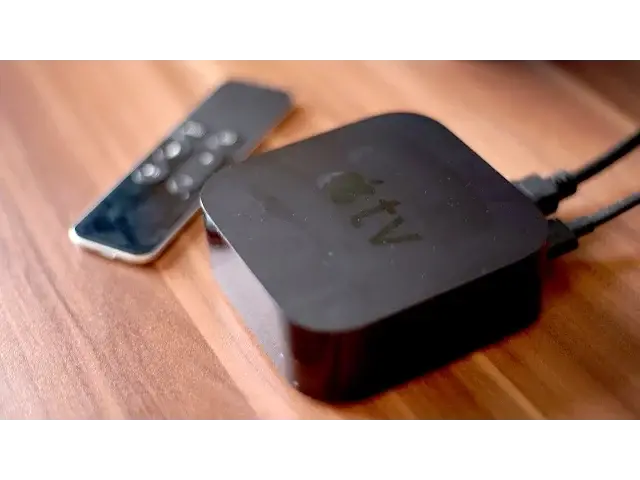
The new Apple TV is finally getting folders for apps today, thanks to the public release
0:04
of tvOS 9.2 that is now available to all 4th gen Apple TV users
0:10
To update your Apple TV, navigate to the settings app and click through to system, then click
0:15
on software updates and update software. Your Apple TV will tell you if there's an update available and will ask you to confirm
0:21
that you want to install it. Click on through and you'll have the latest tvOS
0:25
Once installed, you'll be able to organise apps into folders to keep your home screen organised
0:30
To add apps into folders, click and hold on any one of the apps that you want to put into
0:34
a folder using the Siri remote. The apps will all do the wiggle dance and you'll be able to move the one you've just
0:40
clicked on with the touch surface of your Siri remote. Move the icon on top of another app and you'll get a folder
0:46
Move the icons around into the order you want and hit the menu button when you're happy
0:50
Hit it again to go back to the home screen. In addition to folders, tvOS now supports Bluetooth keyboards, voice to text dictation
0:57
for text entry fields and a new podcasts app, so you can now listen to the cult cast on
1:02
your TV. Siri search is also smarter than ever, allowing you to search for apps in the app store
1:08
There's also a new app switcher to look more like iOS 9. To reveal this, double click on the Siri remote's TV button
1:15
It's now better than ever to scrub through videos. With the previous OS, scrubbing through your videos simply meant swiping the touch surface
1:21
of your Siri remote, meaning you could easily do this whilst just handling the remote
1:25
With the latest update, you need to be paused in order to scrub backwards or forwards
1:30
It sounds like a minor change, but one that I am personally chuffed with
1:34
And that's everything you need to know about tvOS 9.2, but let me know in the comments
1:38
down below which is your favourite new feature. If you enjoyed this video, go ahead and help us out and smash that like button down below
1:45
and if you haven't already, hit the subscribe button so you don't miss a single video from
1:49
Cult of Mac. I'll catch you in the next one