Up next in 10



Ever want to know what key combinations generate what symbols on the Mac? Now you can know with this easy tip.
Show More Show Less View Video Transcript
0:06
hey everyone today I'm going to show you
0:07
how you can easily figure out which key
0:10
combinations give you what symbols on
0:11
the Mac now if you remember back if you
0:14
ever used Mac OS 9 you'll remember that
0:17
there is a application called keycaps
0:19
and what it did was it showed you a
0:21
keyboard and whenever you pressed a
0:23
modifier key like option or something
0:25
like that it shows you what keys or what
0:29
symbols you would get when you pressed a
0:31
certain key in coordination with that
0:33
modifier key now with Mac OS 10 that
0:36
application is gone but there is still a
0:39
way uh that you can figure out which key
0:42
combinations are going to give you what
0:44
symbols without having to download any
0:46
software or anything it's still built
0:48
into the OS it's just more hidden so to
0:50
find it you're first going to need to go
0:52
up to your Apple logo menu and click
0:55
system
0:56
preferences now once you're in system
0:58
preferences you can just click on the
1:00
keyboard
1:04
Tab and right here towards the bottom on
1:06
the keyboard tab inside the keyboard tab
1:10
you'll see a checkbox that says show
1:13
keyboard and character viewer in menu
1:14
bar so if you click that you're going to
1:17
see this thing pop up in your menu bar
1:19
up here and uh it's right here by my
1:20
clock and you get two options show
1:23
character viewer or show keyboard viewer
1:25
now what you can do here is if you click
1:27
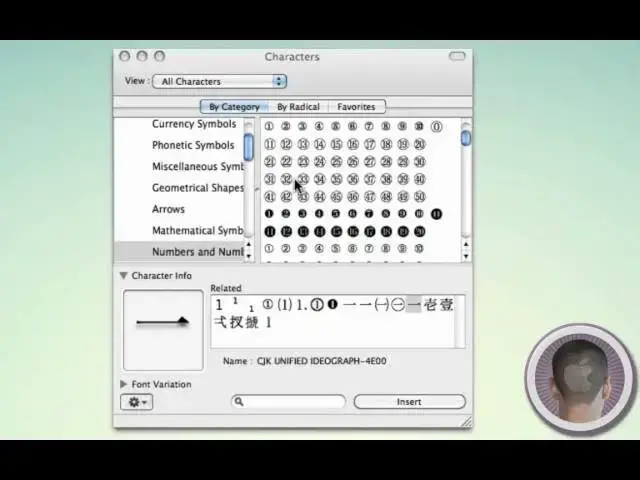
show character viewer it's going to open
1:30
up this little box here and what you'll
1:35
see here is all the different characters
1:37
that you can get by pressing certain
1:39
combinations on your keyboard
1:43
so without having to actually press the
1:46
key combination you can get these
1:48
symbols here and then there's a button
1:50
right here where you can insert them
1:51
right into your
1:55
document now while this can be handy and
1:57
there's a lot of different symbols here
1:58
that you can insert um it's not always
2:01
the easiest thing to do it can be a
2:03
little bit cumbersome and always have
2:05
that window open if you're typing
2:06
something up not probably the best
2:08
option so what you can do instead is you
2:10
can click show keyboard viewer and
2:13
what's going to happen here is you're
2:14
going to see a virtual keyboard pop up
2:16
on the screen now what'll happen with
2:19
this is it's just like keycaps if you
2:21
remember Mac OS 9 so once I'm on the
2:24
keyboard here I can press option and you
2:27
can see right here that I have option um
2:29
select and it shows it and then right
2:31
here you'll see all the different things
2:33
that
2:34
will correspond to it so if I press
2:37
option Q I will get that little symbol
2:40
there I'm not actually quite sure what
2:41
that's called um so you can see how that
2:44
works and also with option shift you'll
2:46
see more so option shift K you get an
2:49
Apple logo just kind of a interesting
2:52
things and this makes it a little bit
2:54
easier if you know you have a certain
2:57
symbol that you often use you can just
3:00
see what the combination is for here and
3:02
then you can memorize what you have to
3:04
press for that without having to go
3:05
through the hassle of looking at that
3:07
character viewer and inserting
3:08
characters through
3:09
there now I have text that it open here
3:12
and of course you can type with this
3:13
virtual keyboard you can see I'm typing
3:16
here um and you can insert your symbols
3:19
this way too so copyright all different
3:22
things like that um but you
3:26
know it's probably easier once you
3:28
realize what Comin you want just to be
3:31
able to type them in on your own so now
3:33
I know that option shift K is an Apple
3:36
logo and if I often use that symbol now
3:40
I know how to get it so it's an easy way
3:42
to show you what symbols you're going to
3:43
get with different things and without
3:46
you know guessing uh what I did before I
3:48
knew about this is and I just held on
3:50
option and I I pressed different keys
3:52
until I found the symol I wanted but
3:54
this is a lot easier way to figure that
3:56
out and it's just a handy tip it's
3:58
hidden the system so I'm guessing a lot
4:00
of people didn't know about
4:02
this and if you work with characters a
4:04
lot this can really save you some time
4:06
so hope you found this video useful
4:08
thank you for watching
#Computers & Electronics
#Reference