Up next in 10



Article on Cult of Mac: https://www.cultofmac.com/how-to/iphone-storage-full
More Apple news: http://www.cultofmac.com
Produced by Extra Ordinary for Cult of Mac
Music composed by Will Davenport, arranged by D. Griffin Jones
Chapters:
0:00 Intro
0:16 Offload unused apps
1:44 Photos
3:04 Messages
4:18 Music
4:48 Podcasts
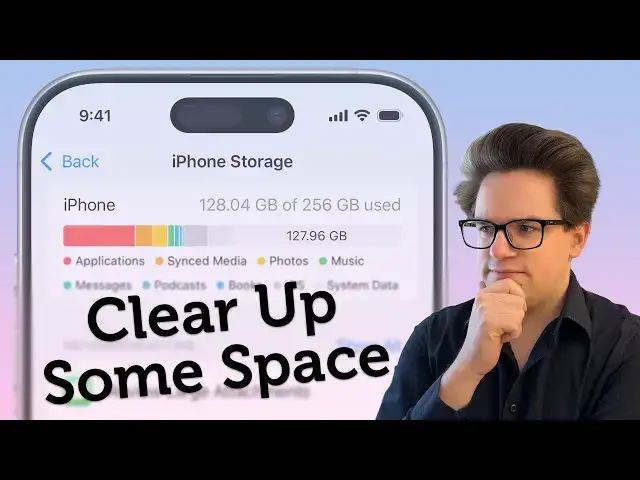
If your #Apple #iPhone storage is full, you’ll need to quickly clear up space. You don’t need to panic and delete all your pictures — there are easy ways to free up iPhone storage without losing any precious data forever.
Follow us!
Threads: https://www.threads.net/@cultofmac
Mastodon: https://mastodon.social/@cultofmac
Instagram: https://instagram.com/cultofmac/
Show More Show Less View Video Transcript
0:00
if your iPhone storage is full you'll
0:01
need to quickly clear up some space but
0:04
don't panic and delete all your photos
0:06
there are easy ways to free up iPhone
0:08
storage without losing your precious
0:11
data forever let me show you
0:15
how before you start it's important to
0:17
know what you're working with go to
0:20
settings General iPhone storage and
0:23
you'll see a breakdown of how much space
0:24
is being used on your phone and by what
0:27
category next you'll see a list of
0:29
personal recommendations which we'll get
0:31
to soon and a list of the apps that are
0:34
taking up the most space on your phone
0:37
right from here you can tap on any one
0:38
of these apps and tap delete app to
0:41
clear it out alternatively you can
0:43
choose to offload the apps that you
0:45
don't use very often this deletes the
0:47
bulk of the app from your phone but
0:49
keeps personal data like signin
0:52
information game progress and cached
0:55
files and it keeps the icon on your home
0:58
screen the next time you you launch the
1:00
app it'll download the rest of it back
1:02
down from the App Store and launch right
1:05
where you left off you can enable this
1:07
right next to offload unused apps by
1:10
tapping enable and if you don't see this
1:12
setting here you can also find it in
1:15
settings apps app store if you scroll
1:18
down a little ways keep in mind that
1:21
because it deletes part of the app from
1:22
your phone you shouldn't offload apps
1:25
that you need to use where you may not
1:26
have a good cell connection ticketing an
1:29
event apps public transportation apps
1:32
airline apps safe bets are big 3D games
1:36
like Pokémon go or Asphalt 8 they can
1:38
take up gigabytes or more of space and
1:42
aren't really essential what's probably
1:44
taking up the most space on your phone
1:46
is your photos go back to settings apps
1:50
photos to manage your library and I
1:53
cannot recommend enough enabling iCloud
1:56
photos just 9 cents a month is all it
1:59
costs for most most people to back up
2:01
your entire photo library with iCloud
2:03
photos enabled select optimize iPhone
2:06
storage all your photos and videos will
2:09
be synced up to the cloud freeing up
2:11
space on your phone as it needs to it'll
2:14
still keep the photos and videos you
2:15
look at most often along with all your
2:17
recent shots but it'll dynamically make
2:20
space in the background you can still
2:23
browse through your entire library but
2:25
if you go to play a video that you don't
2:27
have on your phone it'll quickly stream
2:29
it from the cloud if this is your first
2:31
time with iCloud photos enabled it will
2:33
take time for this storage to clear up
2:35
uploading gigabytes and gigabytes of
2:37
data won't happen within minutes just
2:40
leave your phone plugged in connected to
2:42
Wi-Fi and the upload will happen in the
2:44
background the next biggest thing taking
2:46
up space on your phone probably is
2:49
messages now text messages themselves
2:52
take up virtually no space at all 99% of
2:55
the storage space used by messages is in
2:57
the videos pictures G gifts stickers and
3:01
other attachments and files that you
3:03
send go to settings General iPhone
3:06
storage messages and tap video to see
3:10
the top videos taking up space in your
3:12
library you can tap on a video to
3:14
preview it if there's one you'd like to
3:16
make sure you save to your library tap
3:18
the share button and tap save video as
3:22
The Unofficial videographer in my family
3:24
most of these videos are already in my
3:26
library so I can comfortably delete most
3:28
of them swipe left to delete it or tap
3:31
the edit button at the top to select
3:33
several at once to clear out other old
3:36
attachments go back and tap on photos
3:38
gifts and stickers and other to clear
3:41
out the other large attachments you may
3:42
have built up over time you can also tap
3:45
top conversations to delete your entire
3:47
messaging history with a particular
3:49
person or group I don't recommend this
3:52
because I value having a searchable
3:53
message history but you can do this if
3:56
you really want if you really don't care
3:58
about old texts being deleted
4:00
you can have them cleared out
4:01
automatically over time go to settings
4:04
apps messages and scroll down to keep
4:07
messages change it from forever to one
4:10
year and your entire backlog will be
4:13
erased and it'll continue to clear out
4:15
old messages as time goes on if you use
4:18
apple music your music library is
4:21
probably the next biggest thing taking
4:22
up space on your phone go to settings
4:26
apps music and enable optimize storage
4:30
it'll only keep the tracks and albums
4:32
that you listen to most frequently but
4:34
here you can actually control the size
4:36
of that local cache of music go to
4:38
minimum storage and you can make sure it
4:41
has no less than 4 8 16 32 or 64 gigabyt
4:46
of music stored locally finally if you
4:48
subscribe to more podcasts that you can
4:50
keep up with you can automatically limit
4:52
the number of episodes that your phone
4:54
downloads at any one time go to settings
4:57
apps podcasts automatically download
5:01
after setting a limit your phone will
5:03
tell you how many episodes this will
5:05
remove tap remove downloads to clear
5:07
them out if you're listening habits vary
5:09
for different shows maybe there's one
5:11
podcast where you only listen to the
5:13
most recent episode and another podcast
5:15
where you make sure you listen to every
5:17
single one in order you can actually
5:19
change these on an individual basis go
5:23
to the podcast app tap the library tab
5:26
tap on a specific show tap the three
5:28
dots menu in the upper right tap
5:30
settings and tap automatically download
5:33
you can customize the settings for this
5:36
show specifically so that is my best
5:38
advice for how to quickly clean up
5:39
storage space on your iPhone remember to
5:42
like And subscribe I'm driffin Jones
5:45
with Cult of Mac
#Mobile Apps & Add-Ons
#Photo & Video Sharing
#Photo & Image Sharing
#Video Sharing