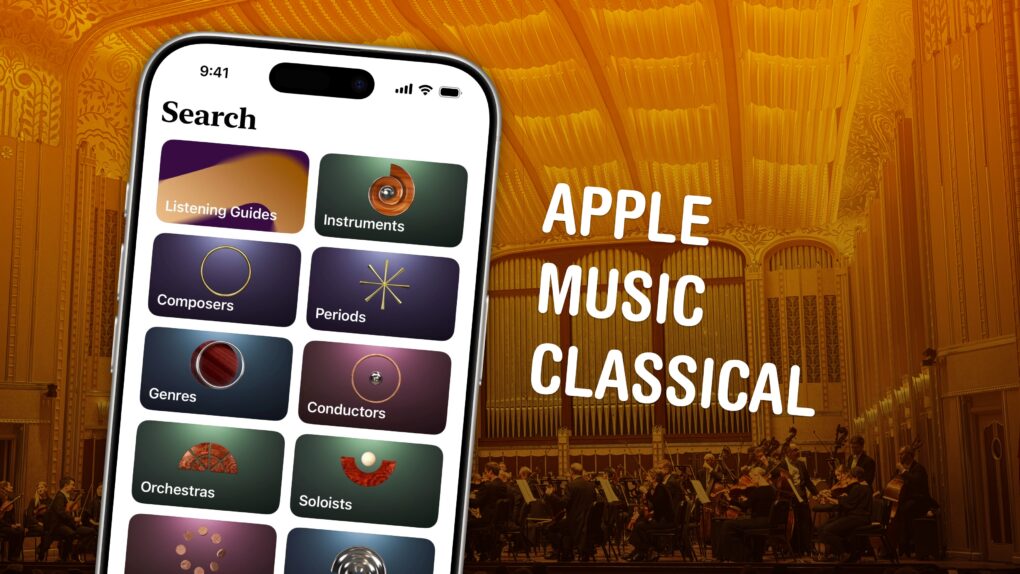
Apple Music Classical is an iPhone app specifically designed to deliver a great experience browsing and listening to instrumental music. Apple carefully curated its catalog of millions of tracks, tagging them by composer, work, movement, instrument, orchestra, artist and more.
Why does there need to be a separate app for classical music? Apple says it succinctly on its support page: Classical music “has longer and more detailed titles, multiple artists for each work, and hundreds of recordings of well-known pieces.” This app “is designed to support the complex data structure of classical music.”
This is how to discover, find, add and listen to music in Apple Music Classical.
How to use Apple Music Classical
In Apple Music, any given song typically appears on one album made by one artist. “Chorus Complains,” for example, is a song from Zastera by Driftless Pony Club.
But in Apple Music Classical, things work differently due to the nature of the recordings. A movement is part of a symphony, which can be part of a work, written by a composer, performed by an orchestra. You can easily find different versions of the same work by different ensembles. “Mars, The Bringer of War” is part of The Planets, composed by Gustav Holst; you can find versions performed by The London Philharmonic Orchestra and many other ensembles. That’s why classical music needs a bespoke experience.
Every Apple Music subscriber can use Apple Music Classical, too. You can get Apple Music for $10.99 per month individually, $5.99 per month if you’re a student, $16.99 per month to share with six people in your family or bundled alongside other Apple services in an Apple One subscription bundle.
You can download the iPhone and iPad app, an Android app or use Apple Music Classical on the web at classical.music.apple.com. Irritatingly, there’s no native app for Apple Watch, Mac, Apple TV or Vision Pro.
Table of Contents: How to use Apple Music Classical
- Find music
- Browse by composer, period, instrument and more
- Learn more about the music
- Add music to your library
- Peruse your library
- Search for pieces, composers, anything
- More Apple Music features
Find music in Apple Music Classical
Screenshot: D. Griffin Jones/Cult of Mac
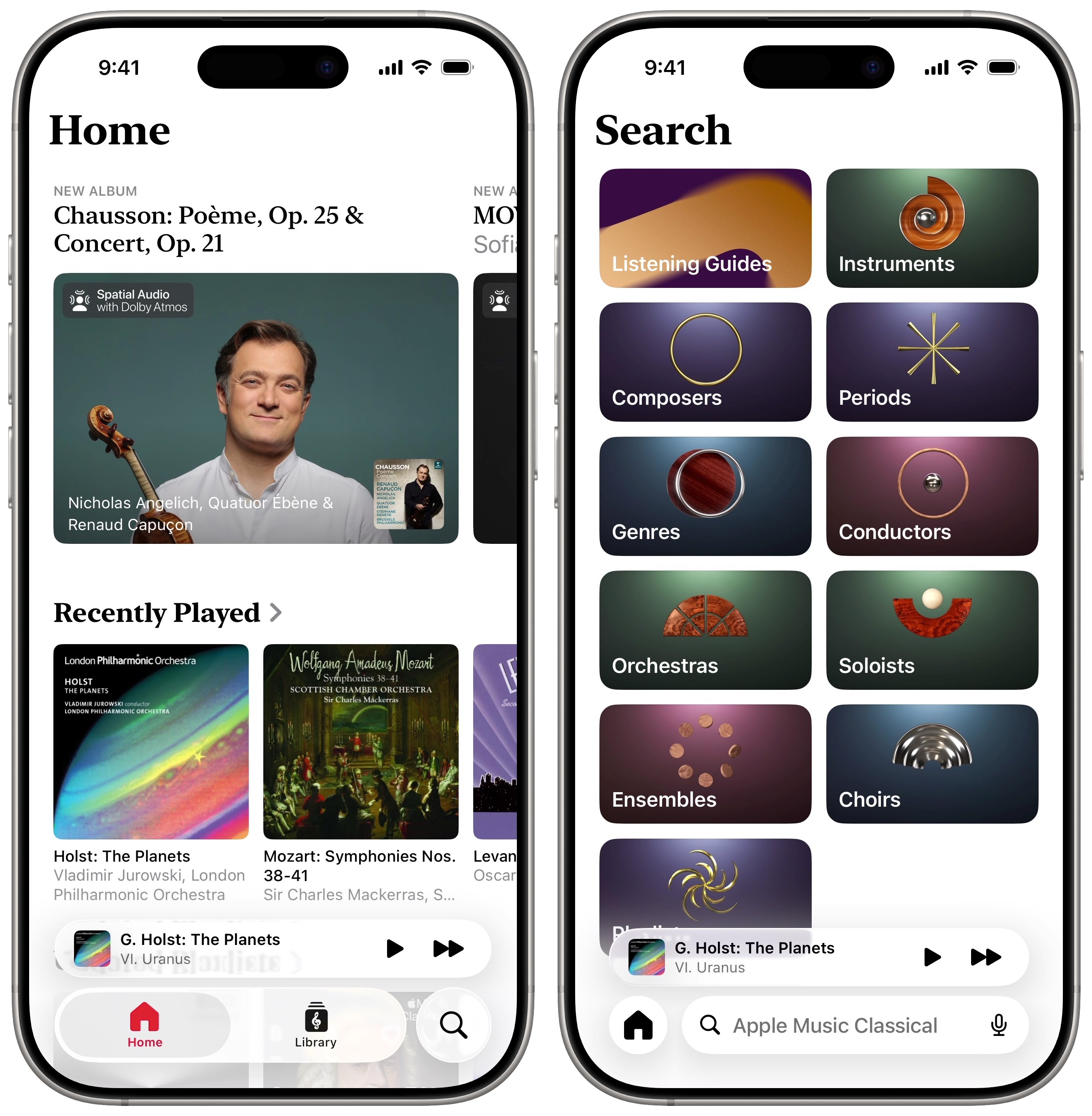
After downloading Apple Music Classical or going to classical.music.apple.com, you will see the Home tab. This page will look familiar to Apple Music users. A list of what you’ve played recently appears at the top, if you want to pick up right where you left off.
You can browse Apple’s playlists of essential songs from a variety of periods and genres, new releases, professionally curated playlists for different moods and settings (Chill, Sleep, Motivation, Commute, Dinner Party, etc.), and essential composers to learn.
Browse by composer, period, instrument and more
The categories inside the Search tab let you discover music by composer, genre, period, conductor, performing orchestra, featured instrument, vocal range (soprano, tenor, baritone) and ensemble. If you’re really in the mood for some oboe, for instance, tap Instruments, then scroll through the list.
The Playlists option at the bottom offers a good starting point to explore, with categories like Composer Essentials, Periods & Genres and Explore the Instruments.
Learn more about the music
Screenshot: D. Griffin Jones/Cult of Mac
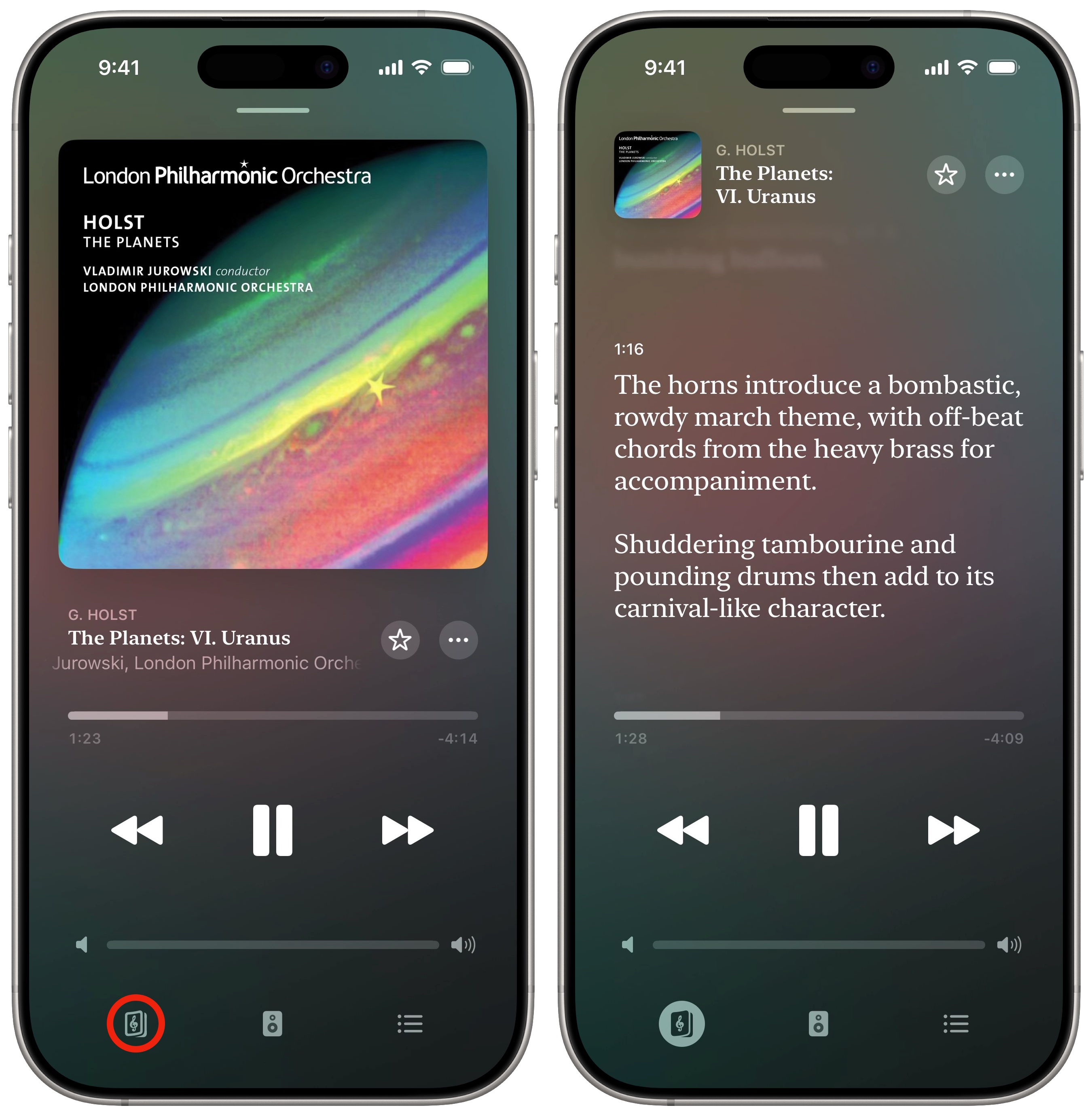
On the playback screen, you’ll find a familiar interface. Tap the More Info button (which takes the bottom-left spot where the Lyrics button appears in the regular Apple Music app) to see information on the piece you’re playing: the composer, the work, the performing artists, and the album the track appears on.
If you’re listening to music with a Listening Guide, you’ll see live editorial comments on the music, telling you what to listen for and what each part of the piece means. It’s a great way to train your ear and appreciate the music on a deeper level.
Tap the Playing Next button (with a ☰ icon) on the opposite side to see what’s queued up. The button in the middle connects (or disconnects) AirPods, Bluetooth devices, AirPlay speakers and Apple TVs.
Add music to your Apple Music Classical library
Screenshot: D. Griffin Jones/Cult of Mac
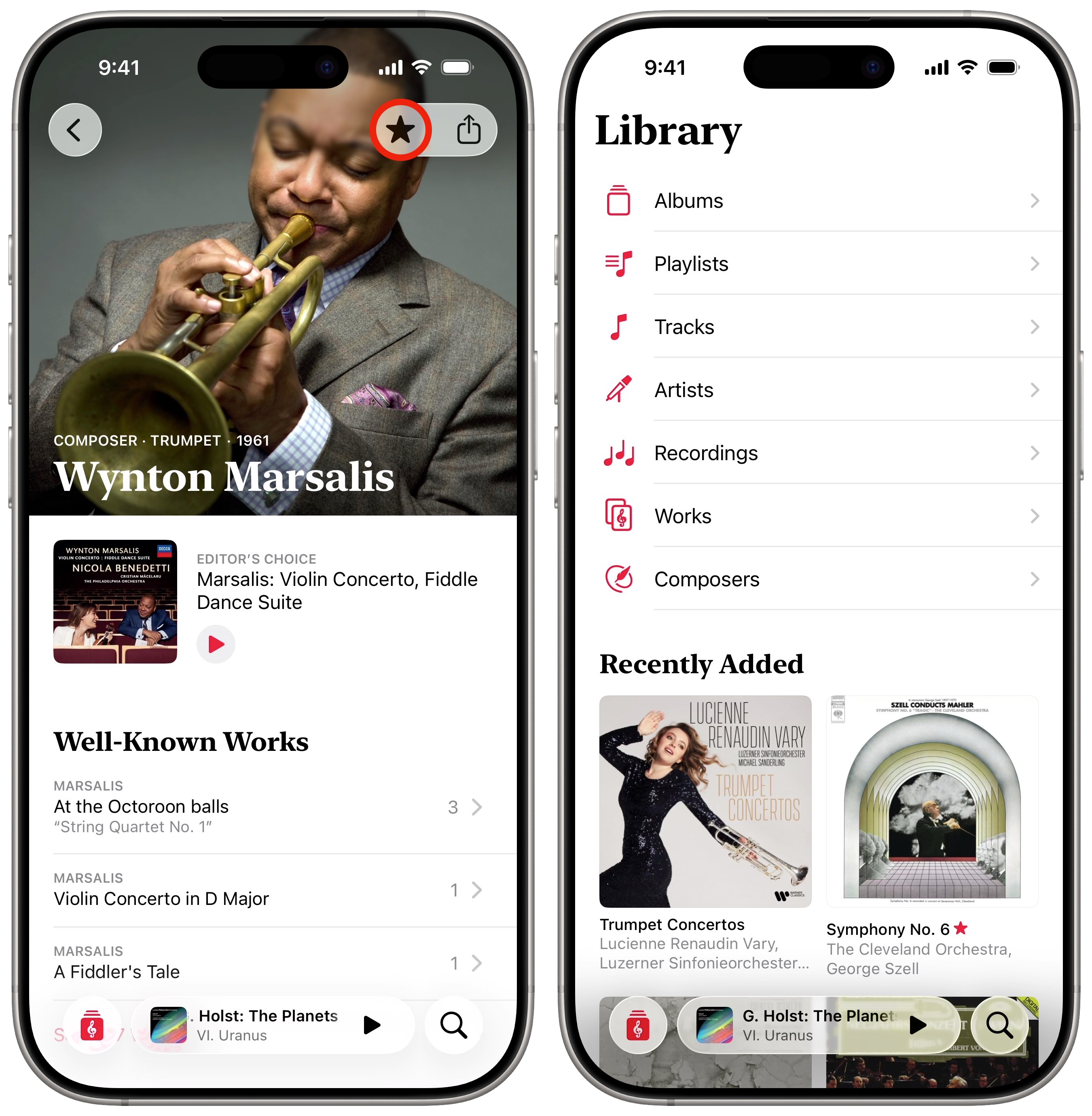
Hear something you like on Apple Music Classical that you want to bookmark for the future? You can add an album or playlist by tapping the Favorite button (with the star icon) in the upper right. You can favorite just about anything — an entire work, a specific recording, a composer or an artist. The app will put them into different sections of your library. You can add a playlist, too, by tapping the Add button in the same spot (with the + icon).
You can also add an individual song by tapping the More (⋯) button and picking Add to Library.
Peruse your Apple Music Classical library
You might find some albums from your regular music library already inside Apple Music Classical (matched to the high-quality remastered versions in Apple Music).
In the Library tab, you’ll see a list where you can browse works, albums and playlists you’ve added, individual tracks and recordings you like, and artists and composers you’ve favorited.
The differences between adding a track, a recording and a work takes some getting used to. When you add a specific performance, it’ll appear everywhere in your library (Tracks, Albums). But if you favorite a work or composer, you’re not adding anything specific — think of it like making a bookmark to find and play those songs later.
- Adding a single track also makes the entire album it’s from appear in the Albums section.
- Adding a work doesn’t add an album to your library — it gives you a place to find performances of that work.
- Furthermore, you can add favorite composers without adding any specific work to your library. This proves handy if you just want a fast way to find the composer’s page.
- The reverse is true, too. You can add works without their composers appearing in the Composers list, if there’s only one piece of theirs you care about.
Search for pieces, composers … basically anything
Screenshot: D. Griffin Jones/Cult of Mac
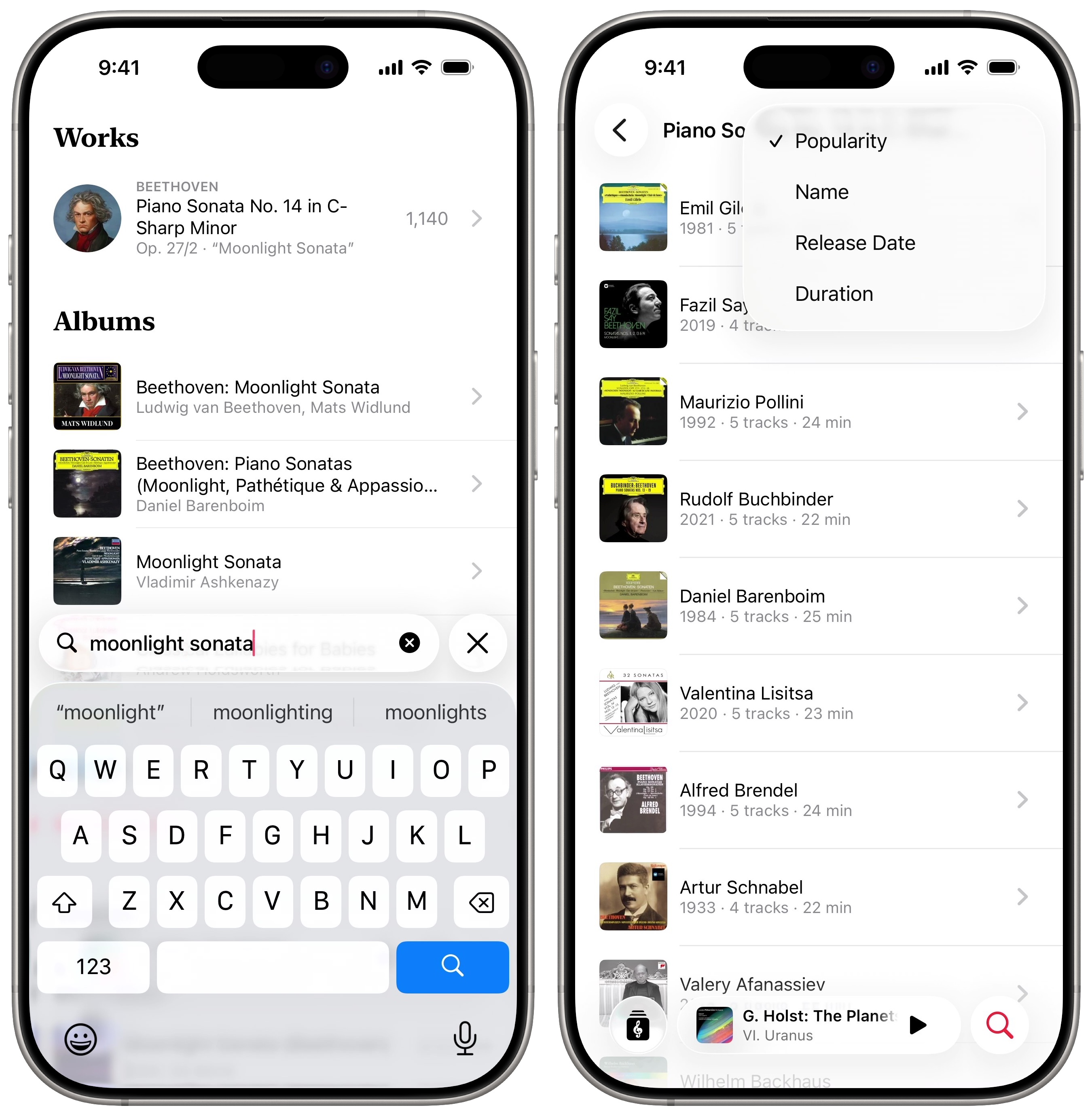
How do you find what you want to hear on Apple Music Classical? Just tap on the Search tab and type in whatever it is you’re looking for.
If a specific part of a longer symphony has a common name, like “Moonlight Sonata,” “Ode to Joy” or “Claire de Lune,” the full work will appear as the top result. You can read a little bit of history about the piece to gain an understanding of the context of the symphony if you like
On a specific work’s page, the “Editor’s Choice” is always a great starting point. These usually feature an accompanying listening guide.
If you’re curious, you can scroll down and tap See All to browse different versions of a work. Tap the icon in the top-right to sort by different parameters — popularity, name, release date and length. Personally, I think it’s fun to sort by oldest first and hear some of the earliest recordings of a piece.
More Apple Music features
- Apple Music Replay shows your top songs, artists, albums and detailed listening stats for a whole year, and makes an annual playlist of your top tunes.
- You can queue songs to automatically build a playlist. You can set a song, album or playlist to play next, or add it to the end of the queue, with simple gestures and controls.
- Collaborate on a playlist with your friends for a road trip or party.
- Aople Music Sing, aka karaoke mode, turns down the vocals so you can sing along at a party or in the car.
- You can listen in private mode using a custom Focus. This prevents your listening from affecting your recommendations and Replay stats. Works great if you have some guilty pleasures or kids’ music in rotation.
- Music Haptics lets you feel the beat of the music right in your hand.
We originally published this article on Apple Music Classical on March 29, 2023. We updated it with the latest information on March 13, 2025, and April 20, 2026.

D. Griffin Jones is a writer, podcaster and video producer for Cult of Mac. Griffin has been a passionate computer enthusiast since 2002, when he got his first PC — but since getting a Mac in 2008, he hasn’t turned back. His skills in graphic and web design, along with video and podcast editing, are self-taught over 20+ years. Griffin has a bachelor’s degree in computer science and has written several (unpublished) apps for Mac and iOS. His collection of old computers is made up of 40+ desktops, laptops, PDAs and devices, dating back to the early ’80s. He brings all of these creative and technical skills, along with a deep knowledge of Apple history, into his work for Cult of Mac.

