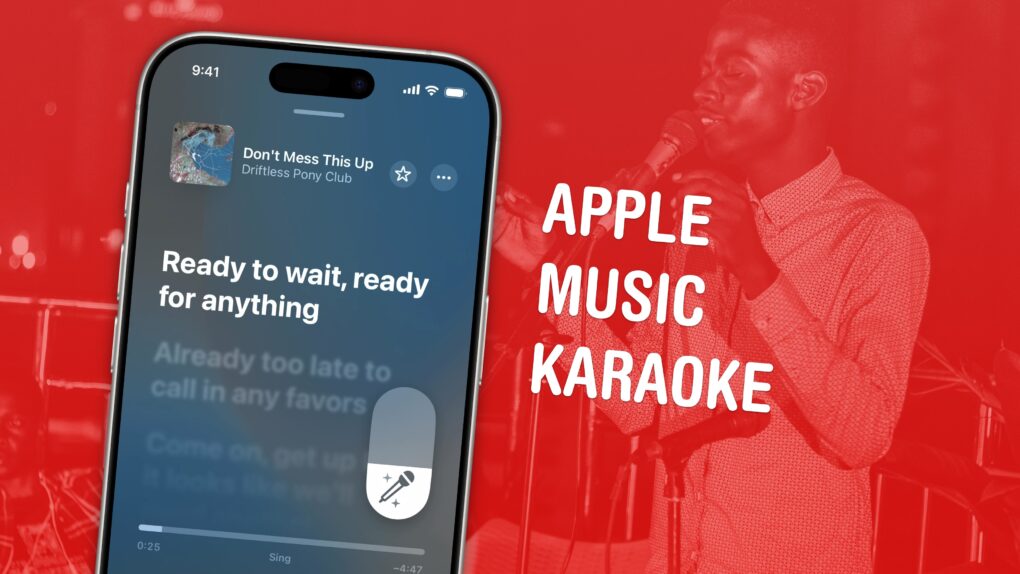
Apple Music comes with a karaoke mode for people who love to sing along as they listen. It’s called Apple Music Sing, and it lets you turn down the lyrics in your favorite songs with just a tap.
It’s much nicer than searching out karaoke versions of songs on YouTube. Those often don’t use the original backing track, but re-create it (with varying levels of quality). Also, if you’re still learning a song, Apple Music Sing can keep some of the original vocals to guide your singing.
How to use Apple Music in karaoke mode
I have a voice for podcasting, not a voice for singing. Many of my favorite albums are instrumental. I don’t know much about music. I rarely pay attention to lyrics; it took me way too long to notice that half the lyrics of Lady Gaga’s “Sour Candy” are in Japanese.
All of those disclaimers are to say that, although I have objectively terrible taste, I really love singing along to my favorites in the car with Apple Music in karaoke mode.
When I’m reading or writing, listening to some music can be very distracting. If I can turn down the vocal tracks, I can continue listening to my favorite albums.
In fact, I’m using it right now to listen to some of my favorite music without the lyrics distracting me from reading and writing. Let me show you how it works.
Table of Contents: Apple Music karaoke mode
- Make sure you’re an Apple Music subscriber
- Find the right hits
- Turn the vocal volume up or down
- Live lyrics are even live-er
- Apple Music in karaoke mode is a lot of fun
- Still the typical Apple Music confusion
- More Apple Music features
Make sure you’re an Apple Music subscriber
Apple Music Sing is available on the iPhone and iPad. You can even have a karaoke party with your Apple TV — but only if you have the third-generation model from November 2022. There’s no karaoke love for the Mac, PC or Vision Pro, though. Maybe Apple doesn’t want you singing at your desk.
You also need a subscription to Apple Music. Songs in your library that you’ve ripped from CDs (or downloaded from other unscrupulous places) won’t show their lyrics or work with the karaoke-like feature. Songs that you bought on iTunes the old-fashioned way might include synced lyrics, but they will not work with Apple Music Sing unless you’re an Apple Music subscriber.
Now, you just need to find a song that supports the feature.
Find the right hits
Screenshot: D. Griffin Jones/Cult of Mac
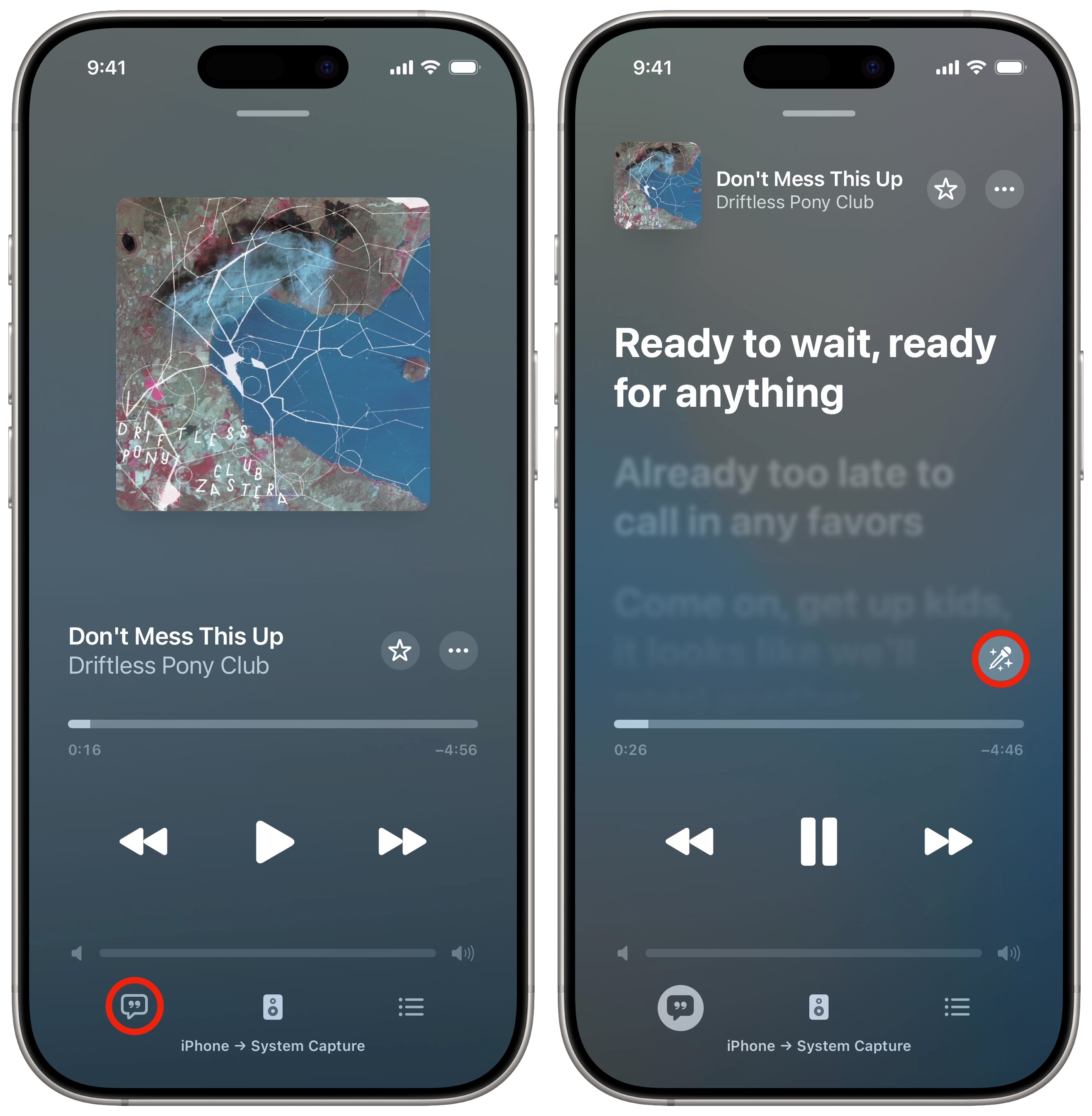
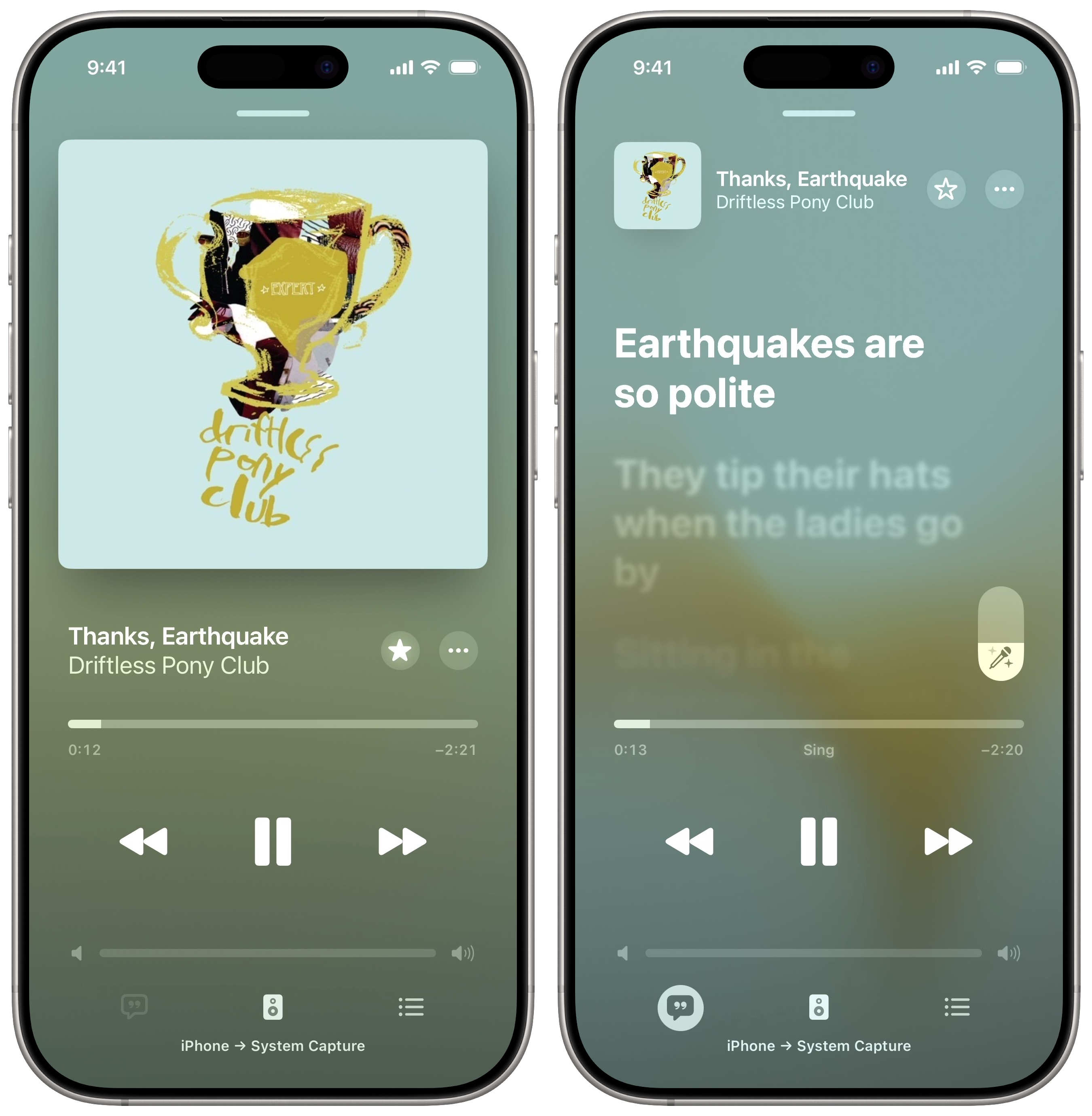
To see if a song will work with Apple Music Sing, first tap the Lyrics button (with the ❞ icon) in the bottom left. This will show the synced lyrics as the song plays. If the song supports Apple Music Sing, you will see a microphone button (with some stars around it) above the playback progress bar. Tap the microphone button, and the song might pause for a moment, but it’ll continue playing with quieter lyrics.
Turn the vocal volume up or down
Screenshot: D. Griffin Jones/Cult of Mac
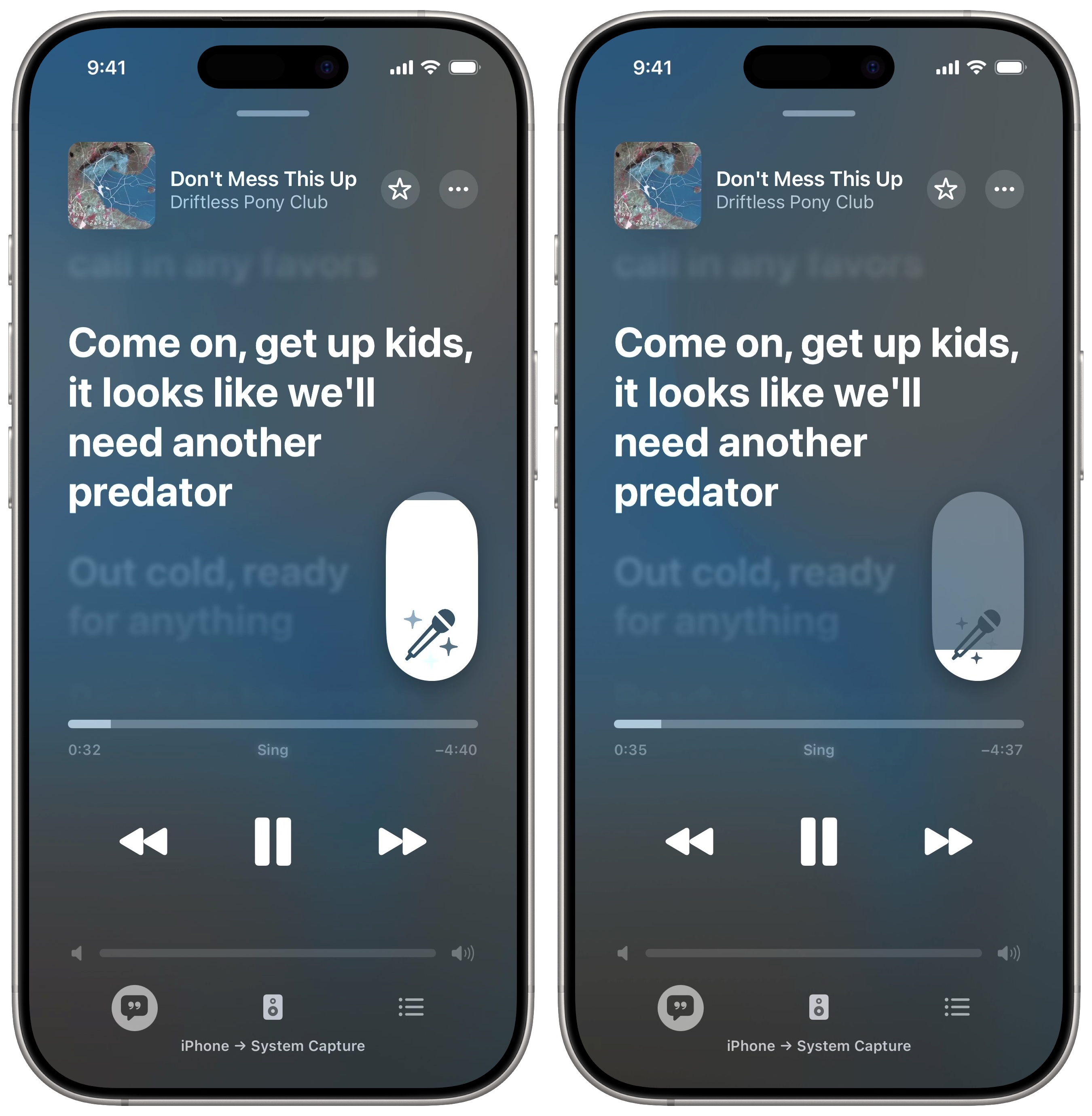
After you invoke Apple Music Sing, you can slide the Vocal Volume slider with the microphone icon up or down to raise or lower the vocals separately from the music. You can’t turn the vocals completely off, but you can get them pretty dang quiet. Turn it up a little bit if you need a little help singing along.
If you’re connected to a Bluetooth device, like a car or speaker, adjusting the volume may momentarily pause the music.
Tap the microphone icon at any time to bring the vocals back up to full volume.
Live lyrics are even live-er
Screenshot: D. Griffin Jones/Cult of Mac
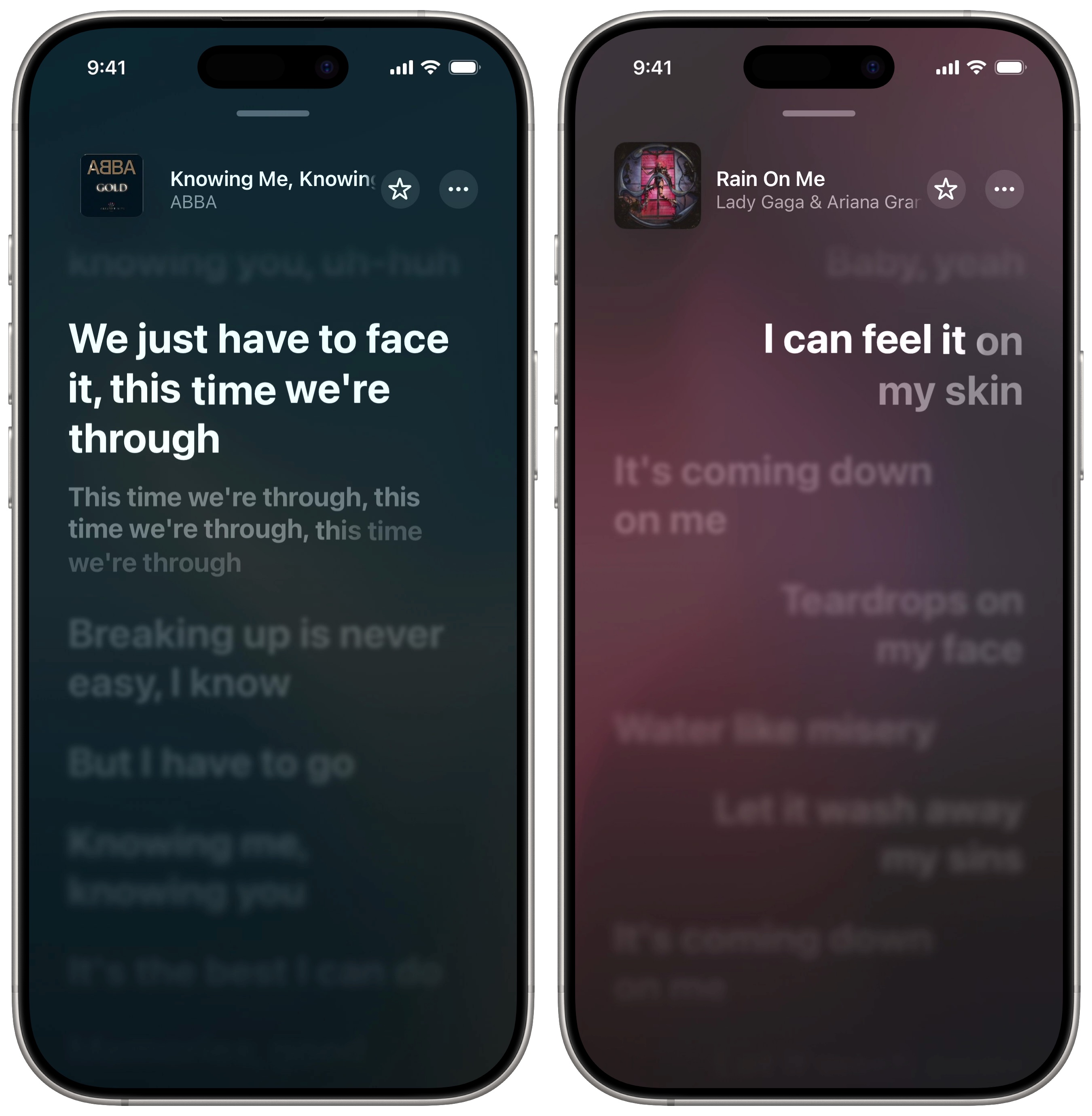
Not only do live lyrics show the right line at the right time as the song plays, but it also does the classic karaoke machine thing where it brightens the words as they’re being spoken.
If you’re playing music that contains a duet, the companion part will show with the lyrics pushed to the right side. You and your partner can confidently belt out the words without getting confused about who does which part.
I’ve found that if you’re singing in the car — and you have an older Bluetooth sound system, not CarPlay — the lyrics will be a little slow. Many Bluetooth speakers suffer from a one- or two-second delay.
Still the typical Apple Music confusion
Screenshot: D. Griffin Jones/Cult of Mac
I have an old music library with a hearty, balanced mix of music I imported to iTunes. It’s filled with music I bought on the iTunes Music Store and albums I added through Apple Music.
It’s extremely frustrating when Apple knows I paid for a song but doesn’t enable the live lyrics or Sing features. On the left, I’m playing one of my favorite songs that I bought on iTunes about 10 years ago with hundreds of recorded plays — and it doesn’t show Sing or live lyrics. On the right is the same song after I searched for it and played it from Apple Music instead of my music library.
These types of fractured features are annoying. Yes, I could delete every album from my library and add the Apple Music version, but ordinary people shouldn’t have to think about these arbitrary differences. Yes, I am a pedantic nerd who is tempted to do that much work because I genuinely love the lyric features. But the thought of deleting the version I already own, including my play history and star ratings, makes me really sad.
I love music, but sometimes it’s hard to love Apple Music.
More Apple Music features
- Apple Music Replay shows you the top songs, artists, albums and more detailed stats for a whole year, and makes an annual playlist of your top tunes.
- Apple Music Classical is a bespoke app and interface (free with an Apple Music subscription) for playing classical music.
- Queue songs to automatically build a playlist. You can set a song, album or playlist to play next, or add it to the end of the queue, with simple gestures and controls.
- Collaborate on an Apple Music playlist with your friends for a road trip or party.
- Listen in private mode using a custom Focus. This prevents your listening from affecting your recommendations and Replay stats. This proves great if you have some guilty pleasures or kids’ music in rotation (or if friends or family members’ picks are screwing with your play history).
- Music Haptics let you feel the beat of the music right in your hand.
We originally published this article on Apple Music karaoke mode on December 13, 2022. We updated it with the latest information on November 26, 2024, and April 6, 2026.

D. Griffin Jones is a writer, podcaster and video producer for Cult of Mac. Griffin has been a passionate computer enthusiast since 2002, when he got his first PC — but since getting a Mac in 2008, he hasn’t turned back. His skills in graphic and web design, along with video and podcast editing, are self-taught over 20+ years. Griffin has a bachelor’s degree in computer science and has written several (unpublished) apps for Mac and iOS. His collection of old computers is made up of 40+ desktops, laptops, PDAs and devices, dating back to the early ’80s. He brings all of these creative and technical skills, along with a deep knowledge of Apple history, into his work for Cult of Mac.

