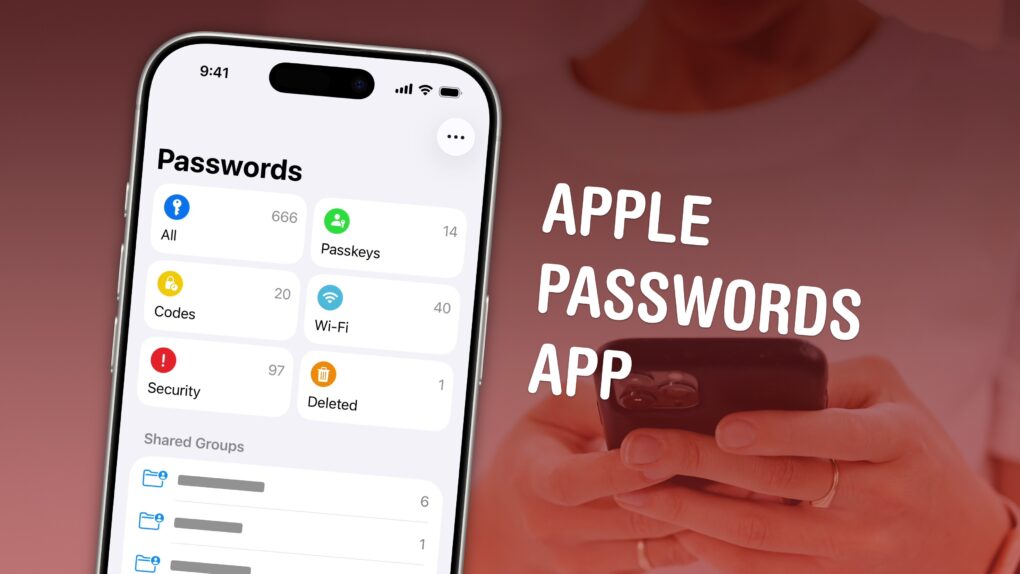
The Apple Passwords app makes it easier than ever to save login details for your apps, start using passkeys and create shared groups.
The time of using the same password on all your internet accounts is over. Apple’s password manager is free, syncs everywhere (even with Windows PCs) and is incredibly easy to use. It creates strong passwords and automatically fills them in, so you never need to.
Here’s how it works.
How to use the Apple Passwords app
Apple’s free Passwords app is more than simply convenient. It’s an easy way to break one of the internet’s oldest, dumbest habits: reusing passwords (especially weak ones) on multiple websites. For years, people stuck with “123456” or the same recycled login across dozens of sites, largely because managing strong, unique credentials without a password manager is a major pain.
By generating complex passwords automatically, flagging reused or compromised logins, and syncing everything seamlessly across devices, Apple’s built-in password manager makes it simple to follow security best practices. You no longer need to pay for a third-party password manager like 1Password or Dashlane.
The Passwords app isn’t Apple’s first foray into password management, but it is the first convenient one. iCloud Keychain has been around for years, saving your passwords for you. But if you ever had to copy a password out of the system to enter on a different computer, you had to dig through Settings — if you could even figure out how. The complexity discouraged many people from using Apple’s bare-bones proto password manager.
But now, Apple’s dedicated Passwords app makes managing all your logins easy. You can put the app’s icon on your iPhone’s Home Screen for easy access. And you can easily access your passwords — and share them with family members and trusted co-workers — on all your Apple devices. It’s a fantastic utility that I use every single day.
Now that it’s easy to use and free, there’s no longer any excuse for not using a different, unguessable password for every account You should familiarize yourself with Apple’s Passwords app, in case you quickly need to access an important account. Here’s everything you need to know about how it works.
Table of contents: How to use the Apple Passwords app
- Sign in with iCloud
- Find saved passwords, codes, Wi-Fi
- Edit or copy a saved username or password
- Find an old version of a password
- Add a password manually
- Create a strong password on the web
- Sign in using a saved password
- Create a shared Passwords group
Sign in with iCloud
To sync your passwords across all your devices, you should first make sure you’re signed into your personal iCloud account. On your iPhone, go to Settings and tap on your name at the top. You should see your own personal email at the top.
If you’re not signed in to your Apple Account or don’t have one yet, you should create one — it’s free. At the top of the Settings app, you’ll see Sign into your iPhone, then tap Don’t have an Apple ID? to create one.
Find saved passwords, codes, Wi-Fi logins and more in Apple Passwords
Screenshot: D. Griffin Jones/Cult of Mac
The Passwords app comes preinstalled on iOS 18 or later. If you somehow removed it, you can get it back here.
If it’s not on your Home Screen, you can find it in the Utilities folder of the App Library, or search for it in Spotlight by swiping down on the Home Screen. You’ll need to authenticate with Face ID (or Touch ID) to open the app.
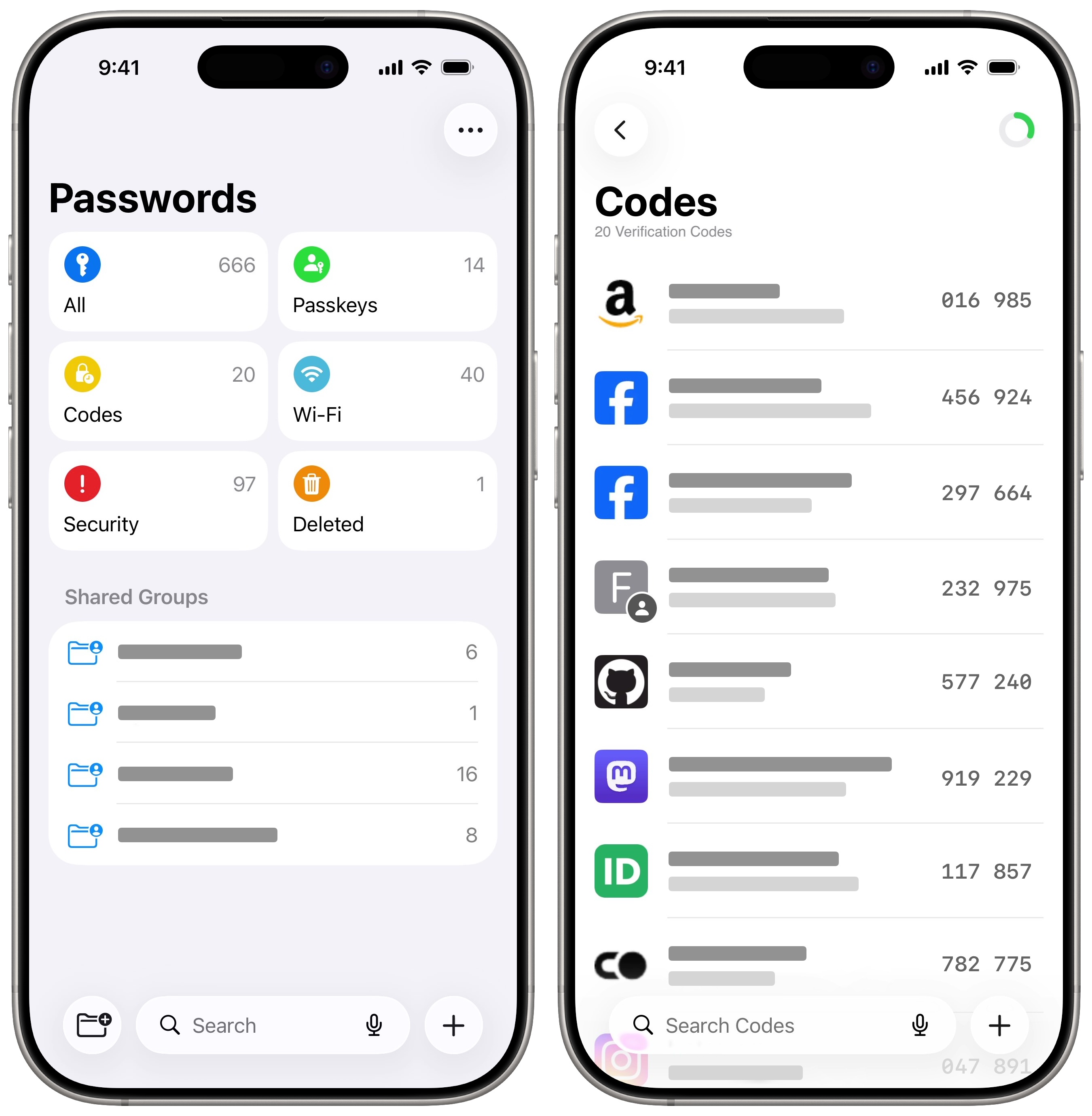
The Passwords app organizes your stored passwords into the following smart categories to help you find what you’re looking for:
- Search at the bottom to find something quickly. You can look up an account by user name, website or service name. (You can’t search by password.)
- All contains every saved password in alphabetical order.
- Passkeys keeps track of accounts that have a passkey, which is a password-free way of signing in. You sign in using Face ID or Touch ID. (For more info, read Cult of Mac’s guide: How to join the awesome password-free future and use passkeys.)
- Codes is for accounts that utilize two-factor authentication codes.
- Wi-Fi shows all of your known Wi-Fi networks and their passwords.
- Security serves up a list of warnings for weak, reused or compromised passwords that you should change.
- Deleted stores passwords you trashed within the last 30 days. You can recover them, if necessary, during this grace period before the app deletes them forever.
Edit or copy a saved username or password in the Apple Passwords app
Screenshot: D. Griffin Jones/Cult of Mac
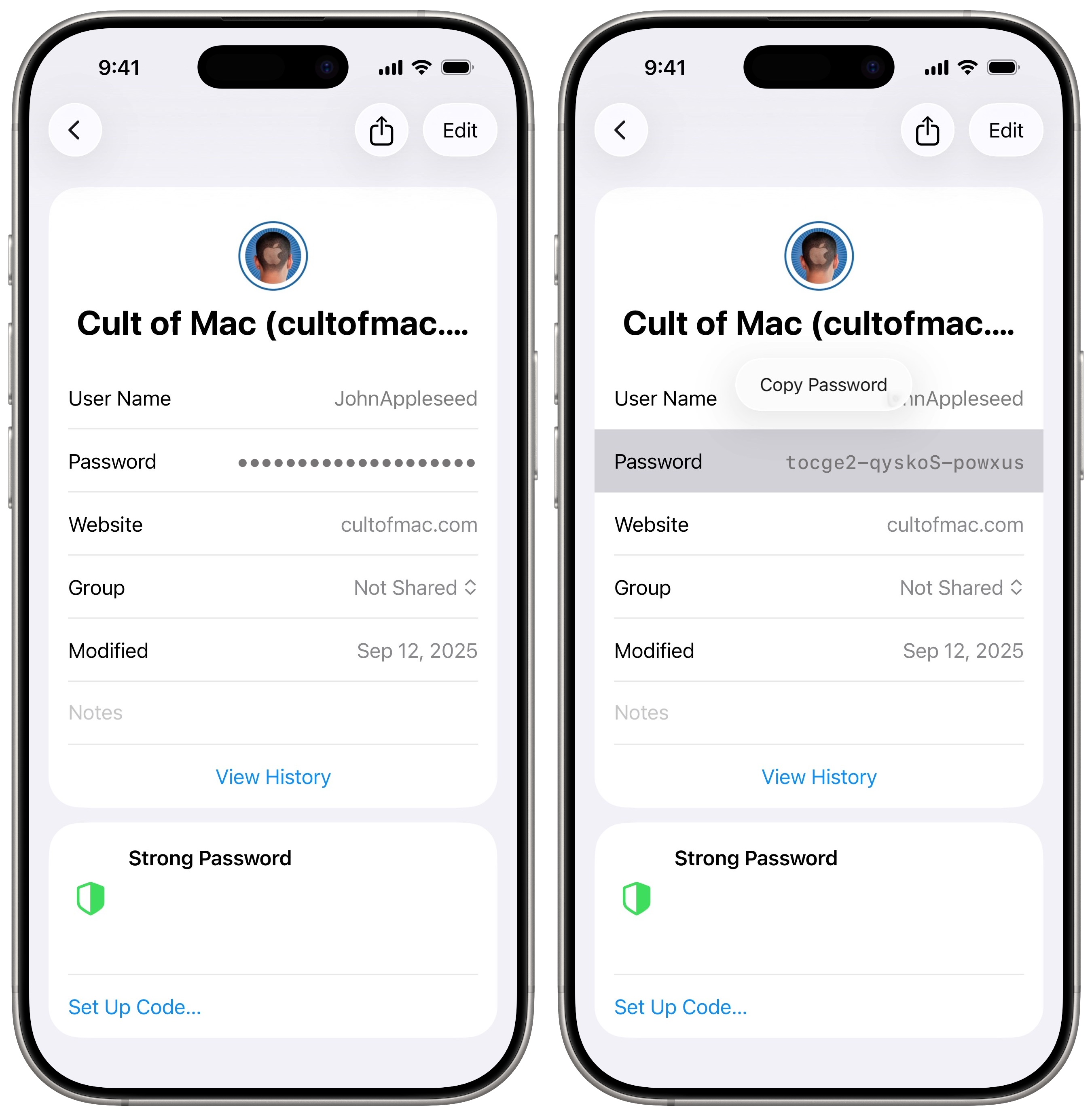
After finding a saved account in the Passwords app, tap on the entry to see details. Every entry shows a saved username, a password and a website, along with other info.
Copy the password by tapping the Password field and selecting Copy Password. Similarly, you can tap to copy your username. Tap on the website URL for a few different options: You can open the website, copy it or tap Edit Websites — that will let you add multiple different URLs that share the same login info.
If you changed your password and you want to make sure the saved version is up to date, tap Edit. Bear in mind that changing the password saved in the Passwords app doesn’t change the actual password you use to sign in to a website. The Passwords app is like a digital notebook — it’s a safe copy, but not the real thing. You want to make sure it matches the password that signs you in.
You also can add notes to help you find the entry later, if perhaps the website URL isn’t obvious or doesn’t match the name of the service. (For instance, you could add “Taxes” to an account you use to file taxes.)
Tap Done (the blue checkmark icon) to save your changes.
Find an old version of a password
Screenshot: D. Griffin Jones/Cult of Mac
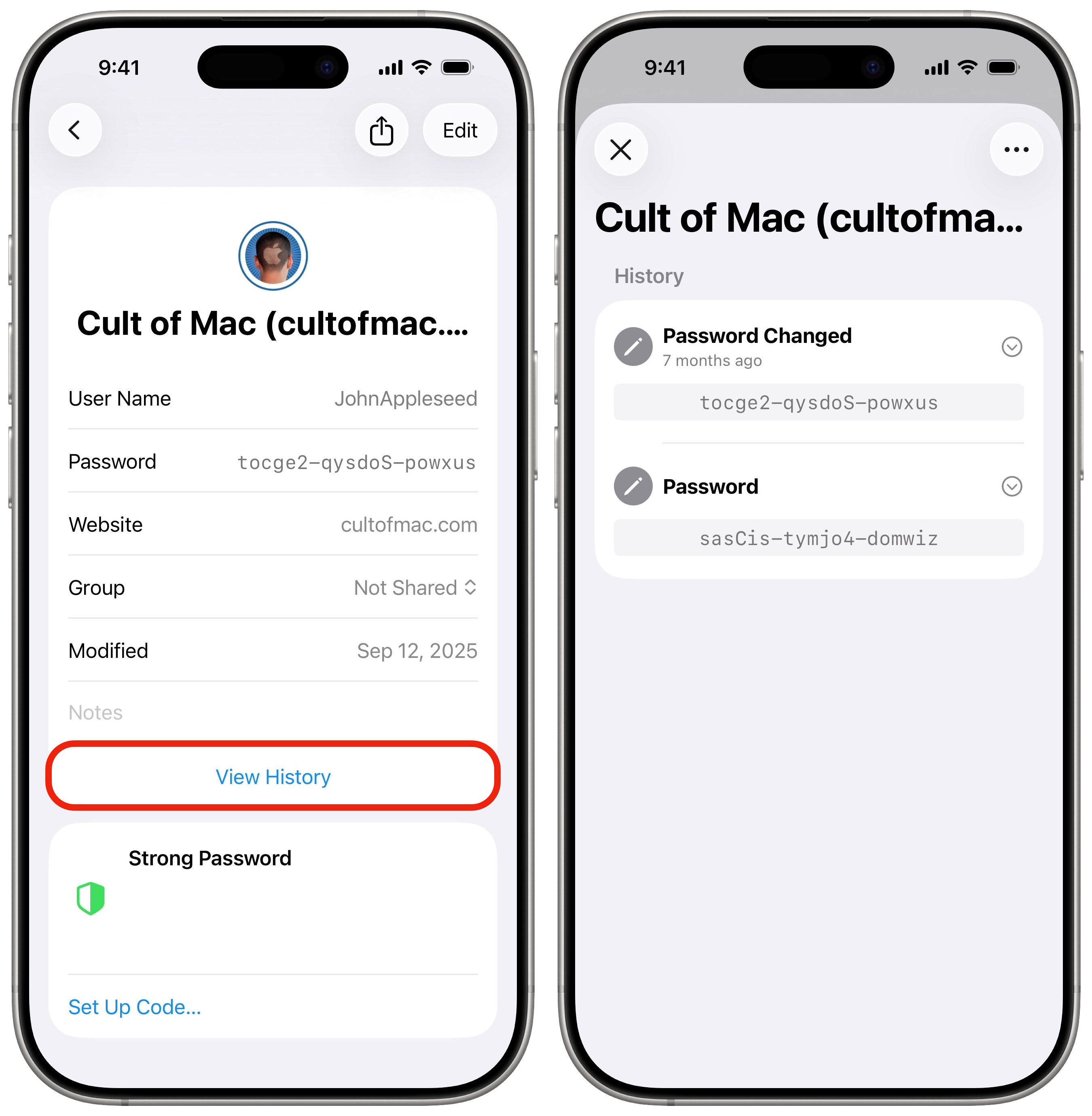
If you accidentally overwrite a password with something wrong, don’t despair. You can look up the password history in Apple’s Passwords app and see what it was before.
Tap View History to see the changeling. You’ll see when a password was removed or changed. Tap the disclosure arrow on the right to see an old version of a password and copy it.
While the app only saves password history if you’re running iOS 26, it’s already saved my bacon.
Add a password manually to Apple Passwords
Screenshot: D. Griffin Jones/Cult of Mac
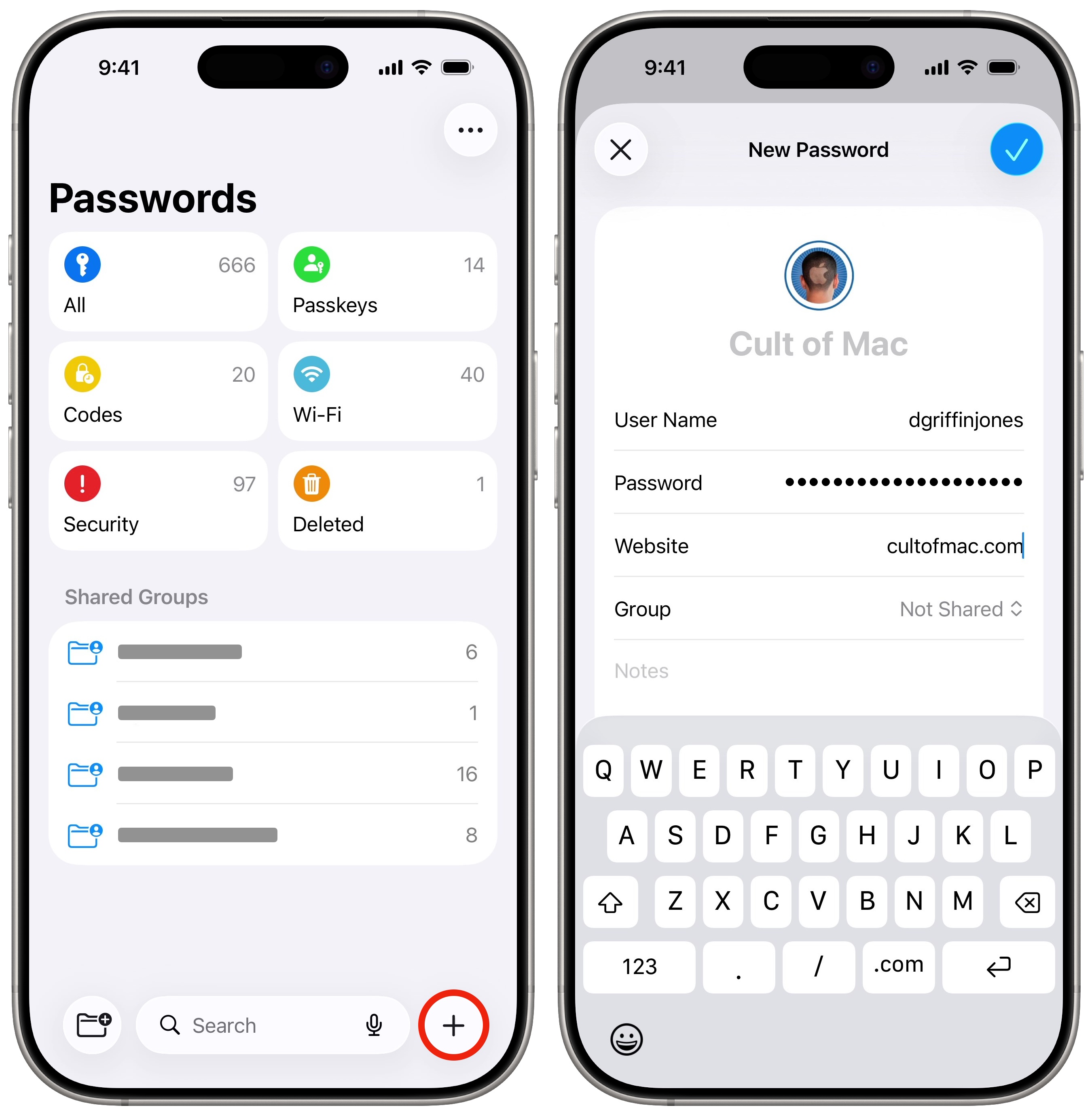
If you want to add a password manually, the Passwords app makes it easy. From Passwords, tap New Password (the + button) in the bottom-right corner to manually enter details. Type in the website URL and username. The app will generate a strong password for you by default, but you can type in or paste your own if you already set one up.
Hit Save (the blue checkmark) to save the password.
Create a strong password on the web and save it to Apple Passwords
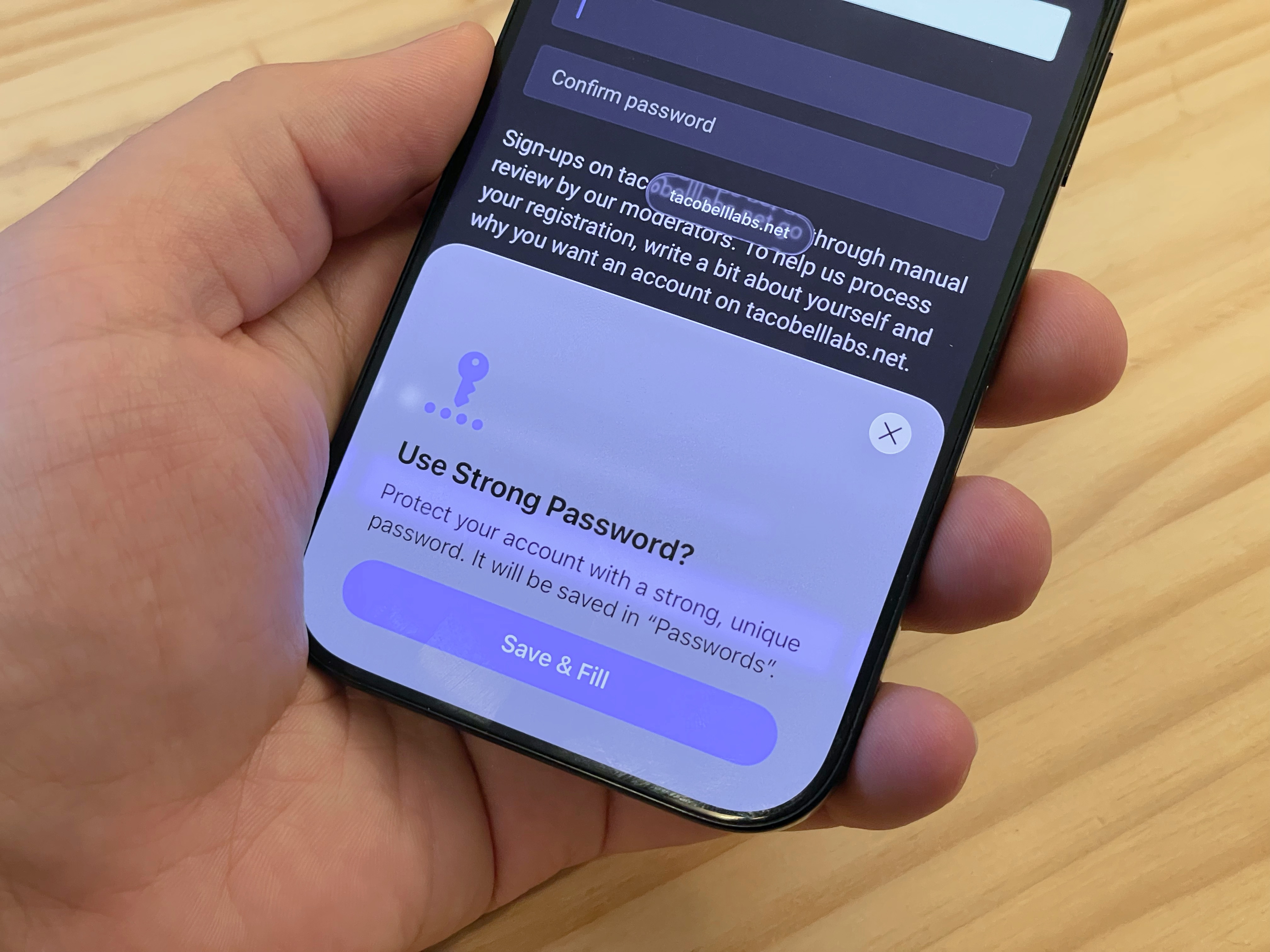
Photo: D. Griffin Jones/Cult of Mac
Once you start using Apple’s Passwords app, creating and managing strong passwords becomes a breeze. Next time you sign up for an account on a website, just tap Save & Fill to create a strong password. This will automatically save the new login to the Passwords app, including the website and username.
Some websites have weird password restrictions — you can’t use special characters like hyphens, or they need to be a certain number of characters. If you need to change the password that the app suggested, tap the password field again, then tap Customize Strong Password above the keyboard. Then you can create a new one that conforms to the website’s specifications.
Sign in using a saved password
Screenshot: D. Griffin Jones/Cult of Mac
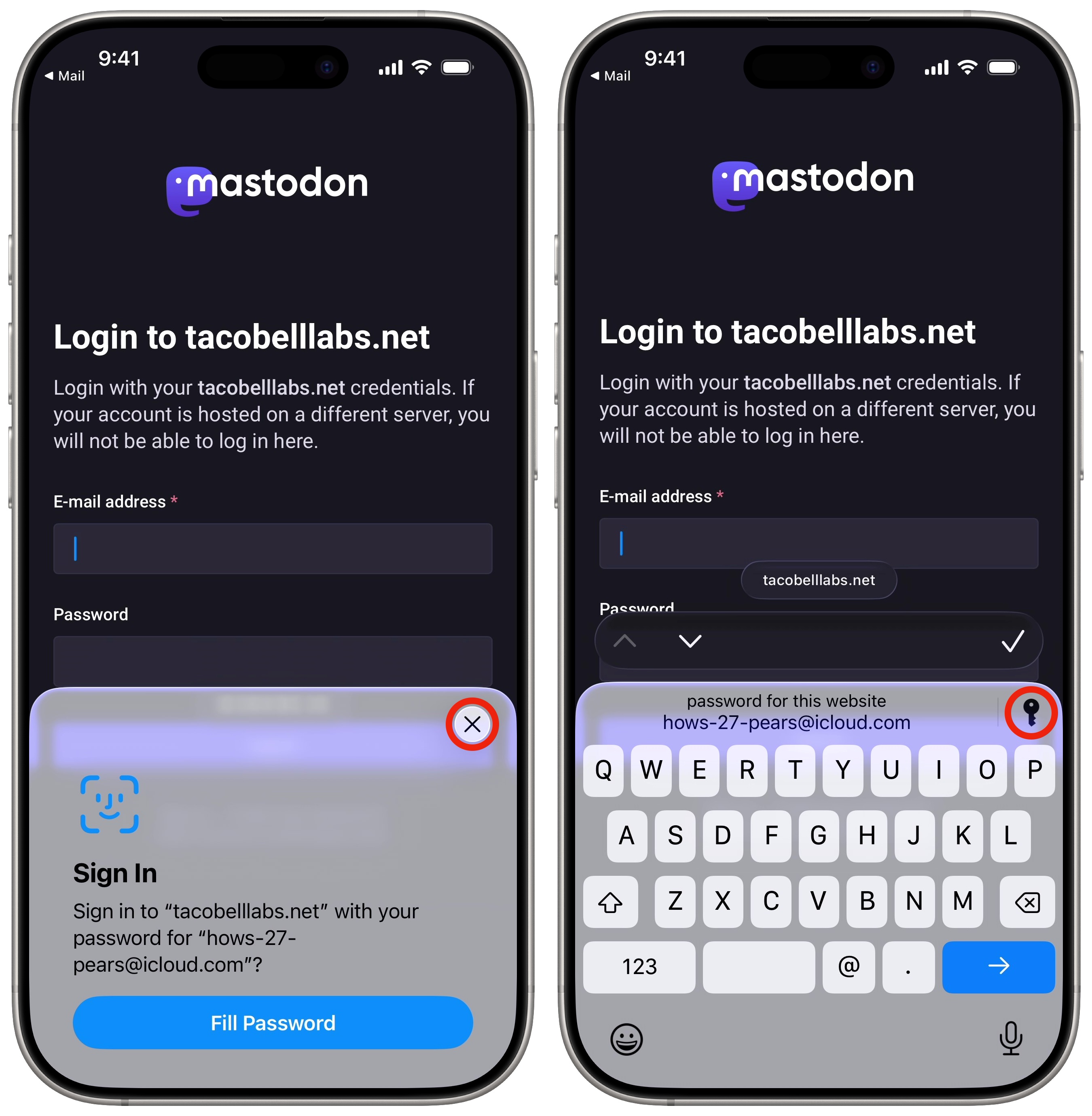
Anytime you tap on a password field on the web, the Apple Passwords app will check to see if you have an account on that website — and suggest the stored password if it finds one. Tap Fill Password to autofill it.
If you want to bring up the keyboard to sign in using a different account, tap the Close button on the left, then tap Passwords (the key button). If you have multiple accounts on the website and want to look up a different one, tap the key icon on the right.
Create a shared Passwords group
Screenshot: D. Griffin Jones/Cult of Mac
The Apple Passwords app also lets you share and sync passwords with your entire family. That means you won’t need to let everyone know when you change a shared password, or ask someone to send you an authentication code. This also works great if you work somewhere where multiple co-workers need to use the same login credentials.
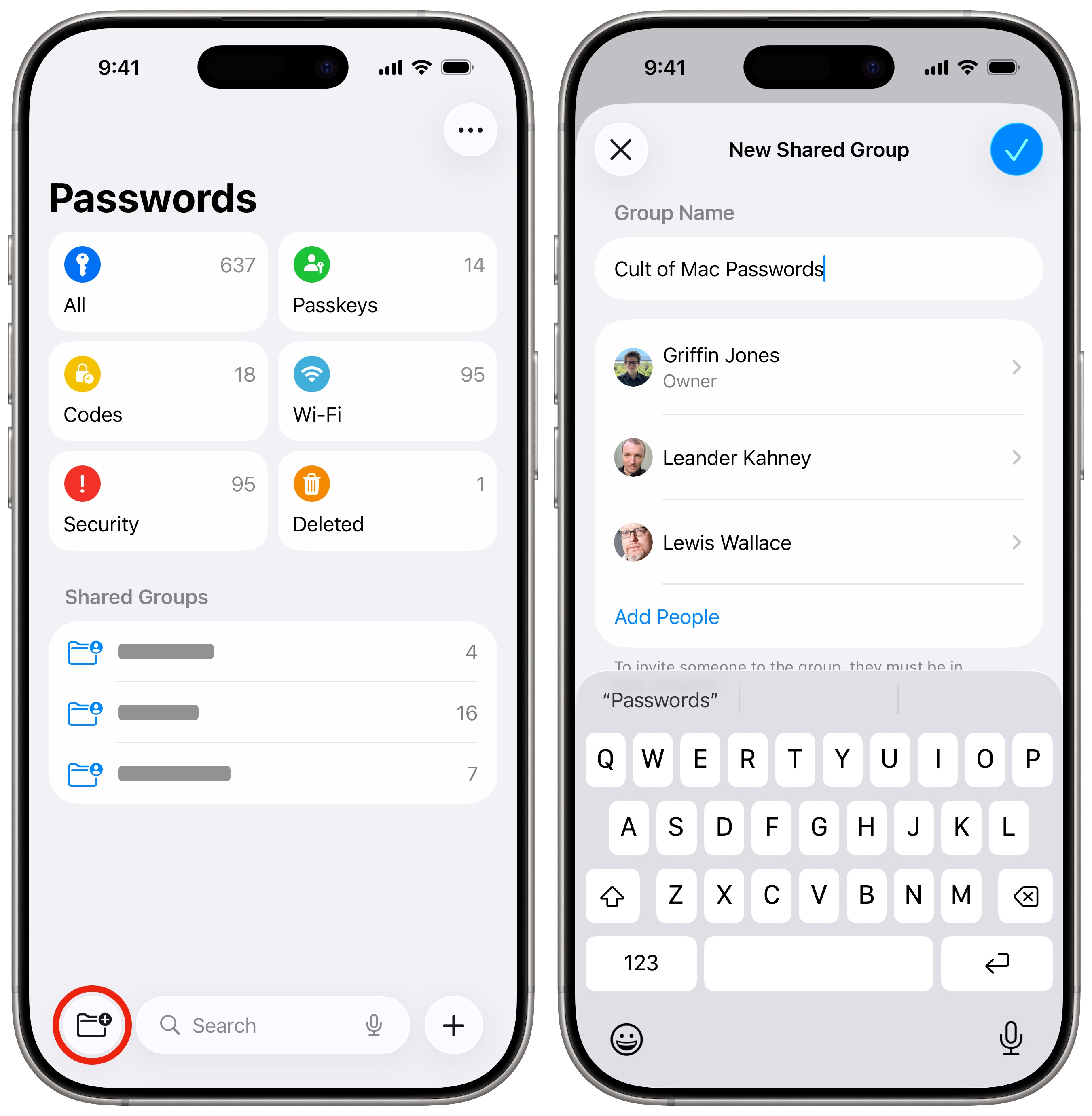
To share a password, open the Passwords app. Below, you’ll see your shared password groups. Tap New Shared Group (the folder button) in the bottom left to create one.
Give the group a name, like “Family Passwords.” Tap + Add People and look up one or more contacts you’d like to put in the group. Tap Create when you’ve got everyone. You also can tap Notify via Messages to let the group members know you gave them direct access.
You should now see the group you just created. Tap the + in the toolbar to add passwords you want to share with everyone in the group. You can search by your username or the website.
If you change your password in Safari or in Apple’s Passwords app, your changes will automatically sync to everyone else in the group.
More deep dives on other Apple apps
- Apple Mail lets you unsend an email if you spot a typo after the fact, schedule an email for the future, set a reminder to reply to an email later and more.
- Final Cut Camera is a bespoke pro camera app that puts more advanced manual controls in your hands.
- Apple’s Invites app can help your party planning and organization with RSVPs that keep everybody up to date. It can even handle a shared music playlist and photo album that anyone can contribute to.
- The Apple Journal app makes keeping a diary a breeze. Your iPhone will pull together details from your photos, locations and events to give you prompts for memories worth writing about.
- Apple News offers a bunch of great daily puzzles for Apple News+ subscribers.
- Apple Music Classical is a bespoke app and interface (free with an Apple Music subscription) for playing classical music.
We originally published this article on the Apple Passwords app on May 1, 2025. We updated it with the latest information on May 1, 2026.

D. Griffin Jones is a writer, podcaster and video producer for Cult of Mac. Griffin has been a passionate computer enthusiast since 2002, when he got his first PC — but since getting a Mac in 2008, he hasn’t turned back. His skills in graphic and web design, along with video and podcast editing, are self-taught over 20+ years. Griffin has a bachelor’s degree in computer science and has written several (unpublished) apps for Mac and iOS. His collection of old computers is made up of 40+ desktops, laptops, PDAs and devices, dating back to the early ’80s. He brings all of these creative and technical skills, along with a deep knowledge of Apple history, into his work for Cult of Mac.

