
The Apple Watch Translate app can help you quickly speak in a different language while you’re abroad, right from your wrist. Translate between 20 different languages by speaking out loud, play translations out of your Apple Watch speaker and build a list of favorite phrases you can play instantly.
Keep reading or watch our video to learn how to use it.
Translation on Apple Watch: How to use the Translate app
The Apple Watch is already the device you reach for when you don’t want to reach for your iPhone. And it turns out the wearable makes a surprisingly useful travel companion — especially when you’re trying to communicate in a language you don’t speak.
With Apple’s Translate app, you can speak into your wrist, get a translation almost instantly, and play the result aloud, turning the Apple Watch into a tiny interpreter who’s always at the ready. It won’t replace a full-featured translation app, but when you’re standing at a train station, ordering dinner or trying to ask a stranger for directions, the convenience of having a translator strapped to your wrist can be hard to beat.
Apple’s Translate app competes with Google Translate, the widely popular free online service. While Apple Translate doesn’t support as many languages, Google doesn’t make a translation app for the Apple Watch.
That means the fastest and most convenient way to speak another language from your wrist is with Apple’s app. Apple Translate is available as a standalone app on iPhone, iPad and Mac.
Table of contents: How to use Apple Watch Translate app
- Open the Translate app
- Pick two languages
- Tap the microphone icon and speak
- Play the translation out loud
- Tap the keyboard icon and type
- Mark a favorite phrase
- Adjust settings
- Delete a phrase from your history
- Available languages
- More Apple Watch features
Open the Apple Watch Translate app

Screenshot: D. Griffin Jones/Cult of Mac
To get started using the Apple Watch translation app, just click the Digital Crown (dial) on your Apple Watch and open the Translate app (with the icon of two speech bubbles).
If you don’t see the Translate app, you may need to update to watchOS 11 or later. Make sure your iPhone is running iOS 18 or later. Then, open the Watch app, and tap General > Software Update.
Pick two languages
When you open the Translate app, you’ll see a tile on the screen where you can pick two languages. One should match the language you have set on your watch. Tap on either one to scroll through the list of available languages.
The squiggly Swap Languages button will switch which language you’re speaking and which one you’re translating.
Tap the microphone icon and speak
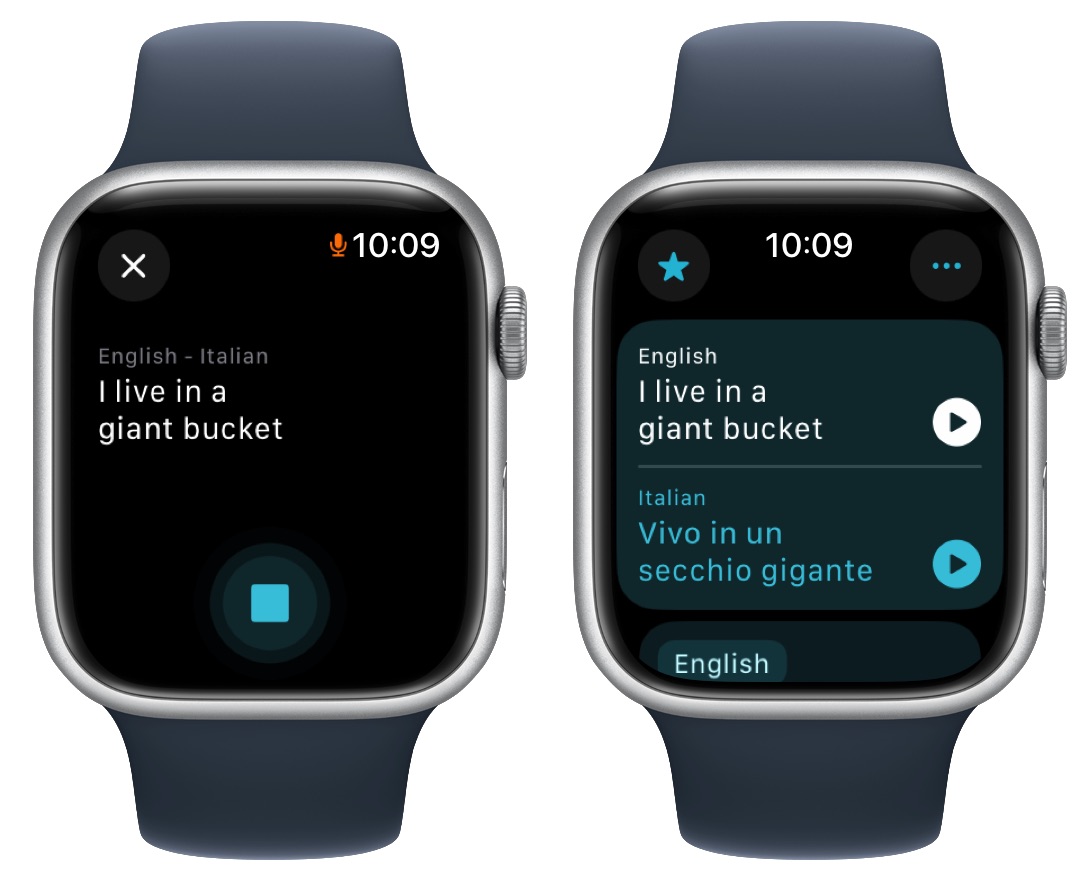
Screenshot: D. Griffin Jones/Cult of Mac
Tap the Dictation button (which looks like a microphone) at the bottom of your Apple Watch screen and start speaking. You’ll see a live transcription of what you’re saying. It’ll automatically end if you pause at the end of a sentence — otherwise, you can tap the Stop button manually.
Play the translation out loud
Tap the Play button next to a translation to play it out loud from your Apple Watch’s speaker. You can spin the Digital Crown while it’s playing to adjust volume.
Tap the keyboard icon and type
If you prefer to type your translations on your Apple Watch’s tiny screen, you can try that as well. Tap the Options (⋯) button in the upper right. Scroll down and tap Preferred Input and select Text.
Now, you’ll see a Keyboard button at the bottom instead of the microphone. On an Apple Watch Series 7 or later, you’ll see a full QWERTY keyboard. You can type letter-by-letter or swipe with your finger to enter a full word at a time.
On an older model with a smaller screen, you can draw one letter at a time. (To switch to this system on a newer watch, tap the Change Input Method icon in the bottom right and tap the Scribble icon.)
Mark a favorite Translate phrase from your Apple Watch
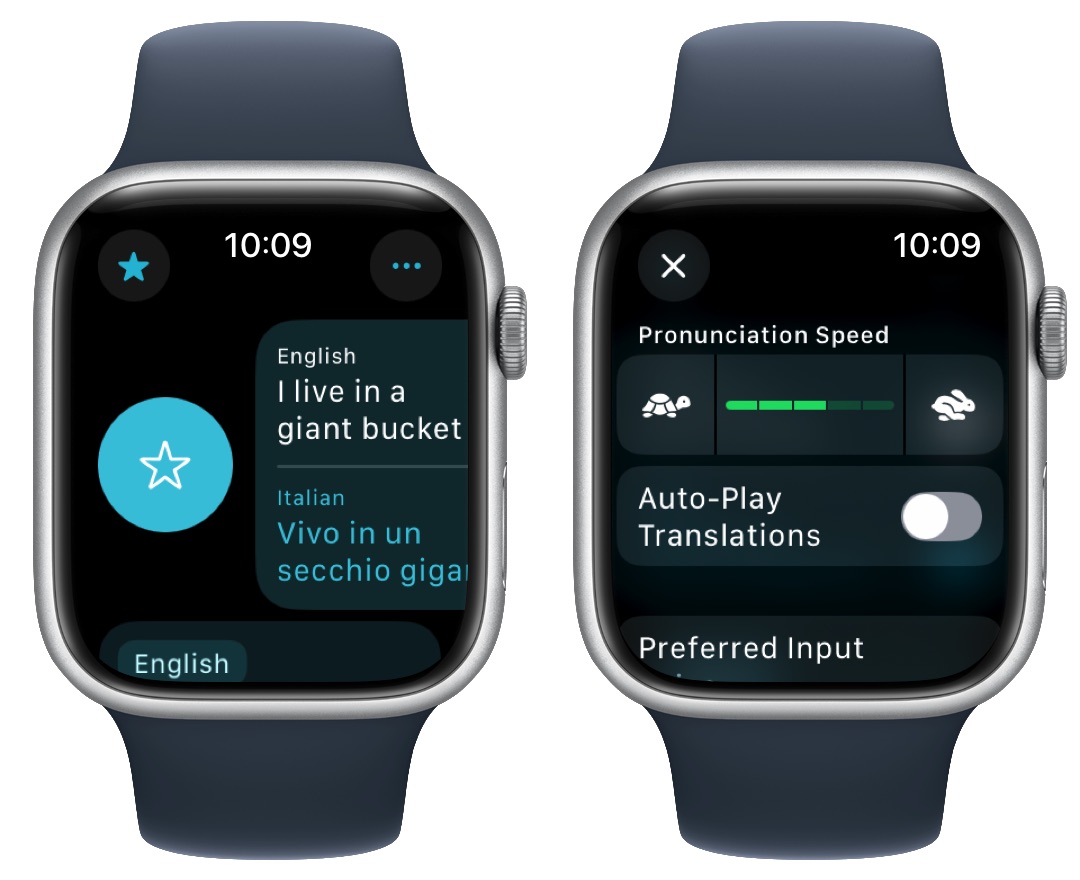
Screenshot: D. Griffin Jones/Cult of Mac
You can mark a particular phrase as a favorite for easy access at any point in the future. Swipe right on a phrase and tap Favorite (the star icon) to mark it as a favorite.
You can see your favorite phrases by tapping Favorites (the star in the upper left of the Apple Watch screen). From this list, you can swipe left on a phrase and tap Unfavorite to remove it.
Favorite phrases sync between Translate on your Apple Watch and your iPhone.
Adjust settings
To tweak the way the Translate app works on your Apple Watch, tap the Options (⋯) button in the upper right of the wearable’s screen to expose more translation settings.
- You can adjust the speed of the translation playback by tapping on the left or the right (turtle means slower; rabbit means faster).
- Enable Auto-Play Translations to have translations play out of the speaker as soon as they come in, rather than manually tapping Play.
- Go to Downloaded Languages to make various languages available for offline use or On-Device Mode. You can also enable On-Device Mode, which means your translations won’t go to the cloud. Apple says, “Offline translations may not be as accurate as online translations.”
- As mentioned, Preferred Input lets you switch from Voice to Text, if you’d rather type than speak out loud.
Delete a phrase from your history
The Translate app on your Apple Watch doesn’t keep a full history of everything you’ve translated; it clears it out every time you quit the app for more than a few minutes.
However, if you want to delete something from the list, just swipe left on it and tap Delete.
Available languages in Translate on Apple Watch
Here are all the available languages for Apple Watch translation (as of October 6, 2026):
- Arabic
- Dutch
- English (United Kingdom)
- English (United States)
- French (France)
- German (Germany)
- Hindi
- Indonesian
- Italian (Italy)
- Japanese
- Korean
- Mandarin Chinese (China mainland)
- Mandarin Chinese (Taiwan)
- Polish
- Portuguese (Brazil)
- Russian
- Spanish (Spain)
- Thai
- Turkish
- Ukrainian
- Vietnamese
More Apple Watch features
After you learn how to use the Translate app for Apple Watch, check out other top features:
- 6 things you can do with an old Apple Watch
- How to track your Apple Watch Activity rings and pause your streak
- How to connect Apple Watch to treadmills and other gym equipment
- How to use Apple Watch blood oxygen sensor, and what it’s good for
We originally published this post on how to use the Apple Watch’s translation app on May 7, 2025. We updated it on October 6, 2026.

D. Griffin Jones was a writer, podcaster and video producer for Cult of Mac. Griffin has been a passionate computer enthusiast since 2002, when he got his first PC — but since getting a Mac in 2008, he hasn’t turned back. His skills in graphic and web design, along with video and podcast editing, are self-taught over 20+ years. Griffin has a bachelor’s degree in computer science and has written several (unpublished) apps for Mac and iOS. His collection of old computers is made up of 40+ desktops, laptops, PDAs and devices, dating back to the early ’80s.
Griffin writes for his personal blog, Extra Ordinary, and is currently looking for work.

