
If you use Final Cut Pro, you’re well aware of how much storage one of its libraries can eat up. Producing weekly videos and podcasts for Cult of Mac, disk space is a never-ending battle for me — and I even splurged on a 2TB hard drive!
The third time I ran into this problem, I tried digging deeper into Final Cut Pro settings to see if there was a better way. I found a bunch of settings that help stop the 800-pound, hard-drive-eating gorilla.
Then, I opened up the Final Cut Pro library bundle itself, and found even more folders, many gigabytes in size, that I could clear out.
Here’s how Final Cut Pro users can reclaim some storage from a runaway video library.
How I stopped Final Cut Pro from filling my Mac’s storage
These days, storage is cheap and plentiful enough that even the most prolific writers never need to worry about filling their Macs with too many words. Photos are also pretty easy to store.
But the massive size of video files means they have always been hard to store digitally. Bigger hard drives have just barely kept up with advancements in video resolution and quality. It doesn’t help that now, everyone carries in their pockets a camera that can shoot excellent 4K 60 fps HDR video.
If you’re in the middle of cutting together your YouTube video, podcast or feature film in Final Cut Pro, you’d hate to see a warning that your disk is full. Here’s what you can do to clear some space.
Table of contents: Clear Final Cut Pro storage
- Delete generated library files
- Change Final Cut Pro settings
- Delete extra library data and original media
Delete generated library files
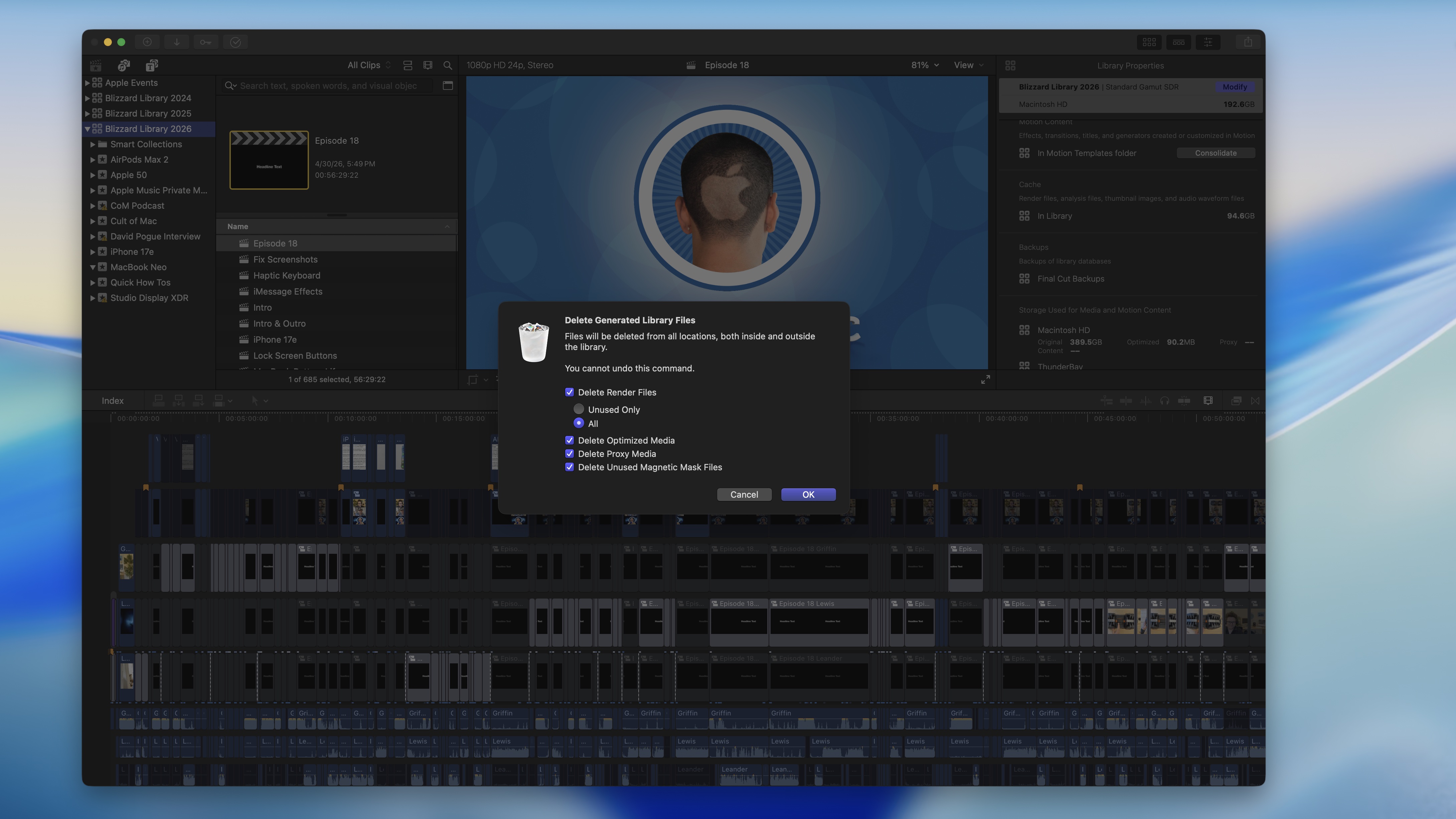
Screenshot: D. Griffin Jones/Cult of Mac
First, open Final Cut Pro. In the browser on the left, select your library. Then, go to File > Delete Generated Library Files. Check everything in the list — Delete Render Files (and select All), Delete Optimized Media, Delete Proxy Media and Delete Unused Magnetic Mask Files.
This won’t delete any of your actual media and won’t break any projects. The keyword is that these are generated caches, copies that Final Cut Pro makes. Deleting these files might make performance a little slower, because during playback, Final Cut Pro will need to fetch all the files from disk.
But if your Final Cut Pro library is on your Mac’s local storage, odds are that it’s plenty fast enough. These options were set as the default at a time when spinning hard drives were slow, and Final Cut Pro needed to make optimized versions for fast playback.
Change Final Cut Pro settings
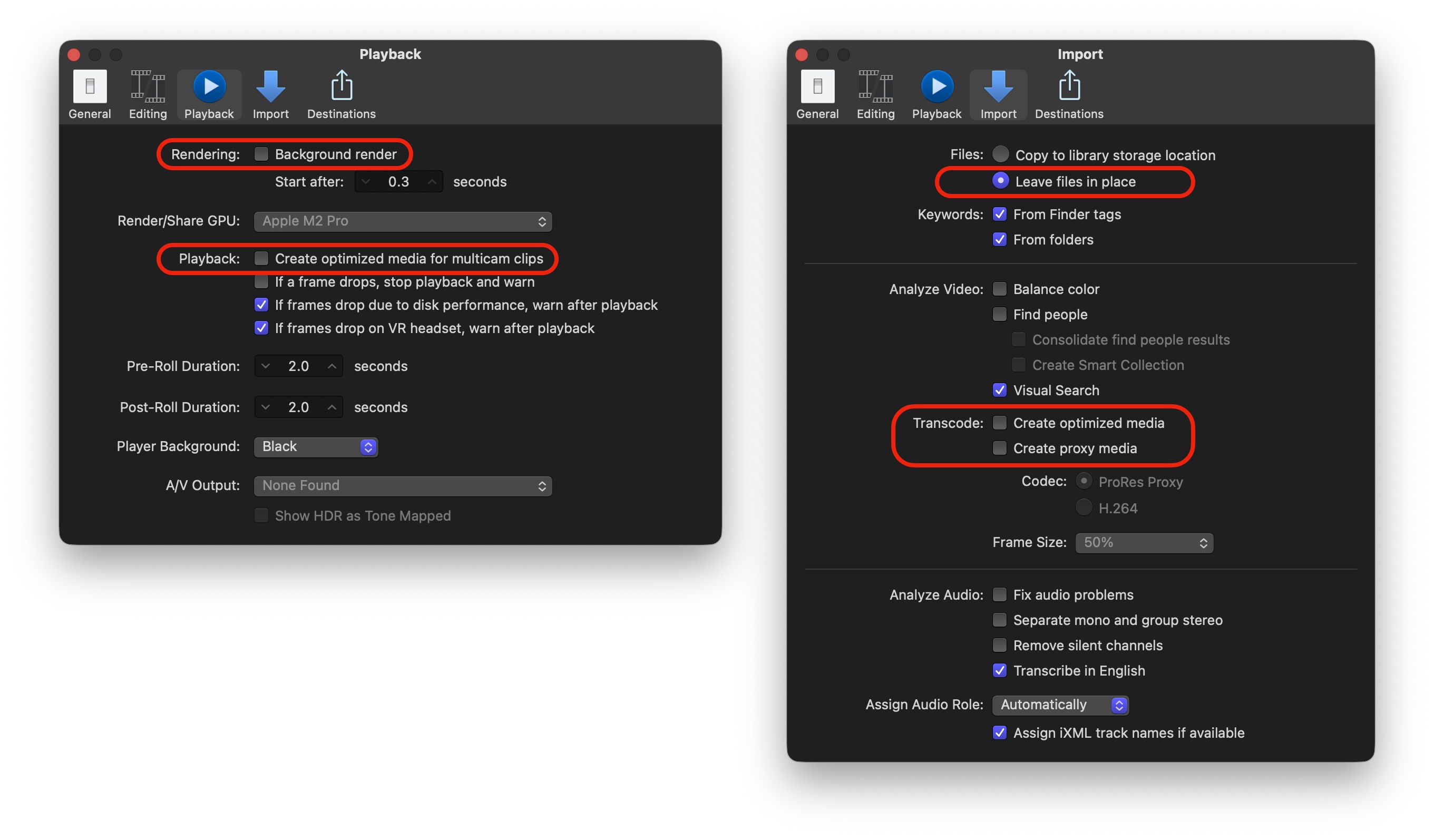
Screenshot: D. Griffin Jones/Cult of Mac
Next, you’ll want to make sure Final Cut Pro doesn’t keep generating more optimized media going forward. In the menu bar, go to Final Cut Pro > Settings (⌘,).
In the Playback tab, disable Background render right at the top and also disable Create optimized media for multicam clips.
Then, click on the Import tab and set “Files” to Leave files in place. In the “Transcode” section, disable Create optimized media and disable Create proxy media.
Delete extra library data and original media
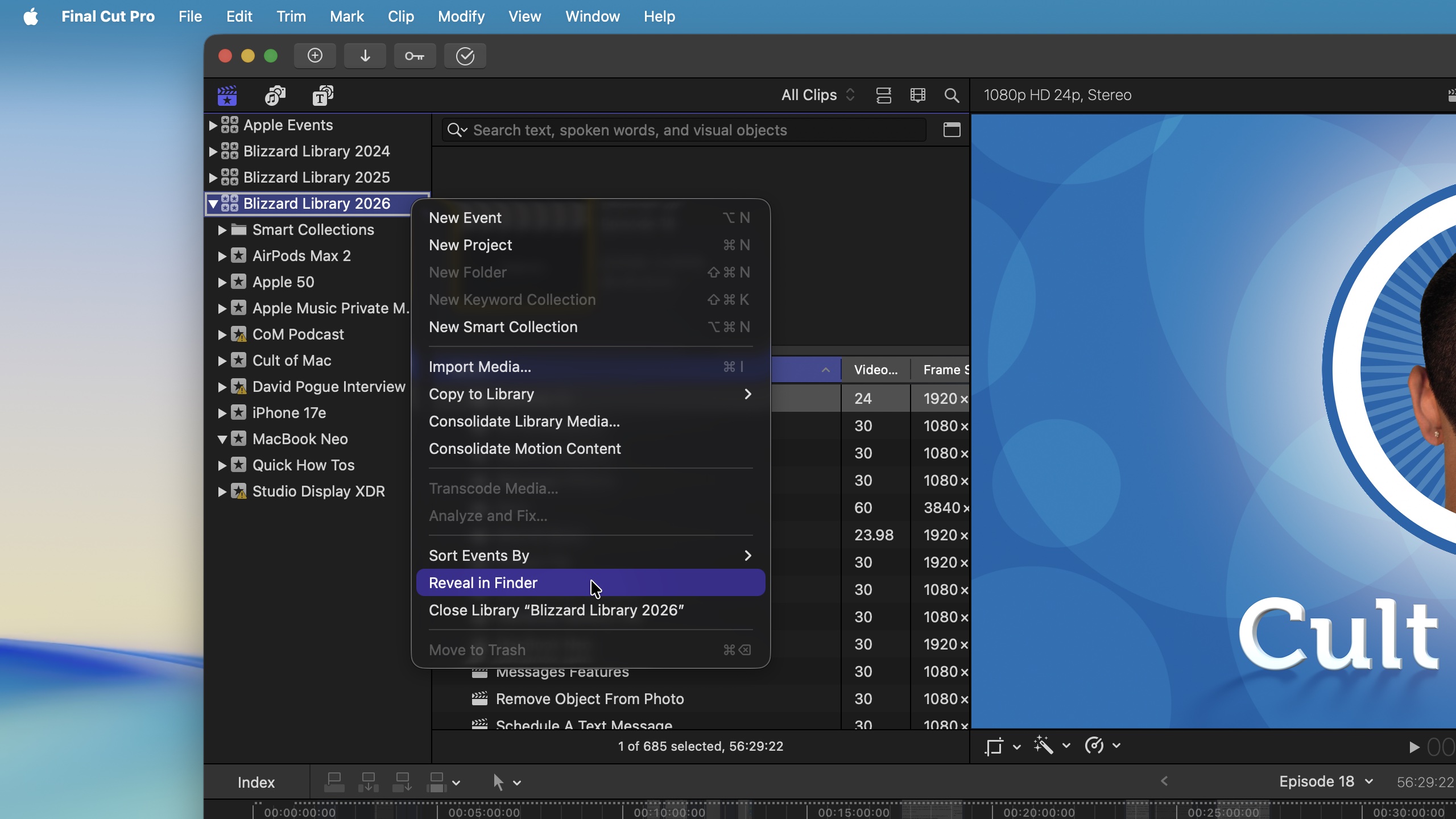
Screenshot: D. Griffin Jones/Cult of Mac
This next step is a bit risky. But if you need to clear even more space on your Mac’s drive, this is what you’ll need to do. You might need to delete some data from your Final Cut Pro project.
Right-click on your library in the sidebar and click Reveal in Finder. Hit Option-Command-I (⌥⌘I) to bring up a floating Get Info palette. You can see in the top-right corner how much space it takes up. If it’s still a hundred gigabytes (or more), you can try to delete a few files inside.
Right-click on the library file and click Show Package Contents. That’ll show you the secret folders inside your media library. With the floating Get Info palette still open, you can select a folder to see how much space it takes up.
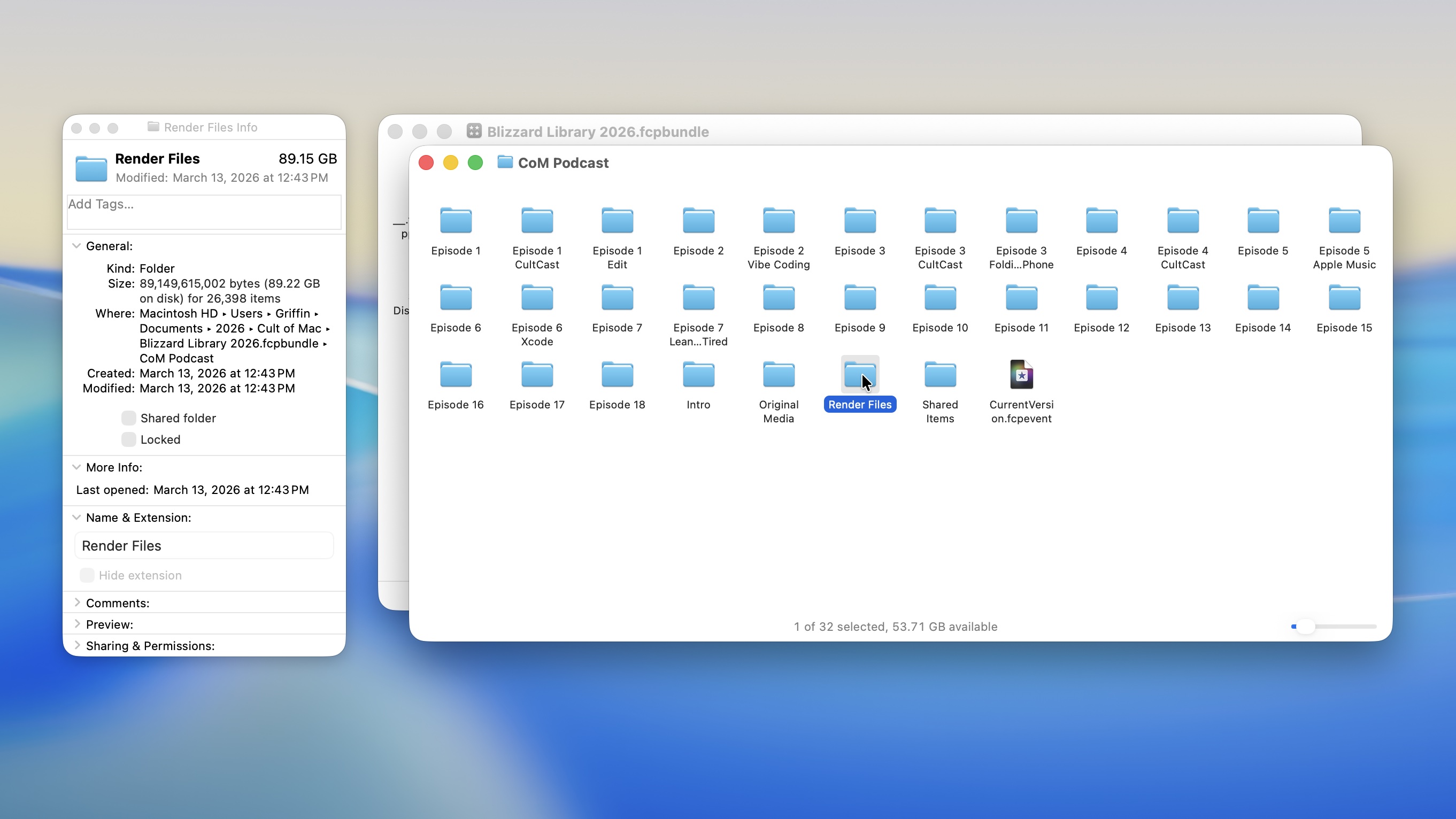
Screenshot: D. Griffin Jones/Cult of Mac
Look to see if one Final Cut Pro project is much bigger than the rest. If so, that’s a clue that it has a lot of original media inside — duplicate video files that are stored inside the project directly. Click on a project, then check its “Original Media” folder as well.
If you’re sure those videos exist elsewhere on your computer or in your Photo Library, you can use an app like Hyperspace to deduplicate them. Make sure you go to Hyperspace > Settings > Advanced and enable “Scan inside packages,” “Reclaim files inside packages” and “Allow Photos access.” (For more on Hyperspace, check out Cult of Mac’s guide: “3 fastest ways to clear disk space on your Mac.”)
You might also spot an “Analysis Files” folder that’s quite large. If you use a lot of frame rate adjustments or motion tracking in a project, that will generate a large amount of data. If it’s an old project you don’t need to edit anymore, you can either delete the analysis files (or delete the project entirely).
More on Final Cut Pro
- Apple Creator Studio vs. Adobe Creative Cloud: Which creative suite should you choose?
- How to use Final Cut Camera, Apple’s free pro video app for iPhone
- How Final Cut Pro for iPad differs from Mac version

D. Griffin Jones is a writer, podcaster and video producer for Cult of Mac. Griffin has been a passionate computer enthusiast since 2002, when he got his first PC — but since getting a Mac in 2008, he hasn’t turned back. His skills in graphic and web design, along with video and podcast editing, are self-taught over 20+ years. Griffin has a bachelor’s degree in computer science and has written several (unpublished) apps for Mac and iOS. His collection of old computers is made up of 40+ desktops, laptops, PDAs and devices, dating back to the early ’80s. He brings all of these creative and technical skills, along with a deep knowledge of Apple history, into his work for Cult of Mac.

