You can easily hide photos and videos on your iPhone to keep secret and/or illicit images out of your main Photos library. Hiding items from the camera roll makes sure nobody except you can see your embarrassing pictures, salacious nudes or old selfies with your ex.
Apple introduced the Hidden photo album years ago in iOS 8. But after Apple redesigned the Photos app in iOS 18, you can no longer find it at the bottom of the Albums tab — because the tab bar is gone. But in iOS 26, it’s back again!
Here’s what hiding photos does to your iPhone, how you can stash those incriminating or mortifying pix, and where to find them.
How to hide photos on iPhone
As privacy anxieties rise and our photo libraries double as diaries, knowing how to make photos vanish (and reappear) has become a baseline digital survival skill.
If you want to keep certain photos and videos on your iPhone private, Apple’s Photos app offers a robust way to hide them from your main library: the Hidden folder. It serves as a kind of personal vault that lets you disappear sensitive images without deleting them, locking them up so only you can access your secret snaps.
This guide explains exactly how hiding photos works on iPhone, with step-by-step instructions for concealing and revealing photos, and tips for making the Photos app’s Hidden album easy to find when you need to peruse it.
Table of contents: How to hide photos on iPhone
- Hide a single photo or video
- Hide multiple photos or videos
- Open the Hidden album
- Unhide photos
- Pin the Hidden album to make it easier to find
- More Photos app tips
Hide a single photo or video
Screenshot: D. Griffin Jones/Cult of Mac
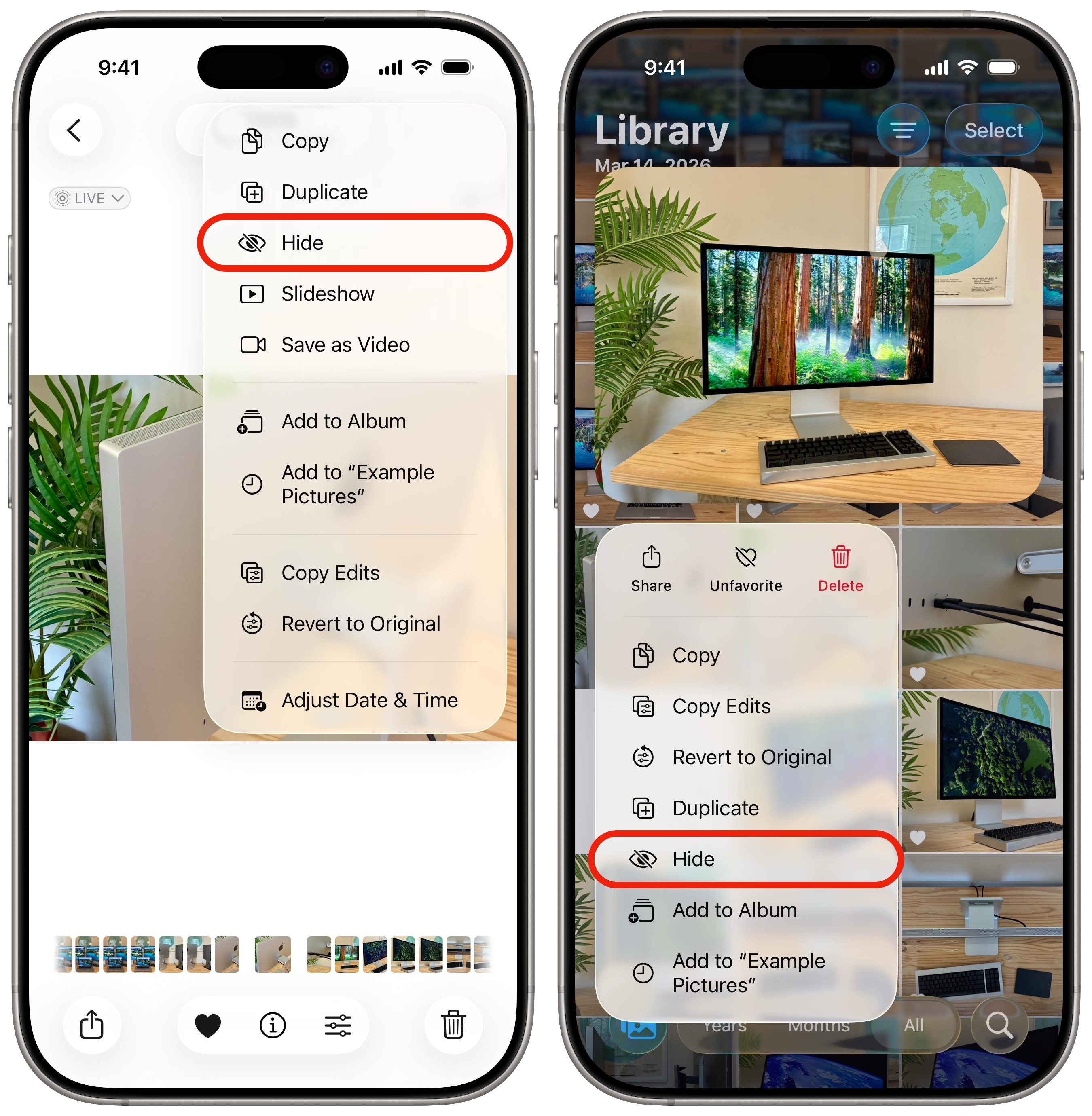
To hide a single photo or video on your iPhone, open the Photos app and tap to open the item you want to hide. Then simply tap the More (⋯) button in the upper right corner and tap Hide.
You can also hide an item without opening it — tap and hold on it, then tap Hide from the context menu that pops up.
Hide multiple photos or videos on iPhone
You can hide multiple photos or videos on your iPhone at once if there’s a bunch you want to sweep under the rug. To do so, first tap Select in the upper right corner. You can tap the photos you want to hide one after another. You can also swipe left or right to start selecting a whole bunch, then drag your finger up and down to select dozens at a time. Then, tap the More (⋯) button in the lower right corner and tap Hide.
When you hide a photo or video, it won’t be visible anywhere except the Hidden album. It won’t show up in the camera roll, library, albums, search or anywhere else.
The Hidden album is protected by Face ID, Touch ID or your device’s passcode. Only you can open it (unless you tell everyone your passcode willy-nilly).
How to find the Hidden album
Screenshot: D. Griffin Jones/Cult of Mac
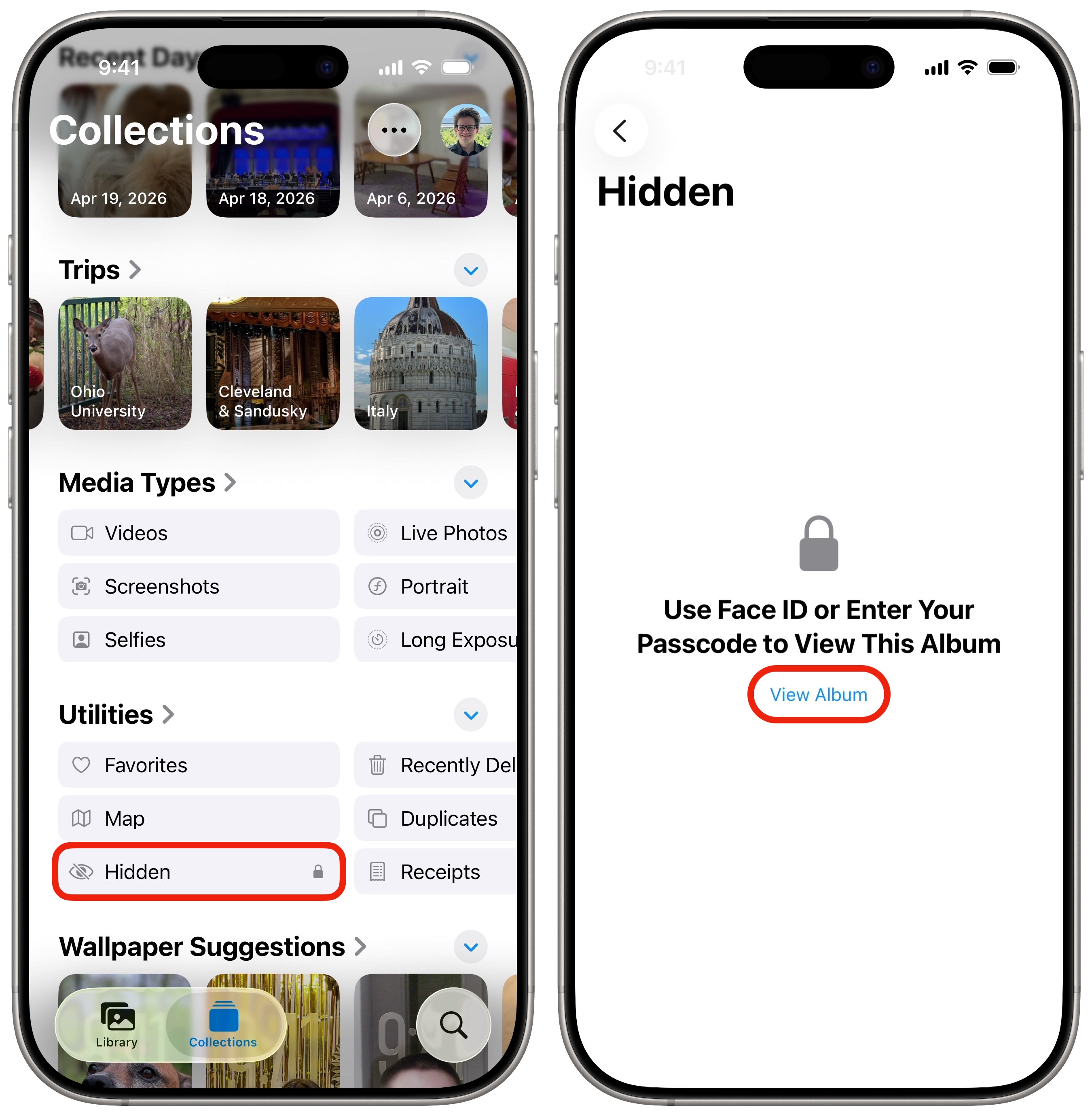
To find the Hidden album on your iPhone, tap the Collections tab, then scroll down through the list until you find the Utilities section. You’ll see Hidden there, along with Favorites, Map, Recently Deleted and more (if you swipe over).
Tap Hidden to open the folder, then tap View Album to authenticate and show its contents.
Unhide photos on your iPhone
From the Hidden album, you can unhide any photos and videos to make them visible in your library again. Just perform the same process as before, in reverse:
- Tap and hold an item, then tap Unhide from the pop-up menu.
- Tap on an item, then tap the More (⋯) button in the upper right corner and tap Unhide.
- To unhide multiple at once, tap Select in the upper right corner. Tap on multiple, or drag your finger to select a bunch at once. Tap the More (⋯) button in the lower right corner and tap Unhide.
Pro tip: Pin the Hidden album to make it easier to find
Screenshot: D. Griffin Jones/Cult of Mac
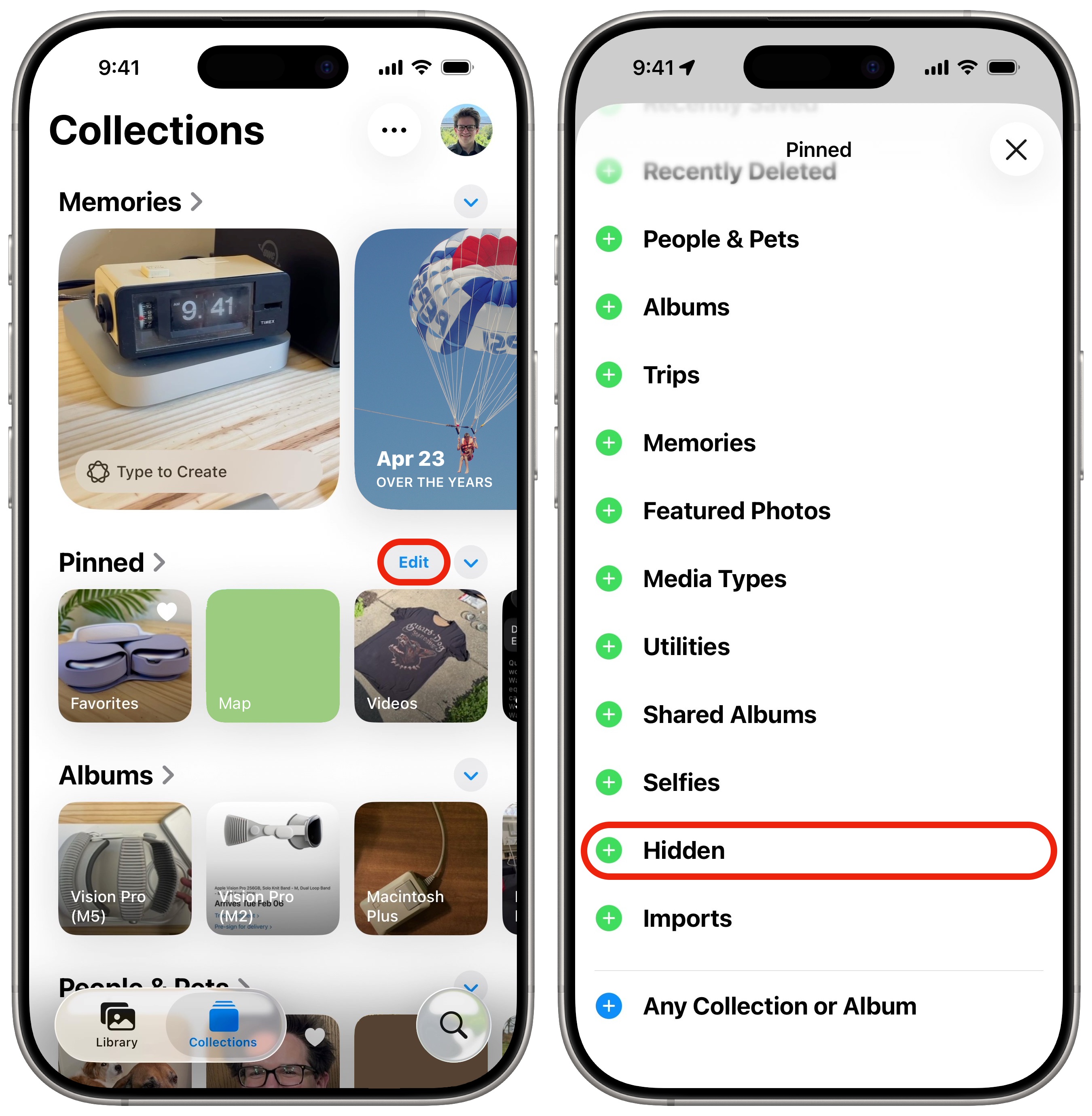
If you want easier access to your hidden photos and videos, you can add the Hidden folder to your Pinned Collections section, which shows up higher on the list. Next to Pinned Collections, tap Modify on the right. Scroll down and tap + Hidden to add it to the group.
You can reorder the collection by dragging the grabbers (☰) up or down. Only the first three items will show up on-screen without scrolling, so put the Hidden folder in the top three for easiest access.
Tap Close (×) in the upper right to save your changes.
More Photos and Camera tips
Now that you’ve learned how to hide photos on iPhone, check out other features of the Photos app:
- Learn how to use and customize the Photos app.
- Tag photos with the names of your friends, family members and pets so you can easily find pictures of them later on. The Photos app will detect pictures of people automatically — you just need to give them a name.
- Find duplicate photos to delete copies you have cluttering up your library.
- Make custom stickers from photos on your iPhone and send them in iMessage, Snapchat and WhatsApp.
- Crop, skew and rotate a photo to fix the perspective or angle a picture was taken from, correct some fisheye distortion on an ultra-wide photo and more.
- Save Live Photos as a video you can play back with full sound or share to social media.
- Convert a video or Live Photo to a GIF that you can put in a website, presentation or group chat.
- Create a photo memories movie using the Apple Photos app, powered by Apple Intelligence. Just type in a prompt, it’ll browse through your collection, and create a bespoke video set to music of your choosing.
We originally published this article on how to hide photos on iPhone on May 21, 2025. We republished it with the latest information on May 4, 2026.

D. Griffin Jones is a writer, podcaster and video producer for Cult of Mac. Griffin has been a passionate computer enthusiast since 2002, when he got his first PC — but since getting a Mac in 2008, he hasn’t turned back. His skills in graphic and web design, along with video and podcast editing, are self-taught over 20+ years. Griffin has a bachelor’s degree in computer science and has written several (unpublished) apps for Mac and iOS. His collection of old computers is made up of 40+ desktops, laptops, PDAs and devices, dating back to the early ’80s. He brings all of these creative and technical skills, along with a deep knowledge of Apple history, into his work for Cult of Mac.


One response to “How to hide your secret iPhone photos”
Wow