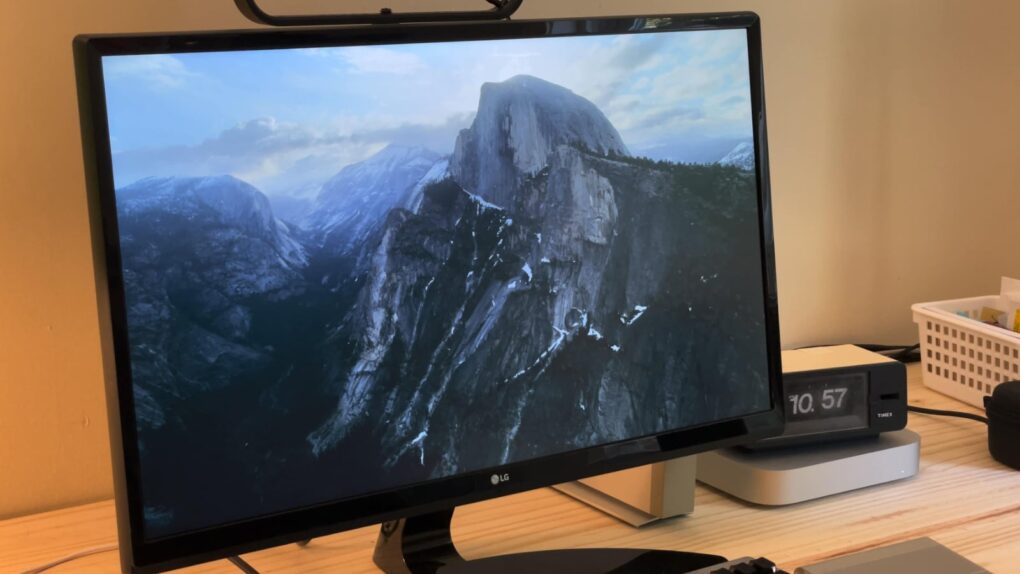
Screen savers fell out of fashion a long time ago, but Apple’s Aerials screen savers look so beautiful, they just might make you reconsider. In fact, with all the stunning visuals, these might just be the best Mac screen savers around.
The Aerials screen savers started on the Apple TV, showing gorgeous helicopter photography of the world’s greatest natural landscapes, underwater sights and cityscapes — even shots from space. Now, if you have a desktop display set up somewhere prominently in your house, you can get the same beautiful vistas on your computer with the Aerials screen savers for Mac.
Here’s where to find these beautiful Mac screen savers, plus some setup tips that will really help them shine.
How to set up the Mac Aerials screen savers
Once essential for preventing screen burn-in on old CRT monitors, screen savers no longer serve a practical purpose in the era of LCD displays. But that doesn’t mean they’ve disappeared entirely. They can still bring a touch of beauty and personality to an idle screen. Apple’s Aerials screen savers, with their sweeping cinematic footage, turn your Mac into a moving art piece.
And with OLED displays potentially coming to the MacBook Pro, screen savers may once again serve a practical purpose in preventing burn-in. (With extreme usage, pricey OLED displays can suffer from burn-in.)
Here’s how the best Mac screen savers work.
Table of contents: How to set up the Mac Aerials screen savers
- Update your Mac if necessary
- Set your Mac to keep the display on
- Enable the Aerial screen saver
- Show as wallpaper
- More awesome macOS Sonoma features
Update your Mac if necessary
First, you need to update to macOS 14 Sonoma or later, since that’s when Apple added the Aerials screen savers. (We updated this how-to for the latest version, macOS 27 Golden Gate.) Check which version you’re running by going to the Apple menu () in the upper left, then clicking About This Mac. If it says you’re running macOS 14 or later, you’re already good.
Otherwise, go to System Settings > General > Software Update to upgrade your Mac’s operating system. (If you’re on an older version of macOS, you might find this in System Preferences > Software Update.)
macOS Sonoma runs on the iMac (2019 or later), iMac Pro (2017), MacBook Air (2018 or later), MacBook Pro (2018 or later), Mac Mini (2018 or later), Mac Pro (2019 or later) and Mac Studio (all models). macOS Sonoma will unlock the Aerials screen saver, but you should update to a more recent version if your hardware allows.
Set your Mac to keep the display on
After you update your Mac’s operating system, open System Settings. If you don’t already use a screen saver on your Mac, you need to change a few settings first. Click Lock Screen from the sidebar. Set the two Turn display off dropdowns at the top to whatever you like.
Obviously, selecting a longer time in the first dropdown will burn through more battery life than picking a shorter time. On the second dropdown, you’re deciding how long to keep your Mac’s display active — with a gorgeous Aerials screen saver showing — at the expense of slightly higher electricity consumption.
Enable an Aerials screen saver
Screenshot: Cult of Mac
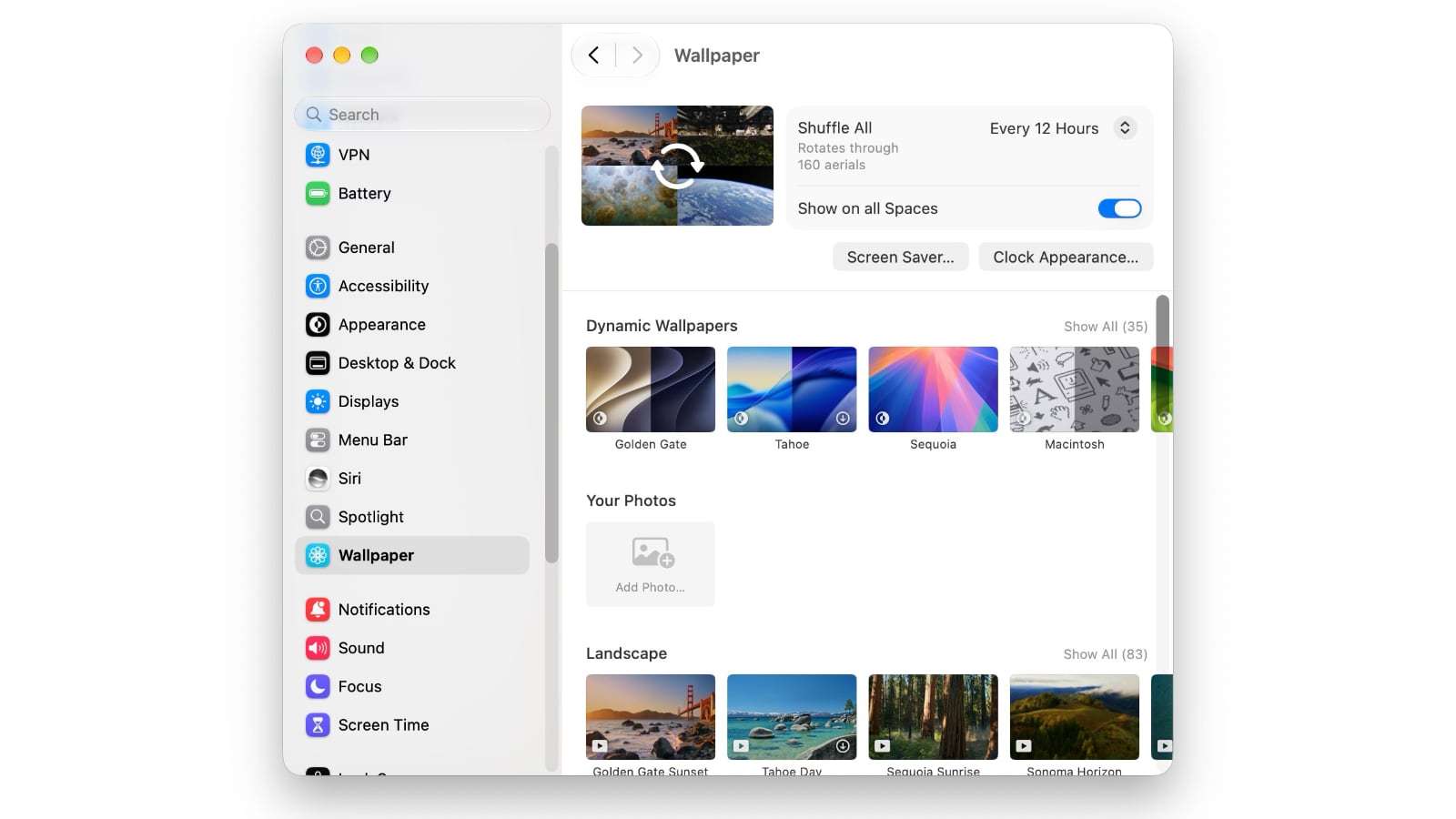
Now, in the Settings sidebar, click on Wallpaper. (If you’re stuck on macOS Sonoma, go to Settings > Screen Saver.)
Scroll down, and you can pick a specific scene from one of four categories: Landscape (like “Golden Gate Sunset” or “Tahoe Day”), Cityscape (“Dubai Skyline,” “Los Angeles Overpass,” etc.), Underwater (“Alaskan Jellies Light,” “California Dolphin Pod,” etc.) and Earth (shots from space like “Middle East,” North Africa,” etc.).
Unless you’re fascinated with one of those, we recommend skipping those individual categories and going to Shuffle Aerials. There, you can then shuffle through the four available categories or — better yet — you can pick our favorite: Shuffle All.
This will rotate through all of the Aerials sets (currently 160 of them), downloading new ones every once in a while to keep your Mac screen saver fresh. You can also select how often to shuffle through these mesmerizing dynamic wallpapers.
Show as wallpaper
Click the Screen Saver… button to select how quickly you want the screen saver to start once your Mac becomes inactive. Here you will also see Use Screen Saver, with two options: Automatic and Custom.
I recommend you choose Automatic. Then, when you unlock your Mac, the current Aerials screen saver will gently come to a stop and become your new desktop background. When your Mac goes idle again, your windows will disappear and the screen saver will pick up where it left off. It’s so cool!
Otherwise, choose Custom to set your Mac’s wallpaper to something else
You can also click the Clock Appearance… button to customize the font that will show up on your Mac’s Lock Screen and/or screen saver (or you can set the clock to never appear). Definitely don’t set it to “On Screen Saver and Lock Screen,” because that will just spoil the gorgeous Aerials views.
Finally, a toggle lets you show the screen savers on all your Mac’s spaces (additional desktops that let you organize your computer to your liking).
More awesome macOS 27 Golden Gate features
Now that you’re using an Aerials Mac screen saver, why not experience other great new features? See our how-to: 8 things to do first after installing macOS 27 Golden Gate.
We originally published this article on how to set up the Aerials Mac screen savers on February 23, 2024. We updated the information.

D. Griffin Jones was a writer, podcaster and video producer for Cult of Mac. Griffin has been a passionate computer enthusiast since 2002, when he got his first PC — but since getting a Mac in 2008, he hasn’t turned back. His skills in graphic and web design, along with video and podcast editing, are self-taught over 20+ years. Griffin has a bachelor’s degree in computer science and has written several (unpublished) apps for Mac and iOS. His collection of old computers is made up of 40+ desktops, laptops, PDAs and devices, dating back to the early ’80s.
Griffin writes for his personal blog, Extra Ordinary, and is currently looking for work.

