
Every MacBook boasts industry-leading battery life. But everything comes to an end. It may take a full day or more, but MacBooks do eventually run out of charge.
If you want to take your M5 Max MacBook Pro to the coffee shop to get work done, and you leave your power cable at home — even if you’re editing 8K ProRes video streams in Final Cut Pro — you still might be ordering breakfast, lunch and staying for dinner.
Of course, that low battery warning always comes at the most inopportune time. With that in mind, there are a few tricks to get even more unplugged time with your MacBook. Keep reading or watch our quick video.
5 ways to get longer MacBook battery life
Every Mac made in the last few years uses Apple’s own custom chips. This is what enables them to run all day at full speed.
The benefits are obvious. You want to get more work done before you need to hunt down your power cable and plug in. Ideally, you want to get all of your work done without being interrupted at all. If you take your MacBook to class or to work, you want to feel confident leaving your power cable at your desk so you can travel light.
However, when it comes to battery life, there are two things to consider: how long your MacBook lasts on a single charge and how long its battery holds up over time.
The longer your battery lasts over time, the longer your MacBook remains useful as a laptop. At the end of its seven-year life, my 2015 MacBook Pro only got about an hour or two on a charge. So being mindful of how your charging routine affects your laptop’s battery is important.
Table of contents: How to increase MacBook battery life
- Turn on Low Power Mode
- See which Mac apps are using the most power right now
- Don’t get too quit-hungry
- Turn down brightness
- Enable optimized battery charging in macOS
- More Mac tips
Turn on Low Power Mode
Screenshot: D. Griffin Jones/Cult of Mac
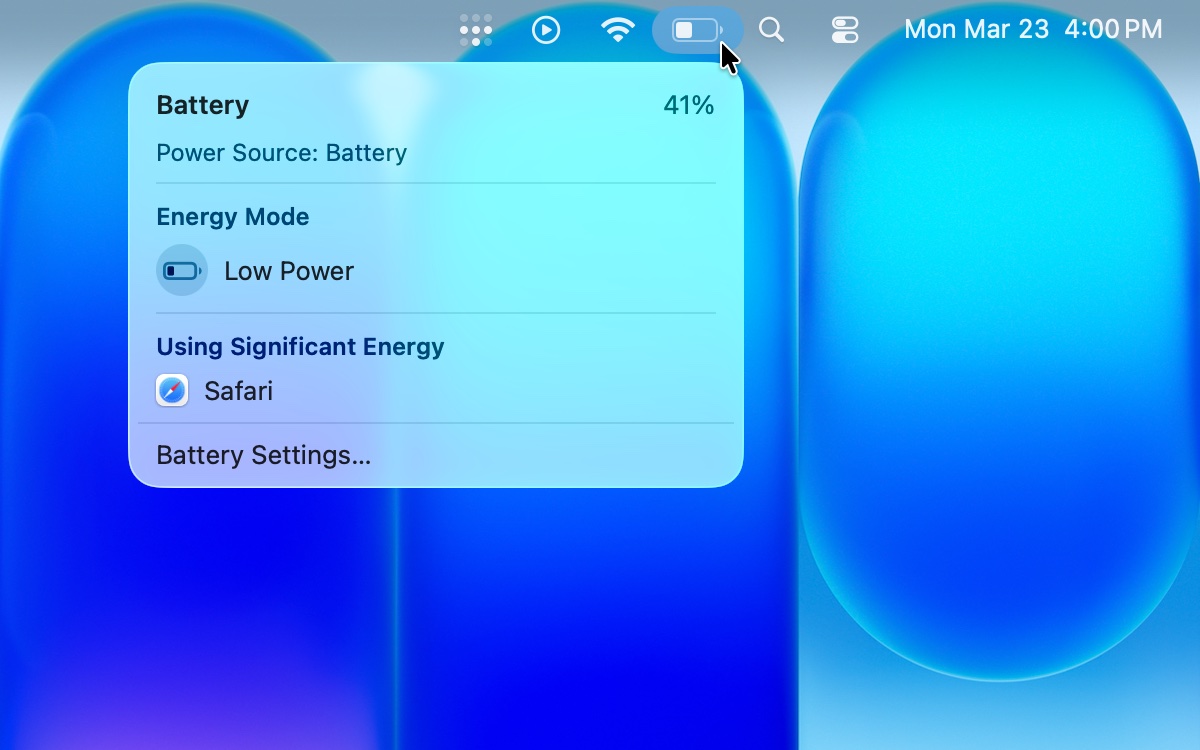
Your MacBook comes with a Low Power Mode, just like your iPhone and iPad. It reduces performance, but extends your battery life. If you’re not doing intense work like cinematic color correcting or building random forests of protein folding data, you’ll probably benefit from Low Power Mode without noticing anything. An Apple silicon Mac is fast enough that Low Power Mode won’t make much of an impact on your work.
To turn it on, click the battery icon in the menu bar (or Control Center), then click Low Power.
Screenshot: D. Griffin Jones/Cult of Mac
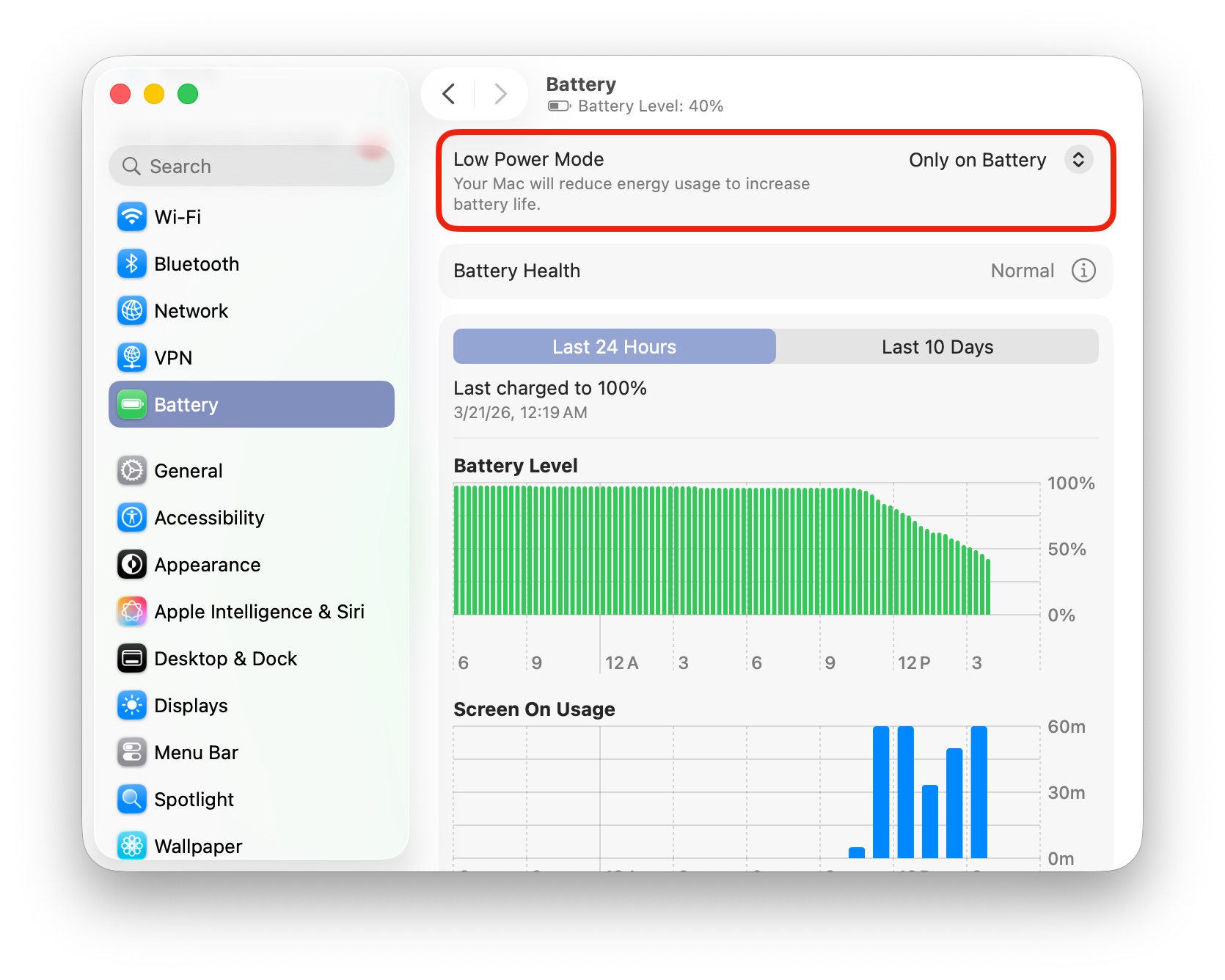
You can make Low Power Mode turn on automatically anytime you unplug your MacBook. Open System Settings, click Battery in the left sidebar, then set “Low Power Mode” to Only on battery.
See which Mac apps are using the most power right now
To see if any apps are draining your MacBook battery more than others, click the battery icon in the menu bar.
Look at the “Using Significant Energy” section. If there’s anything listed, quitting these apps will make your battery last longer.
Don’t get too quit-hungry
However, be smart about what apps you quit. Quitting apps that you’ll open again moments later will use more energy than leaving them minimized in the background or with all their windows closed.
This holds especially true for big apps like Microsoft Word or Adobe Photoshop that need to load a lot of resources every time you launch them. (A good rule of thumb is to note which apps take the longest times to open.)
Apple’s built-in apps like Messages, Calendar, Notes and Safari use a technology called App Nap. When they’re in the background, minimized or hidden, they’re not using any power — just as on your iPhone.
Turn down display brightness to improve Mac battery life
Screenshot: D. Griffin Jones/Cult of Mac
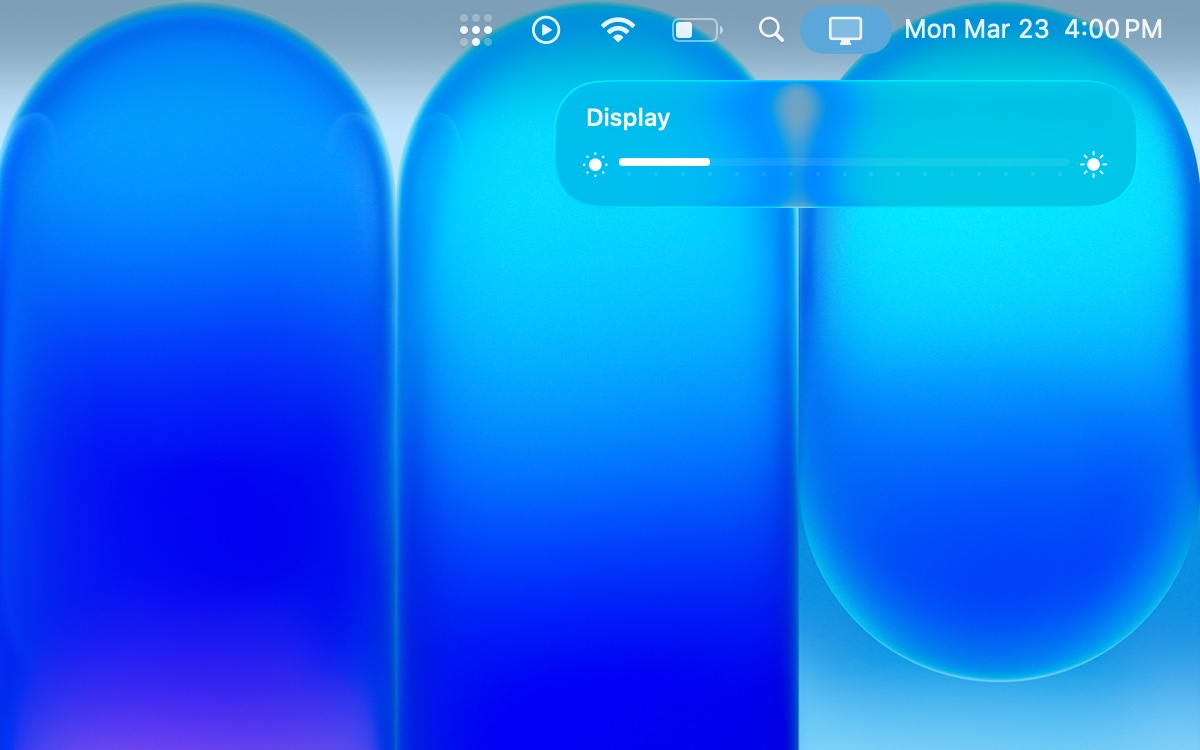
While the gorgeous Retina display is a staple of the MacBook, battery life drains faster if you boost the brightness. After all, that big, high-resolution display is one of the most power-hungry parts of the computer.
Hit the brightness keys on the keyboard (F1 and F2) to adjust your MacBook’s screen. Keep it as low as you can while remaining legible. And if possible, go to a darker room, so you can comfortably turn the display even dimmer.
To further aid in keeping display brightness low, you should go to System Settings > Battery and click Options… in the bottom right corner. Make sure you enable both Slightly dim the display on battery and Optimize video streaming while on battery. Finally, set “Wake for network access” to Only on Power Adapter.
Enable optimized battery charging in macOS
Screenshot: D. Griffin Jones/Cult of Mac
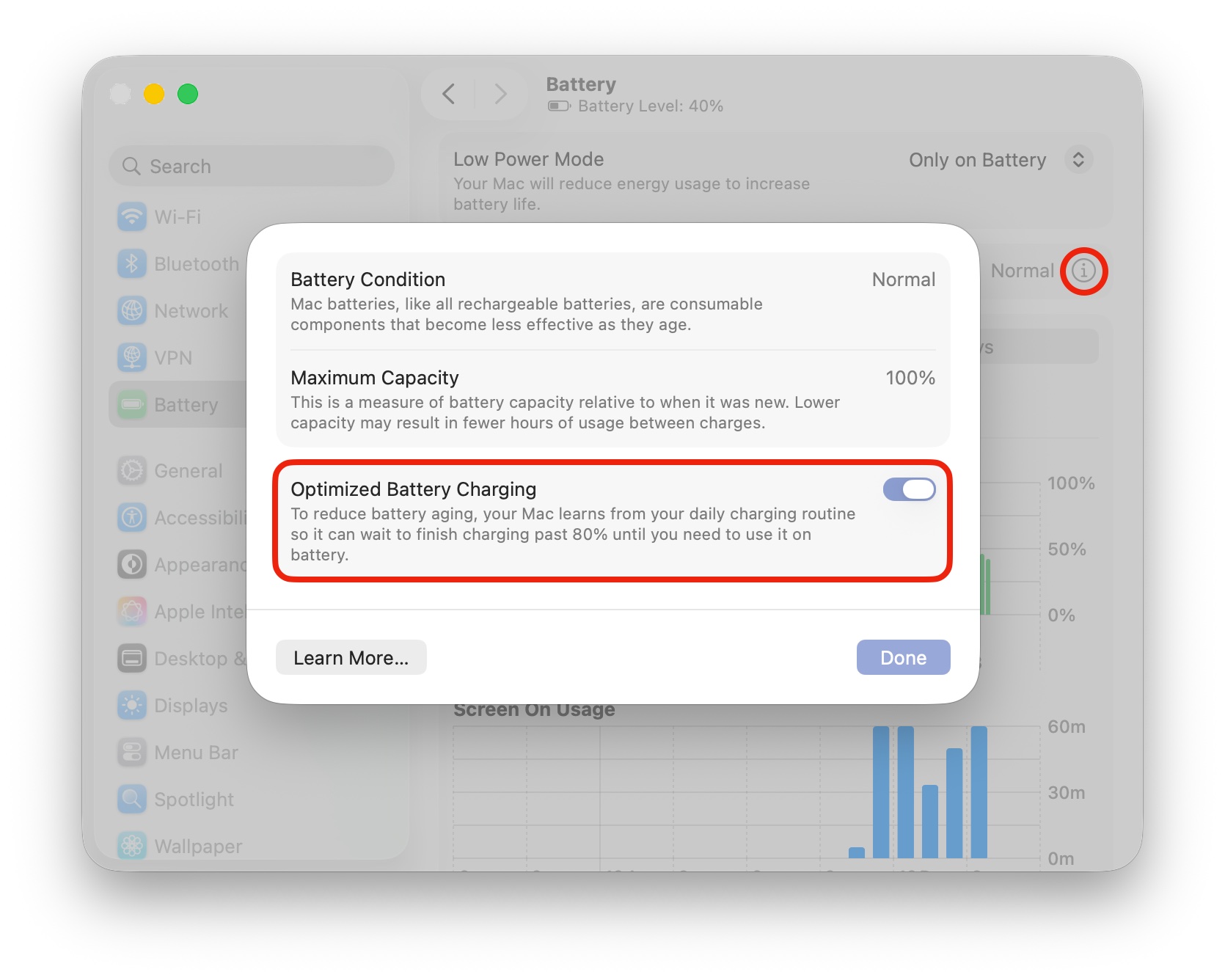
Finally, the optimized battery charging feature can help your MacBook battery last longer. It learns how you use your laptop — including what times of day you typically unplug it. It uses that info to work out the best time to fully charge the battery.
For example, maybe you always leave for class at 8 a.m. When you plug your MacBook in the night before, it might be able to get up to 100% by midnight — but instead, it keeps it at 80% for a few extra hours. By keeping it lower until the last hour or two before you wake up, the battery will be less stressed over time.
Make sure you’re taking advantage of optimized battery charging. Go to System Settings > Battery. Next to “Battery Health,” click the info button (ⓘ). Make sure Optimized Battery Charging is enabled.
More Mac tips
- How to use the all-new Spotlight
- Unlock your Mac’s hidden clipboard history
- How to use window snapping and tiling on the Mac
- How to set up the best Mac screensaver, Aerial
- Type faster with these essential Mac keyboard shortcuts
- All the ways to run Windows 11 on a Mac
- 3 ways to stop your Mac from sleeping
This article on MacBook battery life was originally published on May 23, 2022. We updated it with the latest information on March 23, 2026.

D. Griffin Jones is a writer, podcaster and video producer for Cult of Mac. Griffin has been a passionate computer enthusiast since 2002, when he got his first PC — but since getting a Mac in 2008, he hasn’t turned back. His skills in graphic and web design, along with video and podcast editing, are self-taught over 20+ years. Griffin has a bachelor’s degree in computer science and has written several (unpublished) apps for Mac and iOS. His collection of old computers is made up of 40+ desktops, laptops, PDAs and devices, dating back to the early ’80s. He brings all of these creative and technical skills, along with a deep knowledge of Apple history, into his work for Cult of Mac.


One response to “5 ways to get the best battery life on your MacBook”
Avoid Chrome – only use Safari.