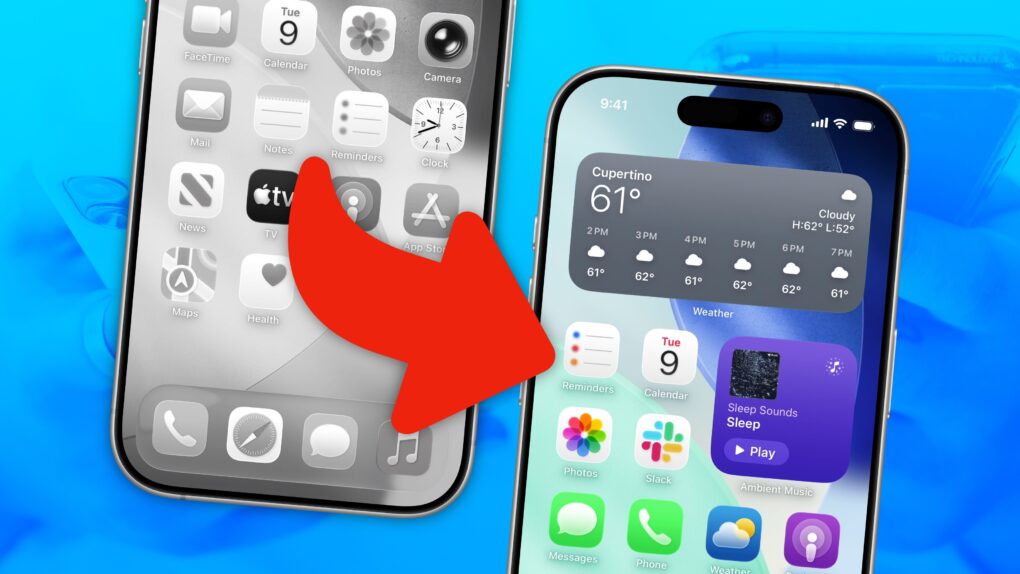
There are two types of iPhone owners in the world: Those with a carefully manicured, minimalist Home Screen of perfectly arranged icons, and those with random icons spilled haphazardly across the screen.
If you find yourself among the latter group, you might think that it’s too late for you — that making a beautiful, aesthetic Home Screen is beyond your creative ability.
Well, cleaning up your iPhone’s Home Screen is a lot easier than clearing out your basement or organizing your kitchen junk drawer. A Home Screen that works better and looks better comes down to just a few simple tips. You can set one up in just minutes.
Here’s how.
3 tips for an awesome minimalist iPhone Home Screen layout
The Home Screen is the heart of the iPhone user interface. It’s the first thing you see when you unlock your phone.
Luckily, it’s also the most customizable part of the iPhone. You can freely place icons anywhere on the Home Screen, mix in different widgets, and theme the interface to match your wallpaper. A good Home Screen can make your iPhone a peon of efficiency. An aesthetic Home Screen can make you feel great every time you open your phone.
These are the steps you can take to make your Home Screen work better for you.
Table of contents: Make your iPhone Home Screen layout minimalist and efficient
-
- How to quickly delete your iPhone Home Screens and start over
- Don’t put icons on the top few rows
- Ergonomics and aesthetics
- Load up the screen to the left with widgets
- Try only one page of icons, without any folders
- Make sure new apps go straight to the App Library
- More tips on customizing your iPhone
How to quickly delete your iPhone Home Screens and start over
Screenshot: D. Griffin Jones/Cult of Mac
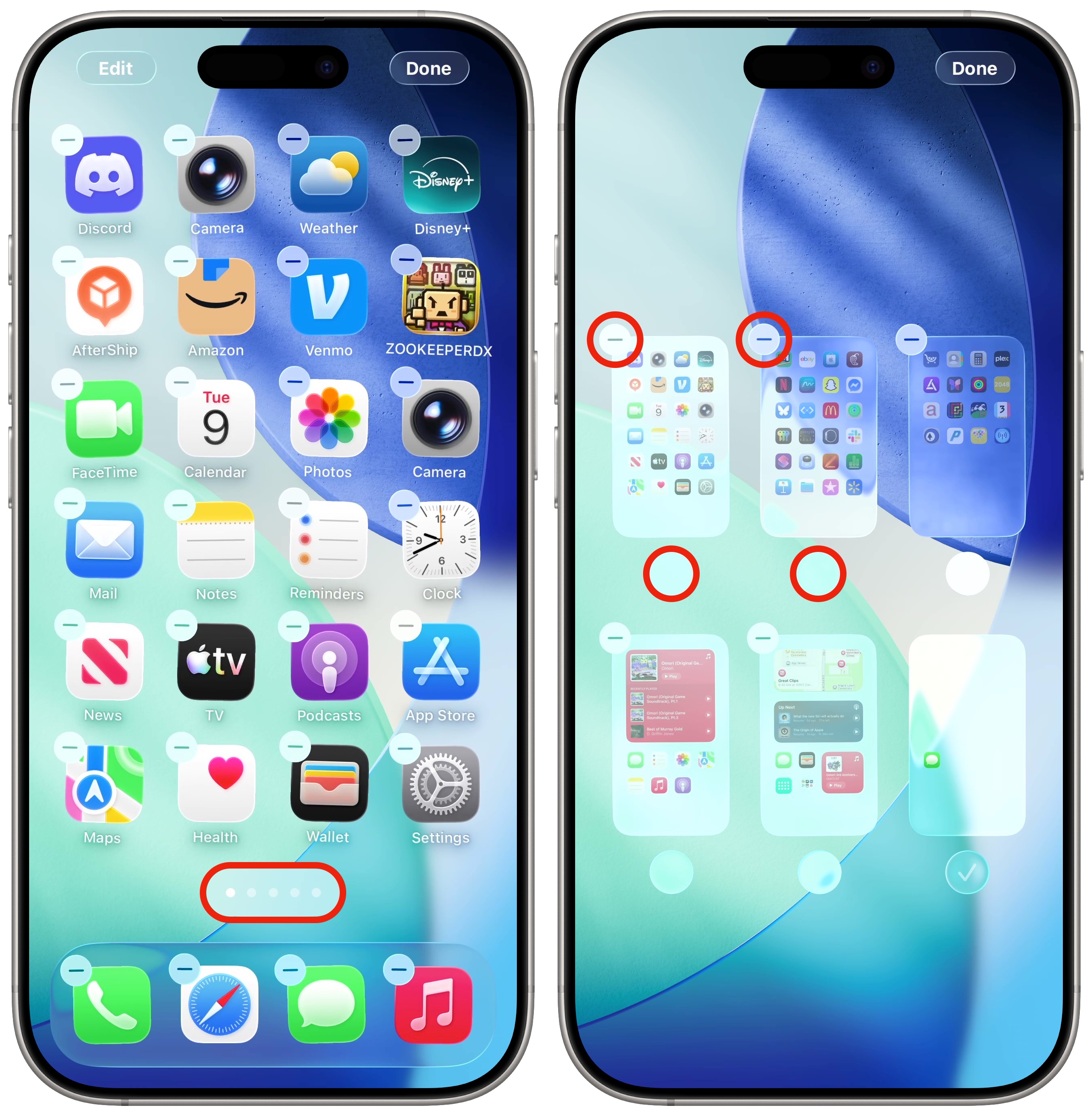
If you’re starting with a lousy iPhone Home Screen layout, your shortest route to a minimalist winner might be to nuke the current setup. Here’s how you can quickly delete everything to start from scratch:
- Tap and hold on an empty spot on your iPhone Home Screen to begin editing.
- Drag a single app (it doesn’t matter, any one) over to create a new page to the right.
- Tap the dots at the bottom of the screen, between the bottom row and the Dock.
- Uncheck all of the other pages to turn them off.
- Tap the Remove button (with the − sign) in the upper left to delete the Home Screen, leaving only the mostly blank one you just created.
Note: Be careful not to delete any Home Screens that you use for a specific Focus mode or shortcut, if you set up any of those.
Don’t put icons on the top few rows
Screenshot: D. Griffin Jones/Cult of Mac
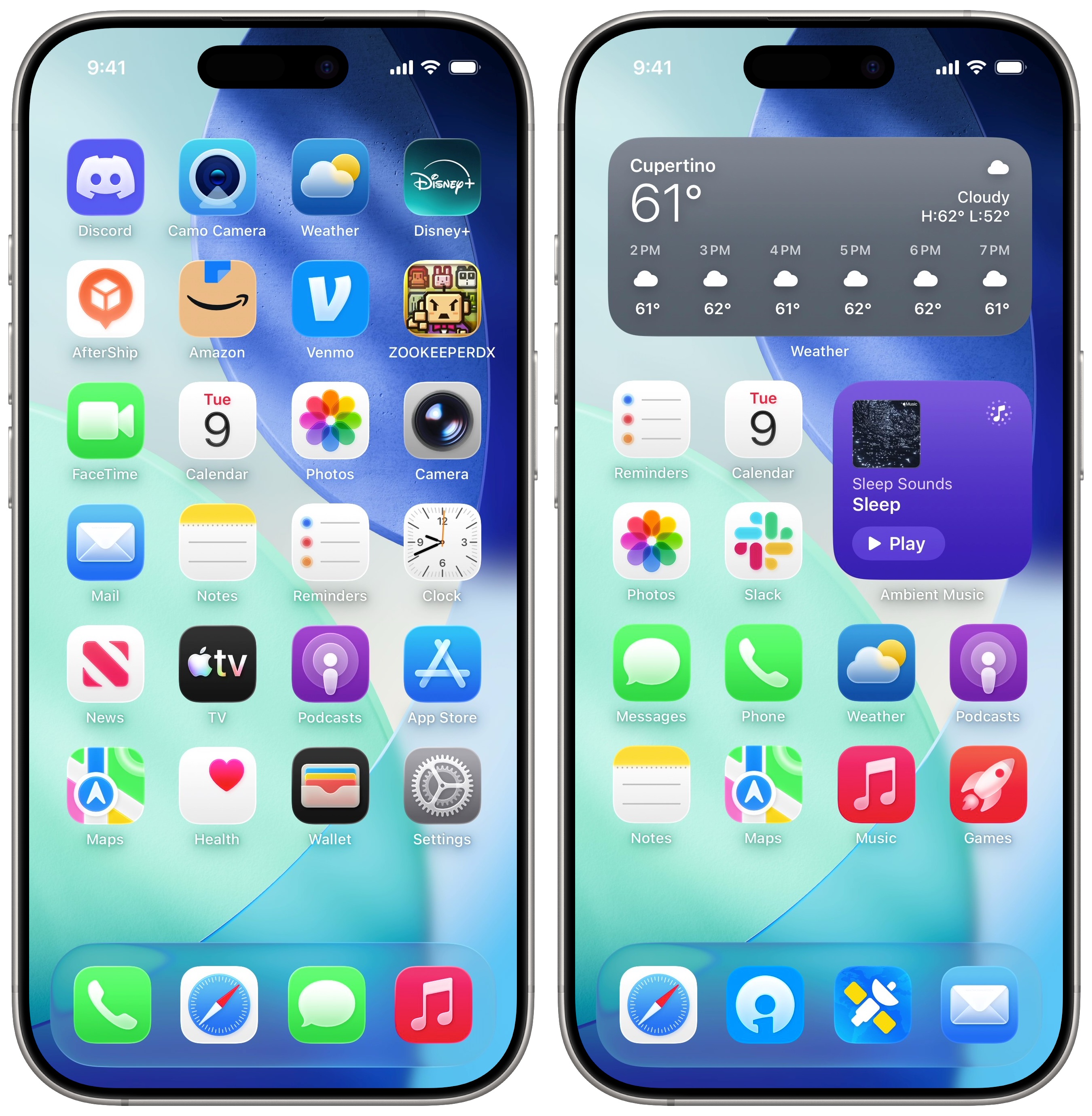
The top two rows of icons on your Home Screen are the most difficult to reach. Especially if you own a Plus- or Max-size iPhone.
Don’t bother putting app icons up there at all if you can’t easily reach the top one-handed. If you have to adjust your grip for your thumb to reach an icon on the opposite side, it’s too far.
Instead, you should put a big widget on the top half or your iPhone’s Home Screen. A widget can give you tons of useful information and/or quick access to controls before you even open an app. And it turns the top of your phone into one giant touch target to quickly open it.
Personally, I take this to the extreme. I set up only three rows of icons at the bottom of my iPhone’s Home Screen (that’s including the Dock) with one gigantic widget stack filling the other three rows. That only leaves me with just 12 app icons in my custom layout. I rely on the App Library, Spotlight search and notifications to open any other apps.
Ergonomics and aesthetics
Think about which hand you hold your phone in. If you reach your thumb across your screen, it’ll make an arc shape, kind of like a windshield wiper. Apps under that curve are much easier to tap on.
Put icons for the apps you open most often directly in that path.
And for bonus points, try to arrange the icons roughly by color. I put all the blue icons on the bottom, red/purple to the right, and green/yellow to the left.
Load up the screen to the left of your iPhone’s Home Screen with widgets
Screenshot: D. Griffin Jones/Cult of Mac
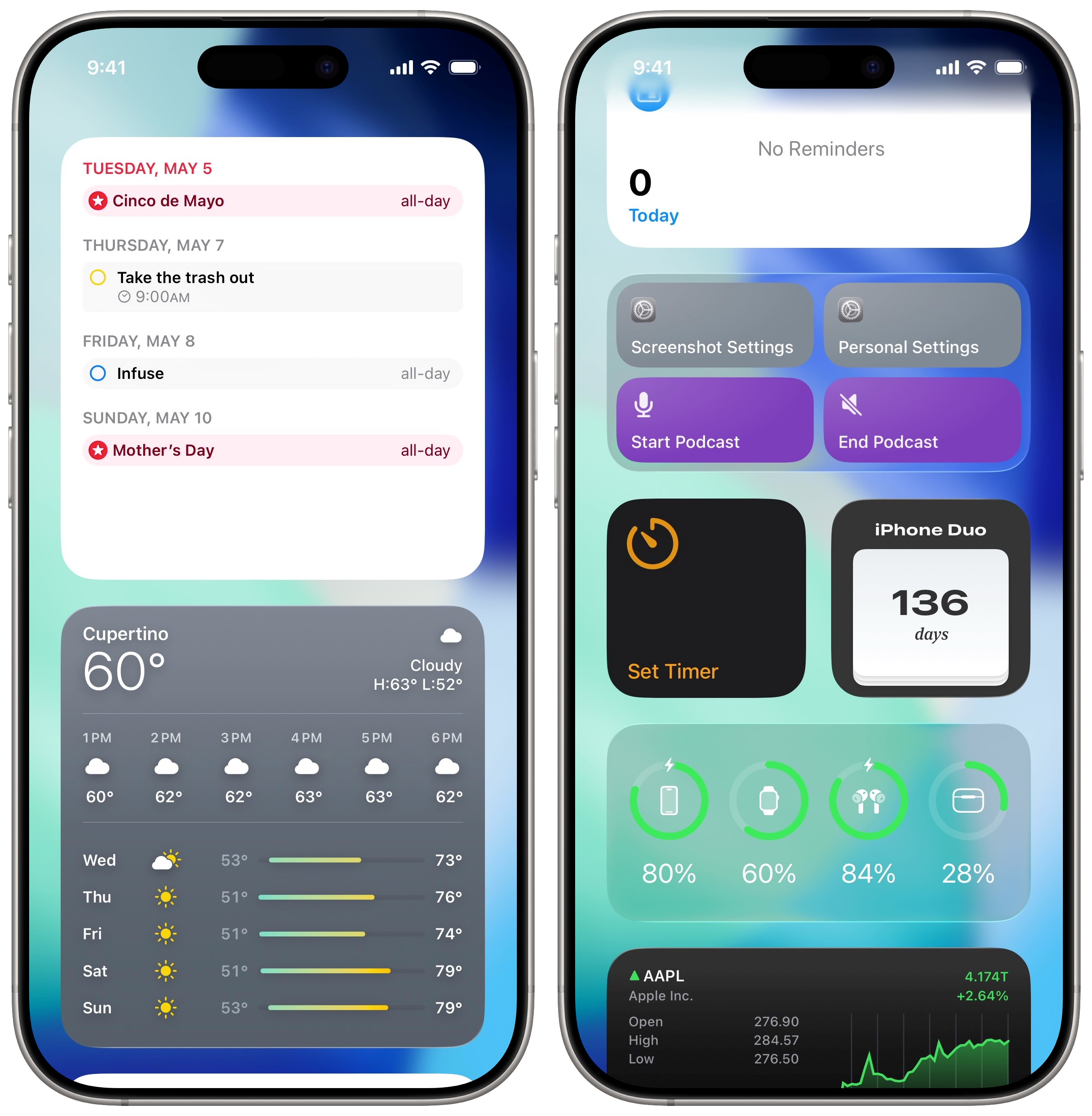
One great thing about the widget area to the left of the iPhone’s Home Screen (officially called the Today View) is that it scrolls endlessly. You can put as many large widgets as you want over there.
I stash the calendar, local weather, Find My contacts, Reminders and battery widgets there and check them many times a day. I put a bunch of shortcuts there for easy access, too.
Even better, you can access this area from your iPhone’s Lock Screen. (Assuming you have it enabled in Settings > Face ID & Passcode > Today View and Search.) I can check whatever widgets I put over there in literal seconds, just by swiping right on my screen as soon as it lights up. It’s so much faster than opening each app individually to get the info.
Try only one page of icons, without any folders
I never like having multiple pages of icons. The app I want is always on the other page, taking an extra swipe to get there. Same with folders. It always takes an extra tap to open a folder and an extra swipe to close the folder and get back to the root level.
To avoid all that, I go with a very minimalist layout for my iPhone Home Screen, with just one page and very few app icons. Tweak yours similarly, and I think you’ll appreciate how fast you can open the 12, 16 or 20 most common apps you use every day.
For everything else, the App Library is always just one swipe away (in the opposite direction as the widget area). You don’t need to swipe multiple times across multiple Home Screens trying to locate an app.
The App Library is smart, too. In each category, it’ll show you the most common apps you open that aren’t already on your iPhone’s Home Screen. So if you find yourself swiping over to open Snapchat often, you can rely on it being in the App Library’s Social folder every time.
Follow my suggestions, and you’ll have exactly three screens (from left to right: Today View, Home Screen and App Library). You can quickly access your most common apps every time you swipe up, your widgets are to the left and all the other apps are to the right. It’s peak efficiency — and probably much better looking.
Make sure new apps go straight to the App Library
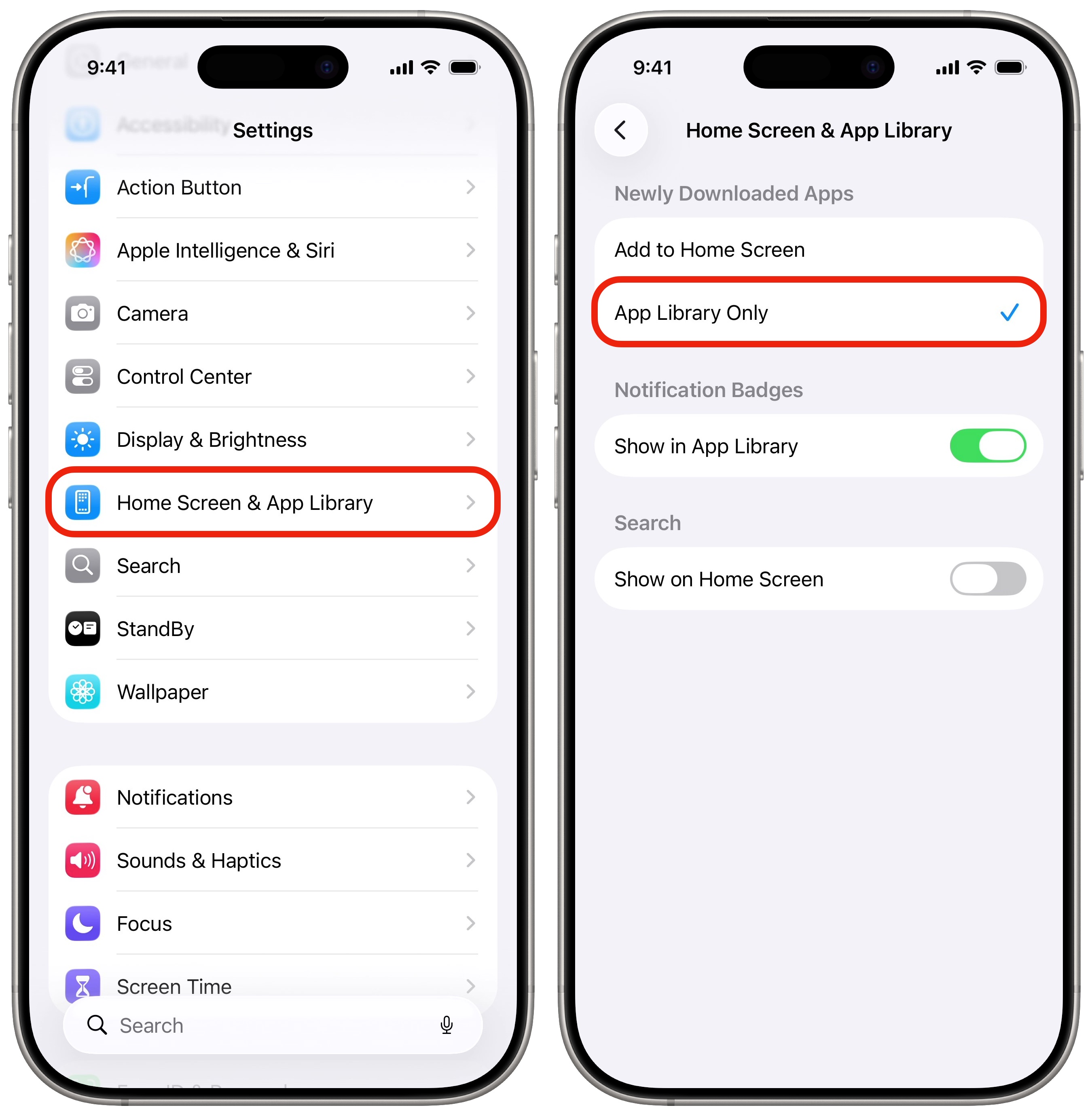
Screenshot: D. Griffin Jones/Cult of Mac
There’s one final thing to do if you want to keep your iPhone’s ew minimalist Home Screen layout tidy and efficient. You need to make sure all new apps you install don’t spawn a new Home Screen page to the right. To do so, you need to send them straight to the App Library automatically. Make this happen by opening Settings > Home Screen & App Library, then make sure “Newly Downloaded Apps” is set to App Library Only.
More tips on customizing your iPhone
After you tweak your Home Screen layout to make it sleek, minimalist and efficient, you can do much more to customize your iPhone.
- You can fully customize the Home Screen. Place icons anywhere on the screen. Fans of dark mode can now enjoy alternate dark mode icons. If you have a color theme you want to match, you can tint icons to any hue you want.
- You can edit the buttons in Control Center. Add many more toggles and buttons, including those from third-party apps. You can resize some buttons to make them more prominent, and you can arrange your controls across multiple pages. In one fluid motion, you can swipe down to activate Control Center and continue swiping down to scroll through your pages.
- Use StandBy mode to turn your phone into a customizable smart display anytime it’s sitting on your desk, your nightstand or the kitchen counter.
- Customize your iPhone Lock Screen with a bunch of widgets, aesthetics and styles. Apple provides loads of fonts, colors, styles and themes to choose from.
- Change out the Lock Screen buttons from the standard Flashlight and Camera to whatever you want. There’s a giant selection of buttons you can swap in their place.
- Create Focus modes to customize notification settings for different times of day and tasks, like work, vacation, driving, personal time and more.

D. Griffin Jones is a writer, podcaster and video producer for Cult of Mac. Griffin has been a passionate computer enthusiast since 2002, when he got his first PC — but since getting a Mac in 2008, he hasn’t turned back. His skills in graphic and web design, along with video and podcast editing, are self-taught over 20+ years. Griffin has a bachelor’s degree in computer science and has written several (unpublished) apps for Mac and iOS. His collection of old computers is made up of 40+ desktops, laptops, PDAs and devices, dating back to the early ’80s. He brings all of these creative and technical skills, along with a deep knowledge of Apple history, into his work for Cult of Mac.

