If you want to install a beta version of macOS, either for software development or for simply poking around, the smartest way to do it is to partition your Mac’s hard drive. That will create a new storage area just for the different installation, with entirely separate data, so none of your precious documents are at risk.
You also might want to have different versions of macOS on hand for testing old versions of the operating system, too. It’s easier than keeping a pile of aging Macs around (my go-to strategy).
Luckily, the Mac comes with a very handy tool to partition your hard drive for free. Read on to find out how to partition your Mac’s hard drive with Disk Utility.
How to partition your Mac hard drive
A good way to separate your data is to partition your Mac hard drive. A partition splits your computer’s storage into two spaces, like putting a trunk divider in your car. The most common use case is to install a second operating system on the same computer. (In college, I set up a separate partition so I could boot into Ubuntu, and a third partition to run Windows.)
With today’s Macs powered by Apple silicon, there’s no easy way to natively install Windows or Linux … yet. So the main use for partitioning your Mac’s drive is for installing different versions of macOS. That could still be essential if you do a lot of software development.
Table of contents: How to partition your Mac hard drive
Add a new volume in Disk Utility to partition your Mac hard drive
Screenshot: D. Griffin Jones/Cult of Mac
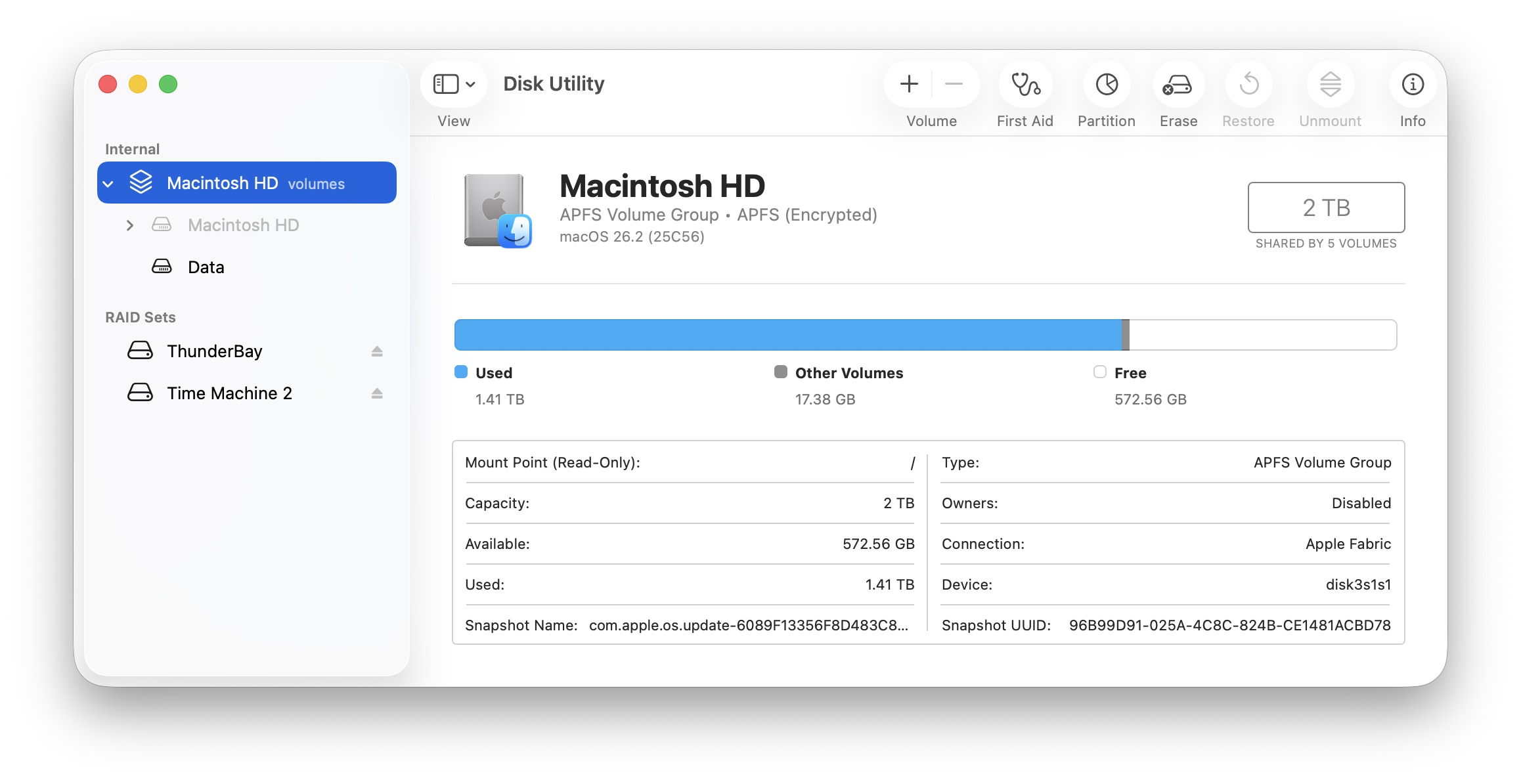
To set up a partition on your Mac hard drive, first open Disk Utility. Search for it using Spotlight (⌘ Space) or find it in Applications > Utilities.
On the left, you’ll see a sidebar with internal storage and external storage (any hard drives or flash drives plugged in). Click the arrow (❯) next to the top item listed under Internal. Mine is titled “Macintosh HD” but yours migh have a different name.
On an older Intel Mac, if you don’t see Macintosh HD, you might need to expand a few more arrows — APPLE SSD and Container disk1.
Screenshot: D. Griffin Jones/Cult of Mac
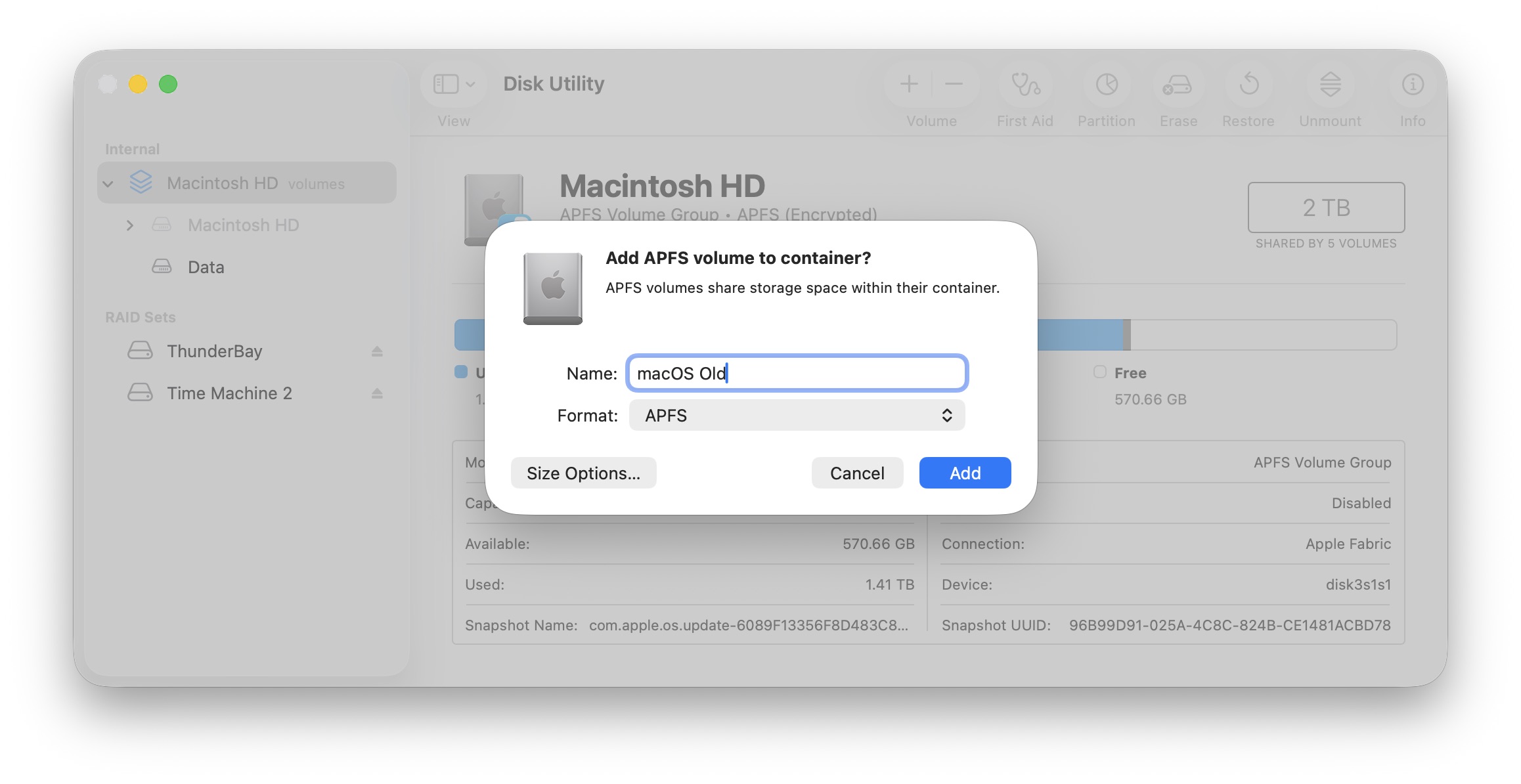
On the toolbar, click the + Volume button. This will add another partition to your Mac’s drive, but it will share space with your main hard drive.
Enter a name. (You can change the name at any time later.)
With the default settings, you can just click Add and be done.
You don’t need to change the format. Leave it selected as APFS. The Apple File System (APFS) is what modern macOS is designed for. Unless you have a specific reason to choose Mac OS Extended or ExFAT for compatibility with older versions of macOS or Windows, leave it as APFS.
You also don’t need to manually specify how much space to give to the new partition, either. Macs, unlike PCs, use a special file system that shares space between partitions on the same hard drive, dynamically allocating space as needed.
Set minimum and maximum storage
Screenshot: D. Griffin Jones/Cult of Mac
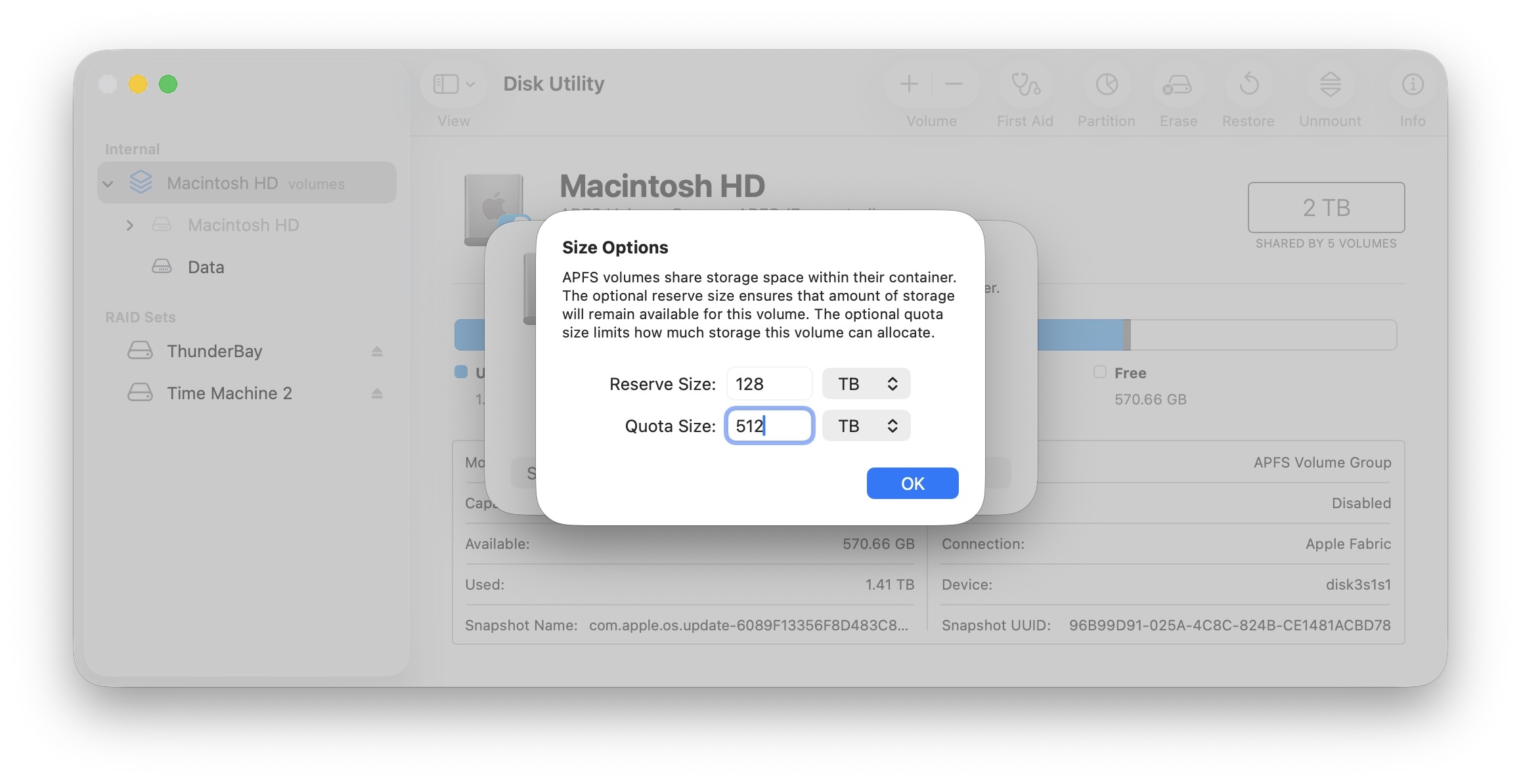
Click Size Options… if you want to manually set a minimum or a maximum size for the new partition on your Mac’s hard drive.
Reserve Size is the minimum; Quota Size is the maximum. If you’re installing macOS on this partition, you will need at least 64GB — especially if you are using it for software development. I would limit the available space to 128GB unless you have a 1TB hard drive or greater. Click OK to confirm, and Add to create the partition.
And that’s it! Partitioning a hard drive is notoriously easy thanks to the Apple File System. And if it looks like your hard drive is close to full, check out our guide: 3 fastest ways to clear disk space on your Mac.
More Mac pro tips
After you partition your Mac’s hard drive, check out these other pro tips to make more of your computer:
- Master Mac screenshots: Every shortcut and trick you need to know
- Everything you need to know about iPhone Mirroring on the Mac
- How to use the all-new Spotlight
- Rename multiple files on Mac the easy way
- 6 tricks to master Preview on the Mac
- How to use window snapping and tiling on the Mac
- Hidden Mac keyboard shortcuts you might not know
- How to set up the best Mac screensaver, Aerial
We originally published this article on how to partition a Mac hard drive on June 1, 2022. We updated it with the latest information on January 26, 2026.

D. Griffin Jones is a writer, podcaster and video producer for Cult of Mac. Griffin has been a passionate computer enthusiast since 2002, when he got his first PC — but since getting a Mac in 2008, he hasn’t turned back. His skills in graphic and web design, along with video and podcast editing, are self-taught over 20+ years. Griffin has a bachelor’s degree in computer science and has written several (unpublished) apps for Mac and iOS. His collection of old computers is made up of 40+ desktops, laptops, PDAs and devices, dating back to the early ’80s. He brings all of these creative and technical skills, along with a deep knowledge of Apple history, into his work for Cult of Mac.

