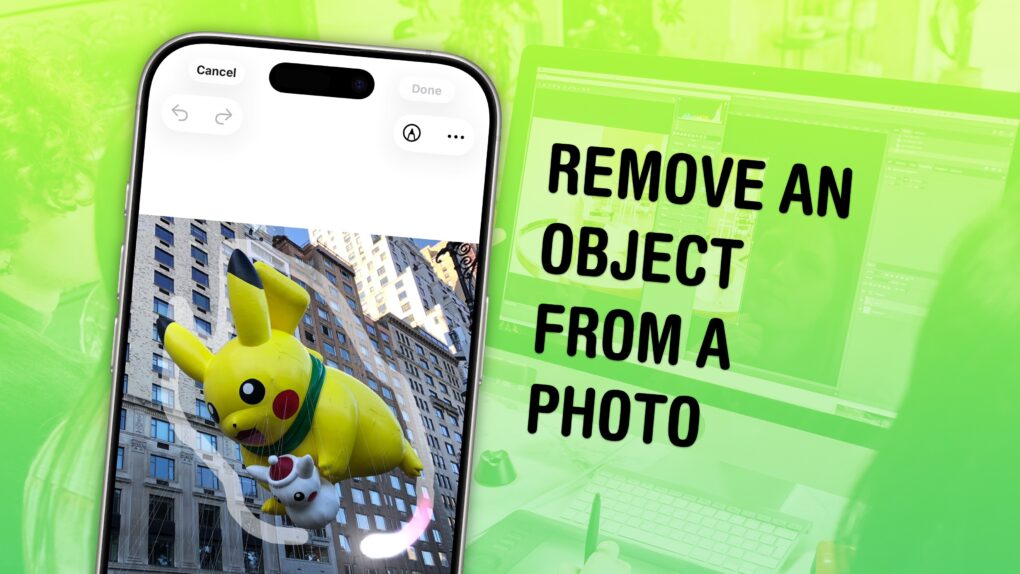
You can easily remove any object from a photo using Apple Intelligence’s free Clean Up tool on your iPhone, Mac or iPad. It works fairly well — but it’s good to know its limitations.
As the only graphic designer among my friends, I’ve frequently been asked over the years to Photoshop unwanted elements out of pictures. Take, for example, a romantic shot of a couple in a gazebo, with a phone sitting on the handrail in an obvious spot. The image might look a lot better if you delete that stray device.
Or imagine a group photo from a fun night out, with someone’s dumpy tote bag sitting by their feet, or a picture from a big conference that shows an ugly lanyard around someone’s neck. With Apple Intelligence’s free Clean Up feature, anyone can make the tote bag and the lanyard disappear, right from their iPhone.
Now, you have the power to clean up your own photos — a chance to make your almost-perfect shots perfect in an instant.
Remove an object from a photo with Apple Intelligence
In the early days of digital photography, Photoshop (which launched as a Mac exclusive in 1990) provided powerful new tools for editing images on computers. As Cult of Mac wrote, Photoshop started out as “a niche tool for graphics pros that let users erase blemishes, composite layers and tweak tones in ways that were once the domain of darkrooms and skilled photo retouchers.”
The software was complicated to use, cost a pretty penny, and required a high-end Mac to run well. But these days, users can quickly and easily edit photos on their iPhones, iPads and Macs using free built-in software as well as third-party apps.
The rise of AI makes digital image manipulation easier and more widespread, for good or ill. Here’s how Apple Intelligence’s Clean Up feature works.
Table of contents: Remove an object from a photo with Apple Intelligence
- Enable Apple Intelligence
- Open the Clean Up tool on your photos
- Tap or circle an object to remove
- Pixelate someone’s face
- More Apple Intelligence features
Enable Apple Intelligence
Apple Intelligence is a set of AI features that run on compatible iPhones, iPads and Macs. Using powerful Neural Engines built into the hardware, many Apple Intelligence features can run for free on your own device.
However, to use Apple Intelligence, you’ll need an iPhone, Mac or iPad with an M-series chip, an A17 Pro chip or greater. That means the iPhone 15 Pro, all iPhone 16 models (and later), most Macs sold since late 2020, and recent iPad Air and iPad Pro models.
To turn on the Apple Intelligence features on a compatible iPhone, open Settings > Apple Intelligence & Siri and make sure Apple Intelligence is enabled. Your phone will download the models that power Apple Intelligence. (That could take a while, depending on the speed of your internet connection.)
Open the Clean Up tool on your phone
Screenshot: D. Griffin Jones/Cult of Mac
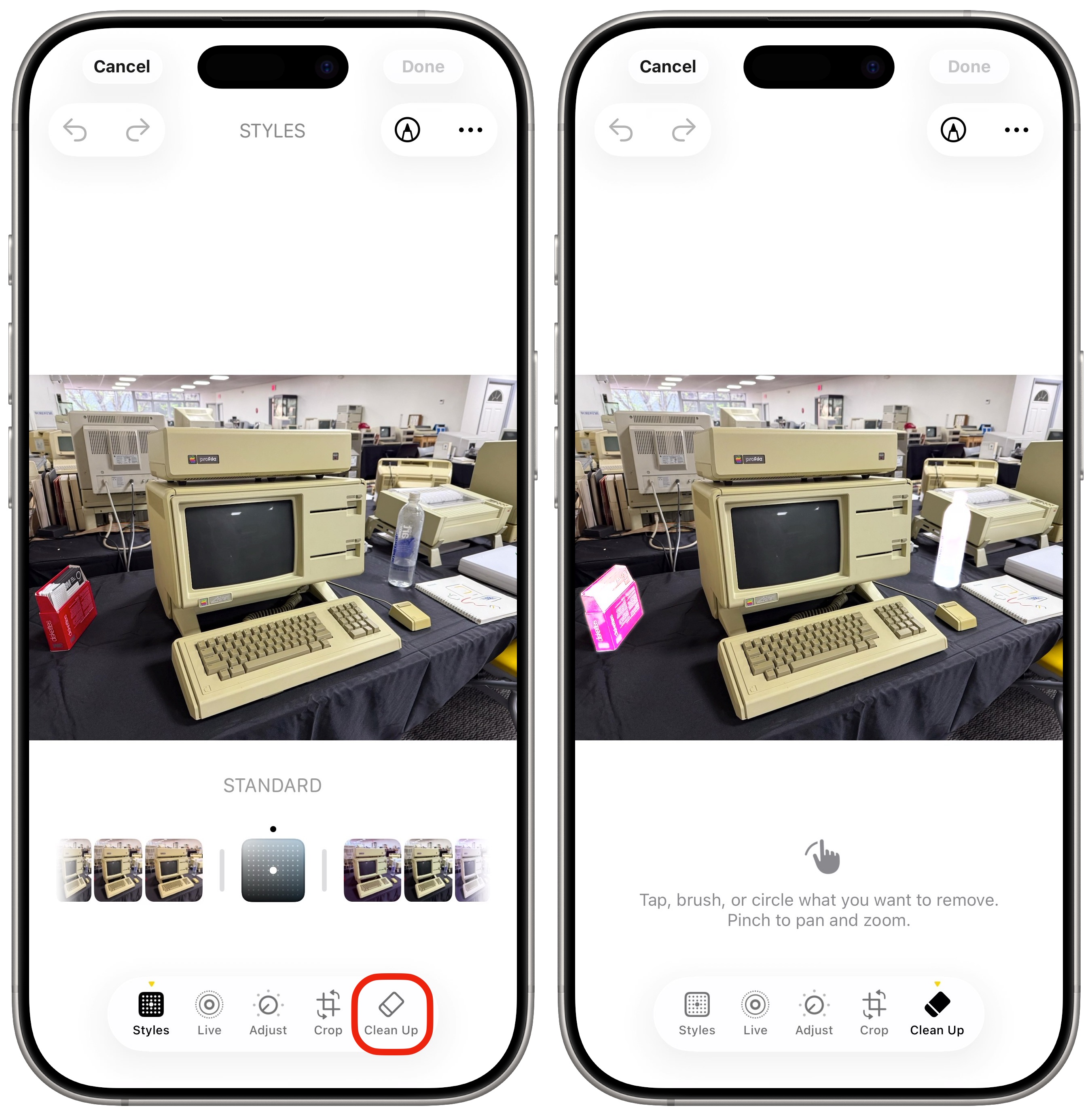
After you’ve got Apple Intelligence running, it’s time to remove an object from a photo using the Clean Up tool. To do so, open a picture, tap Edit (the icon of settings sliders in the center right), and select the Clean Up tool at the bottom right. The first time you open it, the feature must download and prepare the AI model. Be patient: The initial download can take a few moments.
Tap or circle an object to remove
If you see anything in the picture that’s highlighted in light purple, you can simply tap it to remove it.
To remove something specific, drag your finger to select or circle the area you want to clean up. It will process for a moment, then remove the offending item and fill in the space where it previously appeared. Zoom in if you want to be more precise.
This works great if the thing you’re erasing doesn’t overlap anything else that’s important in the image and is completely surrounded by a similar pattern it can replicate. Dust and hairs on a black shirt, a smoke detector on a ceiling, a calendar on the wall, something sitting on a table — Apple Intelligence’s Clean Up feature makes it easy to remove those sorts of things from a photo.

Screenshot: D. Griffin Jones/Cult of Mac
However, the Clean Up tool will try to fill in whatever you ask it to — and it might not do a very good job. (See also: Apple Photos’ new AI Clean Up feature works great … unless it doesn’t!)
Want to remove a car from a busy city street scene? Clean Up will probably mess up the signs and buildings behind the car you disappeared. Try to replace a giant, central part of an image? It’ll struggle to fill in the space.
Pixelate someone’s face
Screenshot: D. Griffin Jones/Cult of Mac
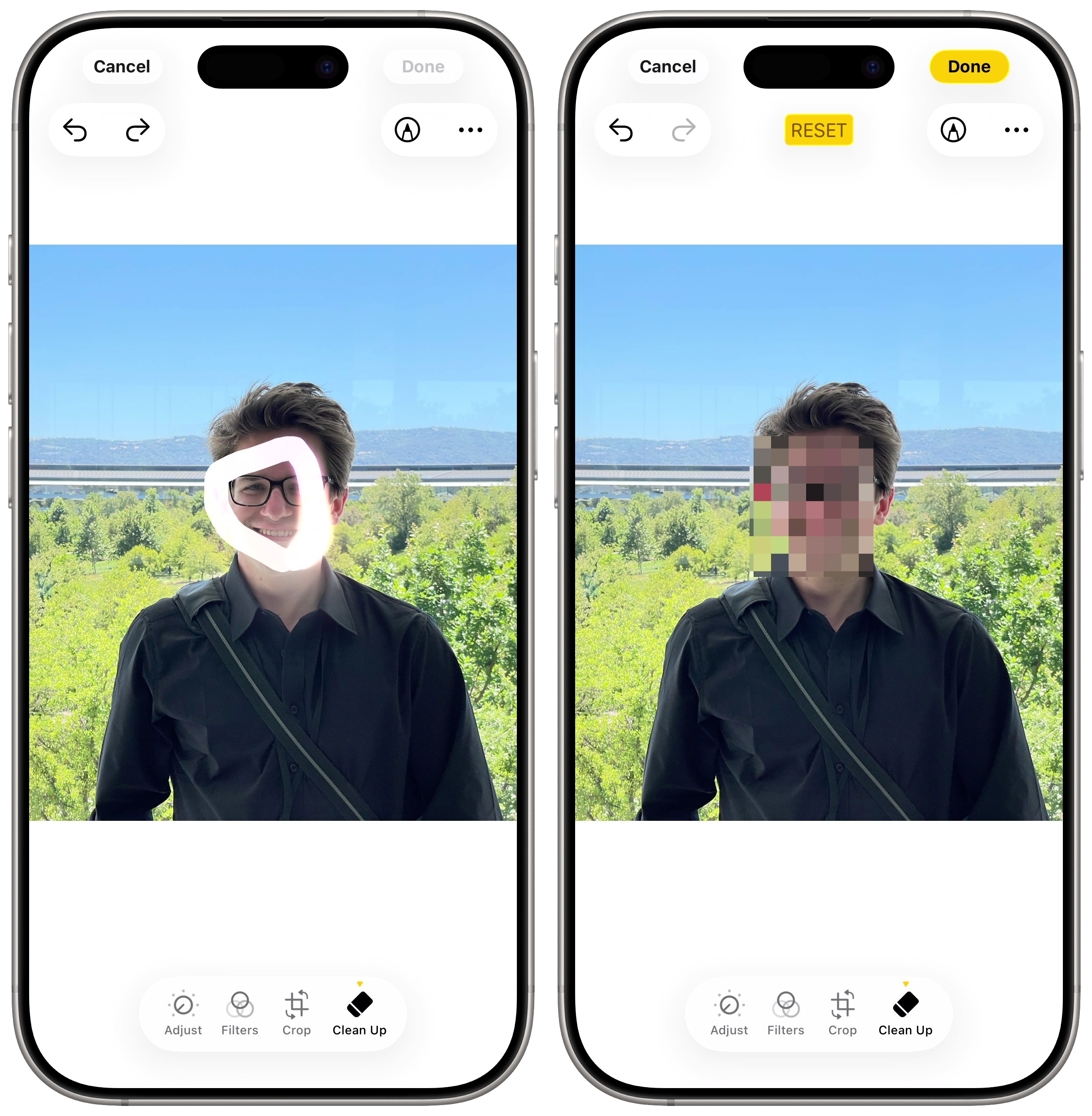
The one thing Apple Intelligence’s Clean Up tool won’t do is replace someone’s face. Try it, and Clean Up will pixelate the facial region. But this is actually a feature — if you want to post a picture on social media but need to hide someone’s identity, pixelating their face with Clean Up is a quick way to disguise them.
Just circle the area, and Apple Intelligence will pixelate the face for anonymity.
More Apple Intelligence features
- Visually look up restaurants, objects, animals, plants, calendar events and more using the iPhone’s Camera Control or Action button.
- You can create AI images in Image Playground and Image Wand in Messages, Notes and other apps.
- Create custom emoji, called Genmoni, based on a description or based on a person in your Photos library.
- The new Siri lets you type questions, answers your questions about Apple products, and integrates with ChatGPT for harder queries.
- Apple Intelligence’s AI writing tools can help you proofread, change tone, compose and summarize text.
- Create a memory movie with a single-sentence text prompt, and be more descriptive when searching for a photo or video.
- The Reduce Interruptions Focus mode intelligently chooses which notifications to silence and which to let through.
We originally published this article on how to remove an object from a photo on October 16, 2024. We updated it with the latest information on April 28, 2026.

D. Griffin Jones is a writer, podcaster and video producer for Cult of Mac. Griffin has been a passionate computer enthusiast since 2002, when he got his first PC — but since getting a Mac in 2008, he hasn’t turned back. His skills in graphic and web design, along with video and podcast editing, are self-taught over 20+ years. Griffin has a bachelor’s degree in computer science and has written several (unpublished) apps for Mac and iOS. His collection of old computers is made up of 40+ desktops, laptops, PDAs and devices, dating back to the early ’80s. He brings all of these creative and technical skills, along with a deep knowledge of Apple history, into his work for Cult of Mac.

