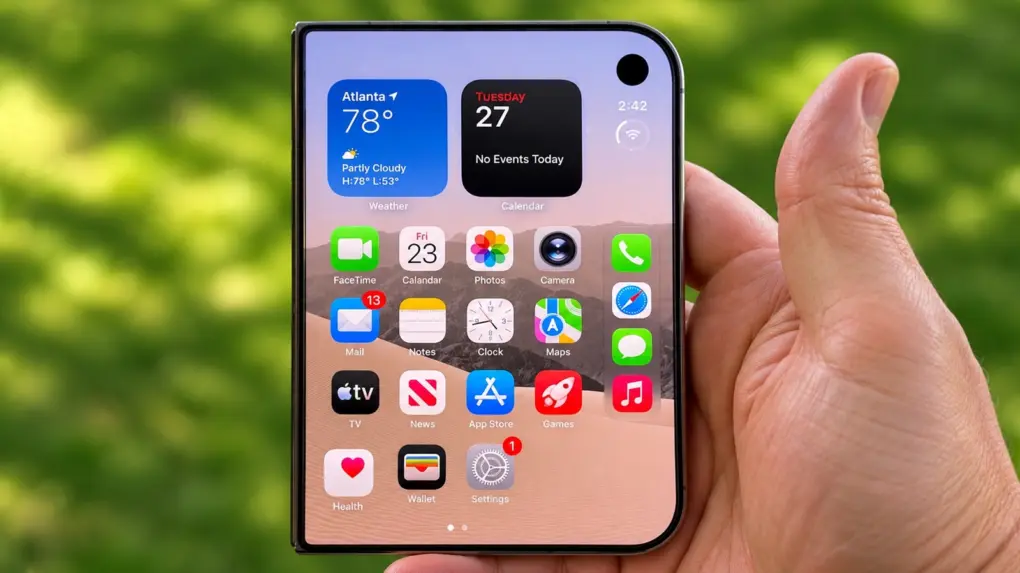
Apple’s iPhone Duo uses Touch ID instead of Face ID to unlock the device. The fingerprint scanner isn’t as convenient as having the handset simply recognize your face, but there are actually three ways to speed up the process.
One involves cutting out a step in signing in with Touch ID, while another lets you skip Touch ID entirely. The third is… odd.
iPhone Duo: Touch ID vs. Face ID
For anyone accustomed to using Face ID, moving to Touch ID on the iPhone Duo can feel like a step backward. Unlocking the device just by looking at it is the ultimate in convenience, especially when your hands are wet, dirty or full.
And unlike with Face ID, with Touch ID on the iPhone Duo, you still need a swipe of the screen to open the phone even after your finger has been authenticated.
So it’s not surprising that many Duo users are looking for alternatives. Here are three.
Unlock iPhone Duo with an Apple Watch
Find Touch ID a hassle? Skip it entirely if you wear an Apple Watch. You can set the handset so it will unlock itself automatically if your Watch is nearby.
Be slightly careful with this setting, as it makes your iPhone Duo less secure. Anyone standing within a few feet of you can unlock it.
To set this feature up:
- Open the Settings app on your iPhone Duo.
- Tap Touch ID & Passcode and enter your passcode when prompted.
- Scroll down to Unlock with Nearby Devices.
- Toggle the switch next to your Apple Watch.
You’ll still need to swipe up from the bottom edge of the screen to dismiss the Lock Screen, though.
And note that unlocking the iPhone Duo with your Apple Watch only replaces authentication for unlocking the device. You still need Touch ID or your passcode to authorize payments, access saved passwords, etc.
Unlock iPhone Duo with Touch ID and Rest Finger to Open
An option to speed up Touch ID lets you skip the screen swipe to unlock the iPhone Duo. Simply authenticating your finger is all that’s necessary.
With the Rest Finger to Open option, putting your finger on the Touch ID reader takes you straight to the Home Screen.
To set this feature up:
- Open the Settings app on your iPhone Duo.
- Tap Touch ID & Passcode. Enter your passcode when prompted.
- Toggle on Rest Finger to Open.
This isn’t the default set by Apple because once it is activated you’re going to accidentally unlock the iPhone every now and then just by holding the device. Anytime your finger presses on the Touch ID button, the phone is unlocked and ready to be used.
Train Touch ID on another part of your finger
The third option is a little odd, but it has fans among new iPhone Duo users. It takes advantage of the fact that Touch ID works with more than a fingertip.
Hold your Duo in your right hand, with the thumb poised above the screen. Notice that the Touch ID sensor is pressed up against the base of your index finger. You can train Touch ID to recognize that portion of your finger, and it’ll unlock whenever you hold the handset that way.
To set this up:
- Open the Settings app on your iPhone Duo.
- Tap Touch ID & Passcode. Enter your iPhone passcode when prompted.
- Tap Add a Fingerprint.
Follow the onscreen instructions. Place the section of your finger you want to register on the Touch ID sensor, lifting and repositioning it as prompted.
Hope this helps
None of these options will make TouchID as seamless as Face ID. Still, they can make it less of a drawback to the iPhone Duo… at least until a future version of the Duo launches with Face ID.

Ed Hardy has been writing full-time about tech for 26 years, and using it for much longer than that. His intro to Apple was a Macintosh SE/30 (which he still has), but now he uses a 13-inch iPad Pro as his primary computer.
That’s because he’s a “tablet first” type of guy. Rather than use a Macbook, he connects a keyboard case to the iPad. And instead of a desktop Mac, he connects his tablet to a 27-inch display and full-size keyboard. (So don’t try to tell him that everyone has to use a Mac to be productive.)
Before coming to Cult of Mac, Ed wrote for NotebookReview, TabletPCReview and Brighthand, as well as other sites.

