You can use your iPhone, iPad or even your Apple Watch as a remote for your Apple TV. It’s a convenient feature when you’ve lost the remote in the couch cushions.
And even if your remote hasn’t gone missing entirely, sometimes it’s sitting on the table way over there and you don’t want to interrupt a show by asking for someone to pass it to you. Or maybe someone is intentionally hogging the remote, and you want to pause the video on the Apple TV yourself. Either way, it’s really easy to do from an iPhone or an Apple Watch.
Control the Apple TV without the remote
The Apple TV‘s Siri Remote is small, sleek and maddeningly easy to lose in the couch cushions. Fortunately, the best replacement might already be in your pocket. Your iPhone doubles as a fully functional Apple TV remote, letting you navigate menus, control playback and — best of all — type passwords without painfully pecking them out on a tiny clickpad.
You can even use your Apple Watch to control the action. Once you know where to find these built-in controls, you may never bother hunting for the Apple TV’s physical remote again.
Note: Apple’s support document says the Remote app works only with “Apple TV 4K, Apple TV HD, and AirPlay-compatible smart TVs.” To use the Remote app with a smart TV, you need to add the TV to your Apple Home app and assign it to a room in your home.
To take advantage of this handy feature, you need to make sure your iPhone is on the same network as your Apple TV. If you’re using your personal devices set up in your own home, this is almost certainly already the case. If you’re at a friend’s house, be sure to get their Wi-Fi password before you angrily fumble around the Remote app and curse Cupertino.
Table of contents: Control Apple TV with Remote on iPhone, iPad or Apple Watch
- Control Apple TV from iPhone
- How does the Apple TV remote on your iPhone work?
- Use your iPhone keyboard instead of the Siri Remote for text input
- Control Apple TV from Apple Watch
- Add the Apple TV Remote to your iPhone’s Home Screen
- The days of a hopelessly lost Apple TV Remote are numbered
Control Apple TV from iPhone
Screenshot: D. Griffin Jones/Cult of Mac
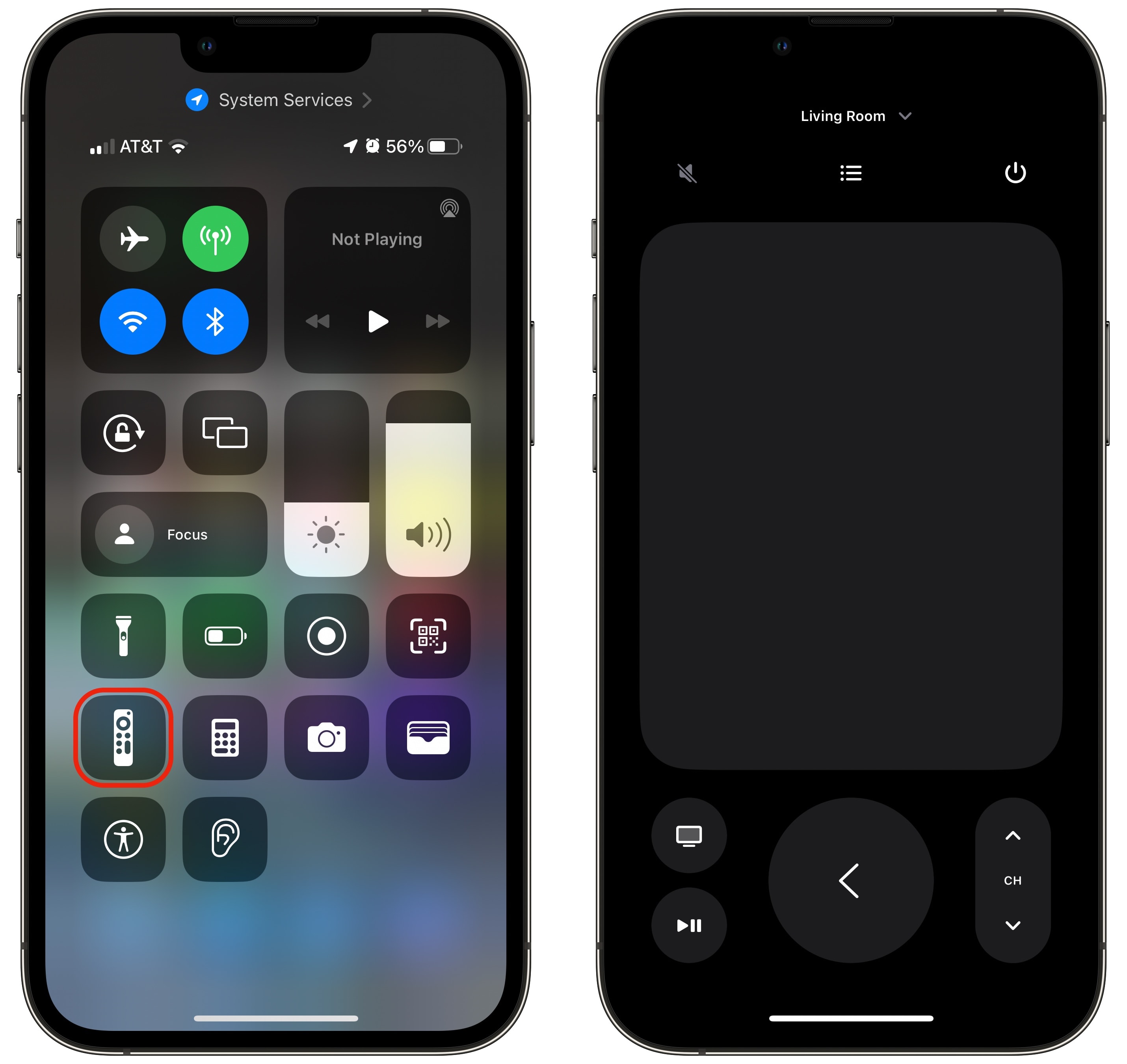
If you’ve set up an Apple TV before, you should automatically have a Remote icon added to your iPhone’s Control Center.
On a newer iPhone (iPhone X, XS, XR, 11, 12, 13, 14, 15, 16), you can pull down from the top right of the screen to open Control Center and tap the Remote icon. (If you don’t see the icon, tap and hold on the screen, tap Add a Control at the bottom, then add Remote to Control Center.)
From Control Center, tap Remote. At the top of the screen, the Remote will ask you to Choose a TV. You should see your Apple TV(s) and/or smart TV(s) on the list. Select the one you want to control.
You might be required to enter a four-digit passcode on your iPhone. Do so if necessary, following the on-screen instructions.
How does the Apple TV remote on your iPhone work?
On the iPhone’s virtual remote, you will see all the same controls as on the Siri Remote.
- You can swipe on the upper half to move around. Tapping anywhere will select.
- The Play/Pause button will start or stop whatever show, movie or music is playing.
- Tap the giant back button to go back a screen or close whatever menu you have open. If you tap it enough times, it’ll close the app, go back to the Apple TV’s Home Screen, and play the screensaver.
- The TV button will open the Apple TV app by default, but you can change that to go to the Home Screen if you prefer. (To make the change on your Apple TV, go to Settings > Remotes and Devices > TV Button > Home Screen.)
- What about Siri? When the Remote app is open, your iPhone’s side button will activate Siri on the Apple TV instead of your phone.
- If you have AirPlay-compatible speakers connected, like a stereo pair of HomePods, then your iPhone’s volume buttons will control your Apple TV audio, too.
- If you have several Apple TVs in your household, you can switch which one you’re controlling by selecting the menu at the top.
- The channel button at the bottom right and the menu button on top might control your TV set if you have things set up correctly.
Use your iPhone keyboard instead of the Siri Remote for text input
Screenshot: D. Griffin Jones/Cult of Mac
Trying to type anything using the Apple TV’s Siri Remote is just plain painful. While I find holding down the Siri button to use dictation on the physical remote extremely fast and reliable (why can’t Siri be so accurate everywhere?), you might not want to shout your password out loud in a room of guests.
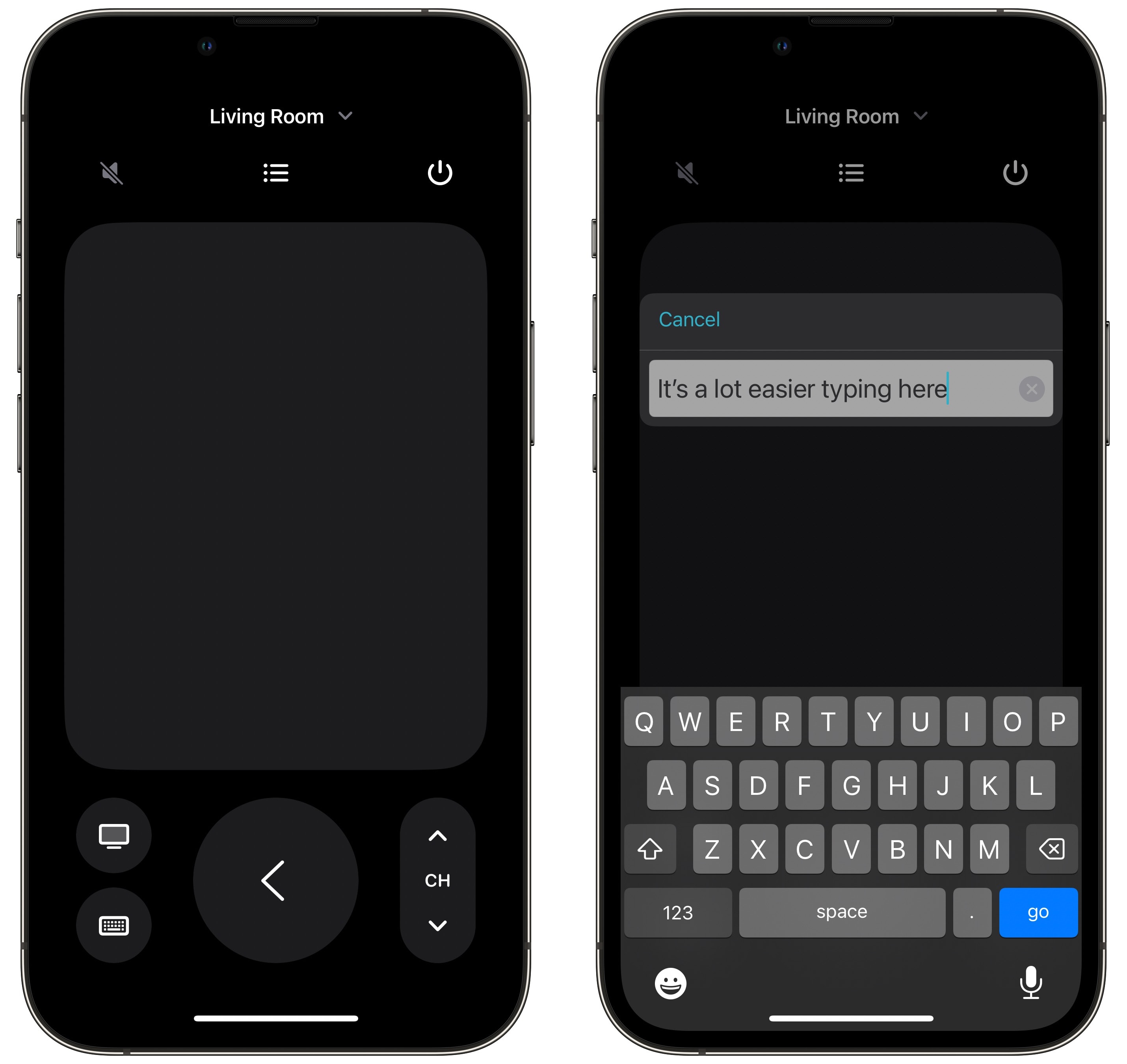
The Apple TV Remote on your iPhone fixes that. Anywhere you need to enter text on the Apple TV, open the remote on your phone and use that keyboard instead. If it doesn’t pop up, you can tap the keyboard button at the bottom left — it replaces the play/pause button.
Using the iPhone to input text on Apple TV proves especially handy if you need to type in a long, complex password for a streaming service or to verify your Apple Account.
Even better, rather than typing out a ridiculous (but secure!) string of random numbers and symbols, you can utilize the iPhone’s copy-paste functionality. Simply copy your password from your password manager, then paste it into the Remote app. Problem solved!
Control Apple TV from Apple Watch
Screenshot: D. Griffin Jones/Cult of Mac
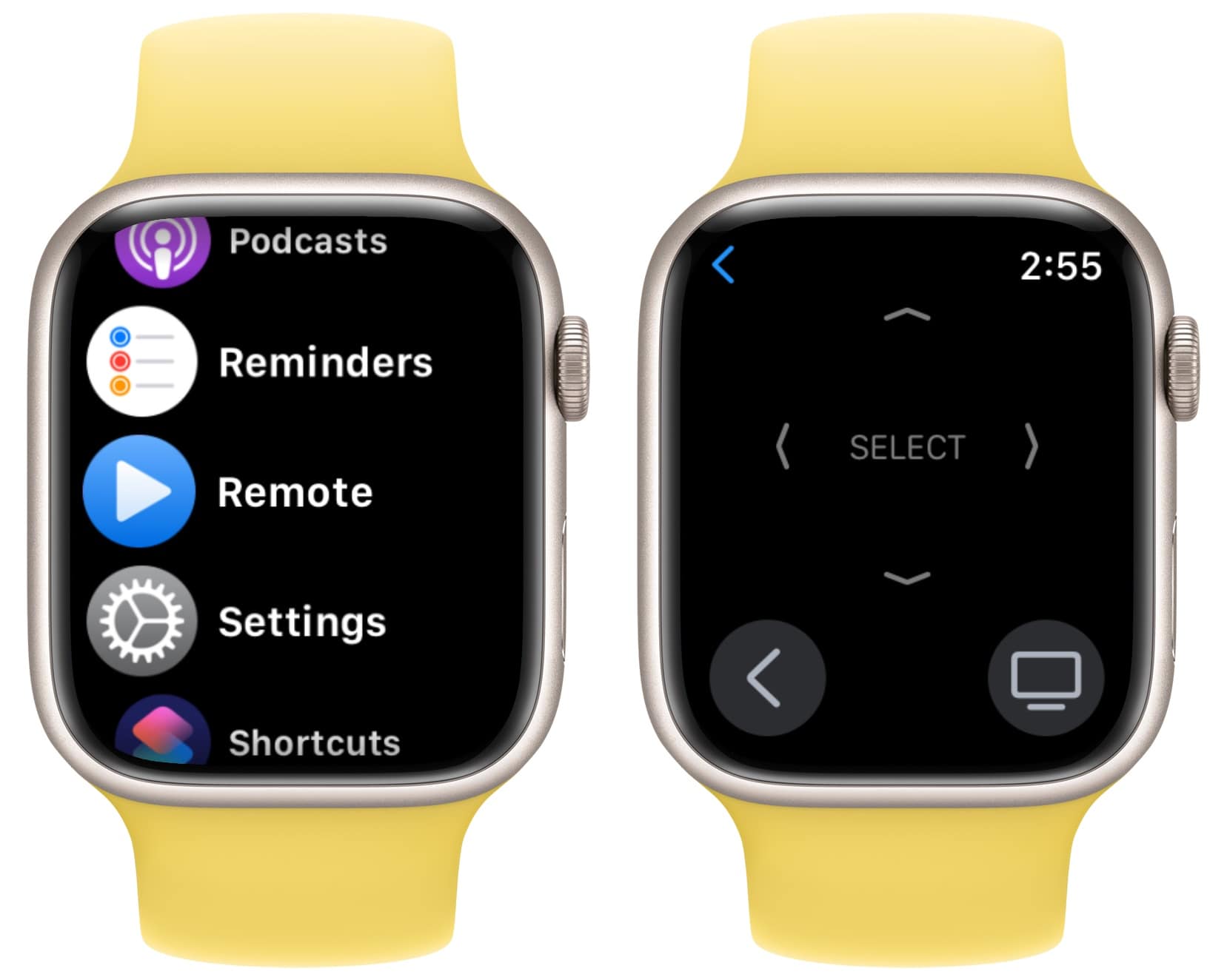
Leave your iPhone sitting on the coffee table? Well, you can use your Apple Watch as an Apple TV remote, too. To do so, just click the Digital Crown once to bring up the app list, then tap Remote. You won’t see all the same controls here as on the iPhone’s Apple TV Remote. But you can still swipe around to move the cursor, tap in the middle to play/pause, or tap the buttons to go back or go home.
Add the Apple TV Remote to your iPhone’s Home Screen
If you like this feature, or frequently lose your Apple TV remote, you might want faster access to the Remote app on your iPhone. In iOS 27, you can finally add the Apple TV’s Remote app to your iPhone’s Home Screen.
The easiest way is to swipe down from the middle of your iPhone’s Home Screen. This opens the Spotlight search bar. Next, start typing “remote” until the Apple TV Remote app appears in your search results.
Press and hold the Remote icon, then drag it to place it wherever you want on your iPhone’s Home Screen. Let go and it will stay where you dropped it. (You can also locate the Remote app in your iPhone’s App Library, then drag it to place it on your Home Screen.)
The days of a hopelessly lost Apple TV Remote are numbered
Losing the Apple TV Remote won’t be such a problem if you upgrade to the fourth-generation Apple TV 4K, which arrives in November. This upgraded set-top box comes with a Siri Remote that finally adds Find My support. You can even buy the easy-to-find Siri Remote separately for $59 and use it with an Apple TV HD or older Apple TV 4K models.
Alternatively, you can use a less-granular method of using your iPhone to find your Apple TV’s Siri Remote if you’re running iOS 17 and tvOS 17 or later.
We originally published this article on how to use an iPhone as an Apple TV remote on February 22, 2023. We updated it with new information.

D. Griffin Jones was a writer, podcaster and video producer for Cult of Mac. Griffin has been a passionate computer enthusiast since 2002, when he got his first PC — but since getting a Mac in 2008, he hasn’t turned back. His skills in graphic and web design, along with video and podcast editing, are self-taught over 20+ years. Griffin has a bachelor’s degree in computer science and has written several (unpublished) apps for Mac and iOS. His collection of old computers is made up of 40+ desktops, laptops, PDAs and devices, dating back to the early ’80s.
Griffin writes for his personal blog, Extra Ordinary, and is currently looking for work.

