Up next in 10



http://www.dev.windows.com/
Show More Show Less View Video Transcript
0:09
hey everyone today I'm going to show you
0:10
how you can run Windows 8 on your Mac
0:12
using boot
0:14
camp now I believe that boot camp is the
0:17
best way to run Windows on your Mac and
0:19
especially Windows 8 uh people have been
0:22
trying Windows 8 in Virtual machines and
0:25
while it does work sometimes other times
0:27
it just doesn't work at all so I have my
0:30
Mac partition with Windows 8 I'm going
0:32
to show you how you can do that too so
0:34
what you're going to need is first off
0:35
you're going to need the windows
0:37
developer preview ISO file and if you go
0:41
to dev. windows.com and then you click
0:45
get
0:46
started you'll see different downloads
0:49
here now for this demo I chose the
0:51
32-bit Edition the 64bit one will also
0:54
work but I just chose the 32-bit cuz
0:57
it's a little bit lighter and the link
0:58
to this website will also will be right
1:00
below the video if you want it now you
1:02
should make sure that your Mac has at
1:04
least 2 GB of RAM for this and probably
1:07
about 20 GB of hard drive space at least
1:10
to run Windows 8 and the only other
1:12
requirement is that you're going to need
1:14
a DVD drive so you MacBook Air owners or
1:17
Mac Mini owners might not be the best
1:19
thing for you for you I've heard that
1:21
you can use a USB flash drive and
1:24
install Windows 8 that way but that's
1:26
not something I'm going to go into
1:27
because Boot Camp doesn't really play
1:29
nicely with USB flash drives so assuming
1:32
you've downloaded your ISO file and
1:33
here's mine right here the 32-bit
1:36
Edition what you're going to do is
1:37
you're going to pop in a blank DVD that
1:40
you need to burn that file onto so I'm
1:42
going to push the DVD in now and you
1:45
should see a little menu pop up on the
1:47
screen within just a few seconds here
1:50
and it'll give you a little list of
1:51
options that you can choose from so from
1:54
here I'm just going to go in this menu
1:55
and select open dis
1:58
utility and hit okay so now here's this
2:01
utility and the first thing I'm going to
2:02
do is I'm going to click on super drive
2:06
and here is my internal dis drive so now
2:10
I will click on Burn now I've already
2:12
burned a DVD of Windows 8 so I'm not
2:15
going to burn one again because I
2:17
already tried out this process to make
2:18
sure it worked but basically what you'll
2:20
do is you'll select this and you click
2:24
burn and now it's going
2:27
to give you a couple different options
2:29
it's best to just leave them all alone
2:31
and then you'll Click Burn and this will
2:32
take roughly about 20 minutes at least
2:35
it did for me with the 32-bit Edition
2:37
and once that's done you can quit Disk
2:39
Utility now from here what you're going
2:40
to want to do is open up boot camp
2:43
assistant so I'm going to open up a new
2:44
finder window and go into my
2:46
applications folder and scroll down to
2:50
utilities and from here I'm going to
2:52
find boot camp assistant right in the
2:54
utilities folder and I'm going to open
2:56
this up now here's something important
2:57
that you should really do before you set
2:59
up any type of Windows installation on
3:01
your Mac you're going to want to back up
3:04
your hard drive now this is something I
3:06
should be doing but I actually don't
3:07
have a back up of my hard drive right
3:08
now so don't follow my path this time
3:11
make sure you back up your hard drive
3:13
because something could go wrong during
3:15
the installation and partition process
3:17
and you could end up with a very sad Mac
3:20
so from here you're going to want to
3:21
click continue and now you're going to
3:24
see two different options and you can
3:25
either download Windows support software
3:27
for this Mac or you can select that you
3:30
already have the support software and
3:33
I'm going to select that I already have
3:35
it even though I don't this is because a
3:37
lot of the Windows support software does
3:40
not work with Windows 8 yet so it's
3:42
pretty much pointless now I did
3:44
experience a couple issues that might
3:46
have been resolved by downloading the
3:48
Windows support software um one of them
3:50
was actually a pretty big one that I
3:52
wasn't able to scroll with my magic
3:55
mouse using Windows 8 now I would assume
3:58
this would be fixed with the support
4:00
software but it's not something I really
4:02
want to try in case it gets messed up
4:05
I'm going to click continue and if
4:06
you're just installing Windows for the
4:08
first time you won't see the screen but
4:09
since I already have it installed on a
4:11
partition uh it just gives me two
4:13
options I'm just going to hit continue
4:16
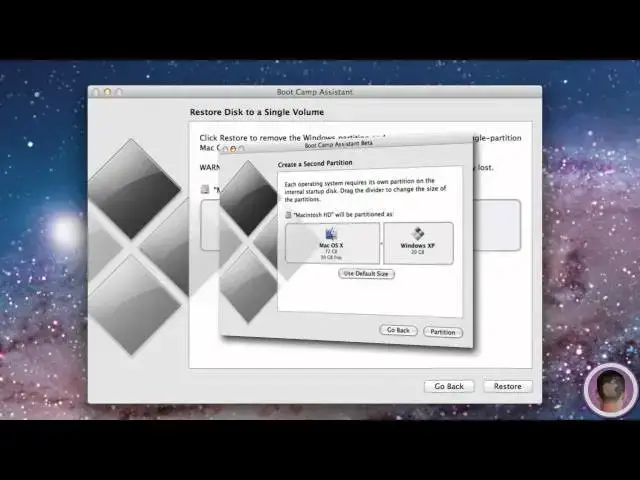
and on this screen what you'll see is a
4:18
slider and from here you'll be able to
4:21
adjust the size of your Mac OS 10 volume
4:24
and your windows volume now since I
4:26
already have a partition the only thing
4:28
I can do is restore uh but as you can
4:30
see with the screenshot on the screen
4:32
you'll be able to drag the slider and
4:35
select how big of a partition you want
4:37
for your Windows installation and now
4:39
after you've selected the size that you
4:40
want for your Windows installation
4:42
you're going to click partition and
4:44
after that you're going to want to
4:46
select start Windows installation at
4:49
this point your computer will shut down
4:51
and restart into the Windows setup
4:54
process now you can see that after
4:55
you've clicked start installation your
4:57
Mac is going to restart and you're going
4:58
to see loading files on your screen and
5:02
this is how the Windows 8 installation
5:05
process begins so at this point you're
5:07
going to see the install Windows screen
5:08
and you're just going to follow the
5:09
instructions it gives you so I'm going
5:11
to hit next and install
5:14
now now you'll have to accept to the
5:17
license terms click next and I'm going
5:20
to select custom which is Advanced
5:23
because I want to install a new copy of
5:25
Windows now you're going to see all
5:27
different types of partitions here and
5:29
you're going to select dis zero
5:31
partition now this may not say partition
5:33
4 uh but it's the one that says boot
5:36
camp now once you've selected your boot
5:38
cam drive it's going to say it cannot be
5:40
installed so you're going to have to
5:41
click on driver options and then from
5:44
there you have to click format then
5:45
you're going to have to click okay and
5:47
then you can click next now from here
5:49
it'll install Windows 8 and this will
5:51
probably take at least a half an hour so
5:53
just sit back and relax so as the
5:55
installation is completing your Mac will
5:57
restart two times and then you should
5:59
see this screen from here and I'm going
6:01
to go through the setup process and then
6:02
we'll see what happens next so after you
6:04
complete the setup process you should
6:06
see something similar to this and this
6:08
is your Windows start screen so there
6:10
you go you can see Windows 8 running on
6:13
my iMac here and I can say It's
6:16
relatively fast but you can try it out
6:17
for
6:18
yourself on your own Mac now with boot
6:21
camp and a simple Windows installation
6:24
DVD you may run into some problems just
6:27
because it is pre-release software so
6:29
once again make sure you backup um I'm
6:32
fortunate to not have any problems since
6:34
uh I don't have a backup but that's
6:37
really about it so there you go that's
6:38
how to install Windows 8 on your Mac
6:40
with boot camp if you have anything that
6:42
you'd like to see me do a how to on make
6:45
sure to send me an email I hope you
6:46
found this video useful thank you for
6:53
watching
#Operating Systems