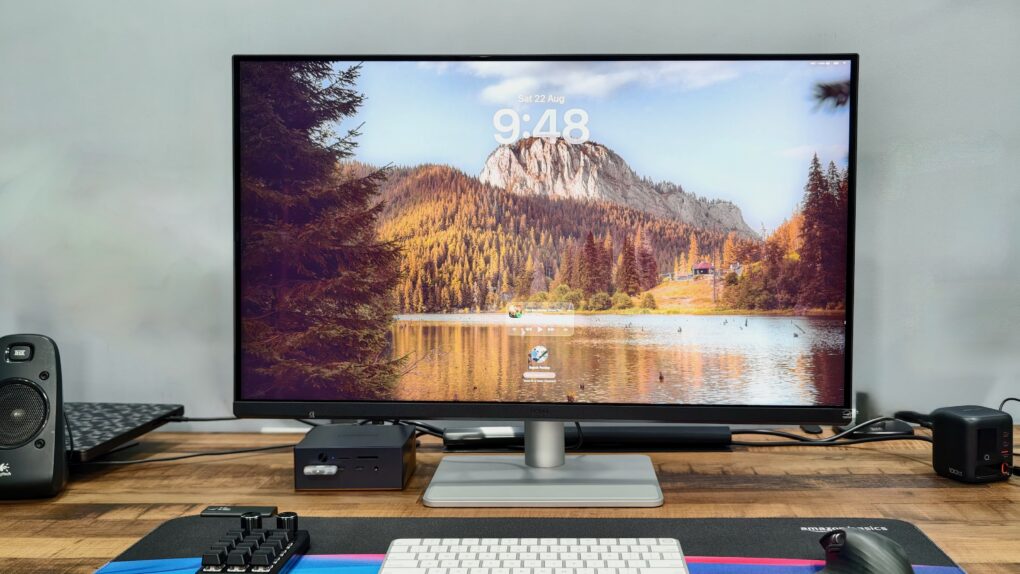
Finding a great Mac monitor usually means choosing between Retina sharpness, a high refresh rate and reasonable pricing. The BenQ MA320UG tries to strike a better balance with its large 31.5-inch 4K panel, glossy finish and 120Hz refresh rate.
After using it as my primary display for several weeks, I found plenty to like. However, there are also a few compromises that keep it from being the complete Studio Display alternative.
This post contains affiliate links. Cult of Mac may earn a commission when you use our links to buy items.
BenQ MA320UG monitor review
It’s not easy to pick a great monitor for a Mac, especially if you want Retina sharpness. While Apple offers the best options, its Studio Displays are extremely expensive. Plus, the new Studio Display XDR only comes in a 27-inch model.
While several third-party options are available for considerably less money, they compromise on the panel quality, resolution or color accuracy.
The BenQ MA320UG aims to offer a better balance with its spacious 31.5-inch 4K panel and 120Hz refresh rate. BenQ specifically designed this display for Mac users, as evident from its Thunderbolt connectivity, MacBook color-matching mode and keyboard brightness controls. So, is the BenQ MA320UG a good Studio Display alternative?
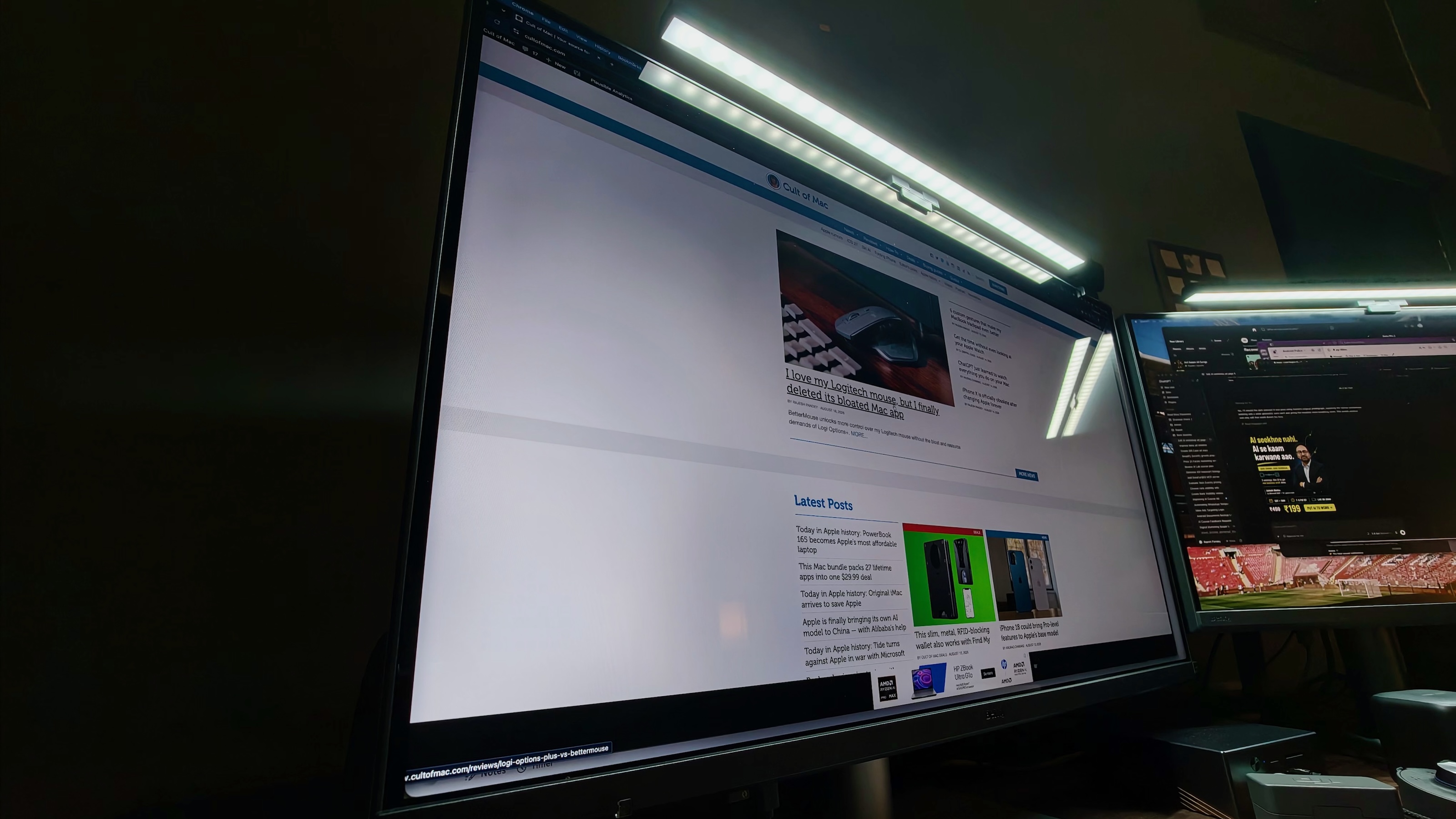
Photo: Rajesh Pandey/Cult of Mac
The BenQ MA320UG combines a vibrant 31.5-inch 4K Nano Gloss panel with a 120Hz refresh rate and extensive Thunderbolt connectivity. The adjustable stand, 96W MacBook charging, KVM support and daisy-chaining capabilities make it an excellent hub for a Mac desk setup.
- Vibrant 31.5-inch Nano Gloss panel
- 120Hz variable refresh rate
- Excellent Thunderbolt and USB connectivity
- Adjustable stand with VESA support
- Poor 140PPI pixel density
- No integrated webcam
- Heavy reliance on Display Pilot 2 app

Table of contents: BenQ MA320UG monitor review
- A practical stand, but no Apple-level finish
- Display panel
- Excellent connectivity, frustrating software
- A lot of monitor for $830
- Pricing and availability
A practical stand, but no Apple-level finish
The BenQ MA320UG looks clean and relatively understated. The silver finish complements a silver MacBook Pro and helps it fit naturally into a Mac-focused desk setup. But the resemblance mostly ends with the color.
The curved rear housing is made almost entirely from plastic. It does not look or feel as premium as the aluminum enclosure of an Apple display. This does not matter much to me, especially in everyday use. I rarely look at or touch the rear panel.
However, if you are building a desk setup primarily around aesthetics, the MA320UG will not work for you.
The bundled stand is one of the better parts of the design. It has a broad rectangular base with a padded section across the front where I can place my closed MacBook Pro. The padding prevents the laptop from rubbing against the metal base and puts otherwise unused desk space to good use.
The stand offers plenty of adjustment. It provides 150 mm of height adjustment, tilts from −5 to 20 degrees and swivels 15 degrees in either direction. The display can also rotate by 90 degrees into portrait orientation, although a 31.5-inch monitor becomes enormous when used vertically.
Some interesting design features
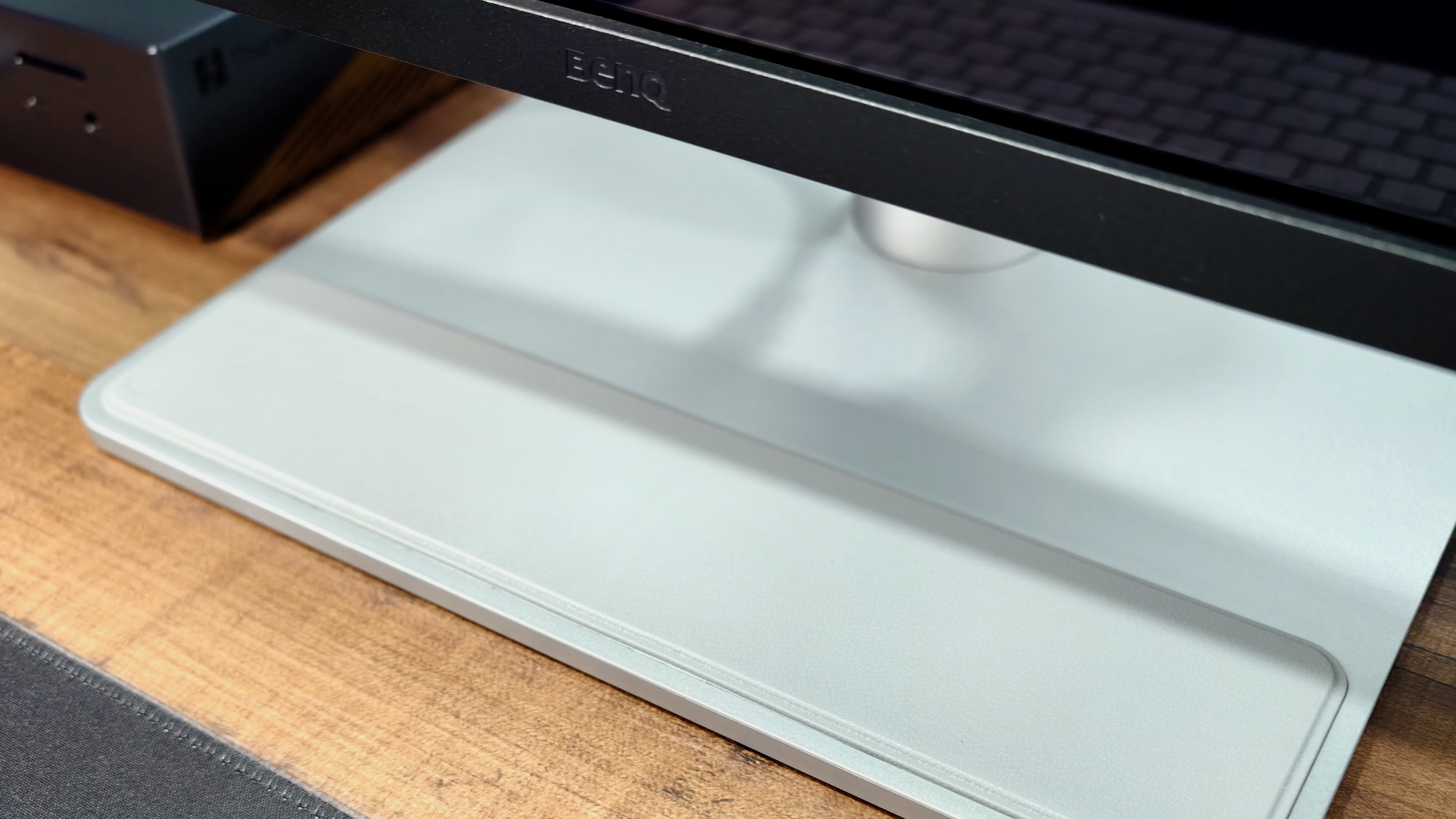
Photo: Rajesh Pandey/Cult of Mac
One useful design decision from BenQ is integrating the power supply into the monitor’s chassis. So, there’s no bulky power brick that you need to hide under your desk or cable-management tray. Just connect the power cable to the monitor, plug it into the wall, and you’re good to go.
That integrated power supply makes the MA320UG relatively thick. But that’s a worthwhile tradeoff, as once you place the monitor on your desk, its thickness should be the least of your concerns.
If you want, you can use a monitor arm to free up desk space. The MA320UG supports the standard 100 × 100mm VESA mount, so it will work with any compatible monitor arm, wall mount or third-party stand.
And some disappointments: Lame speakers and no webcam
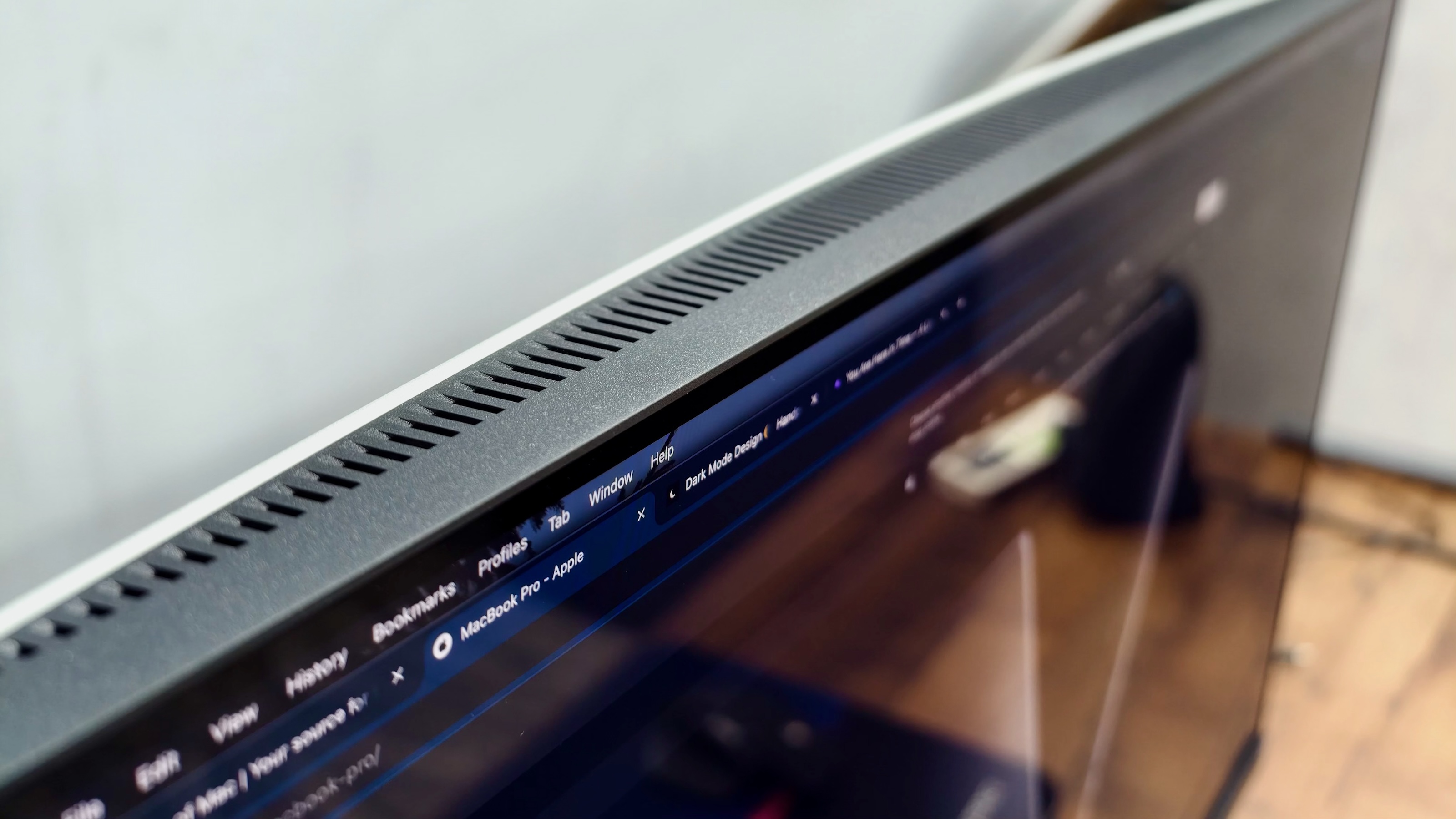
Photo: Rajesh Pandey/Cult of Mac
The BenQ MA320UG comes with two built-in 3W speakers. The less said about them, the better. They are only there for the sake of it and don’t come anywhere close to the quality of the Studio Display’s speakers.
What’s more disappointing is the lack of an integrated webcam. This would have made the MA320UG an ideal Studio Display alternative, especially for people who regularly make FaceTime or video calls. As someone who takes multiple Zoom or Meet calls every week, this is a big bummer for my workflow.
The problem is that with a 32-inch size, adding an external webcam becomes slightly awkward. I mounted a webcam on top of the monitor, but it created an awkward top-down perspective during calls.
I don’t mind the MA320UG’s plastic body, especially since it helps keep the price down. Even the poor speakers are forgivable. But I really wish BenQ had included an integrated webcam, as it would have made the MA320UG a much better Studio Display alternative.
Display panel
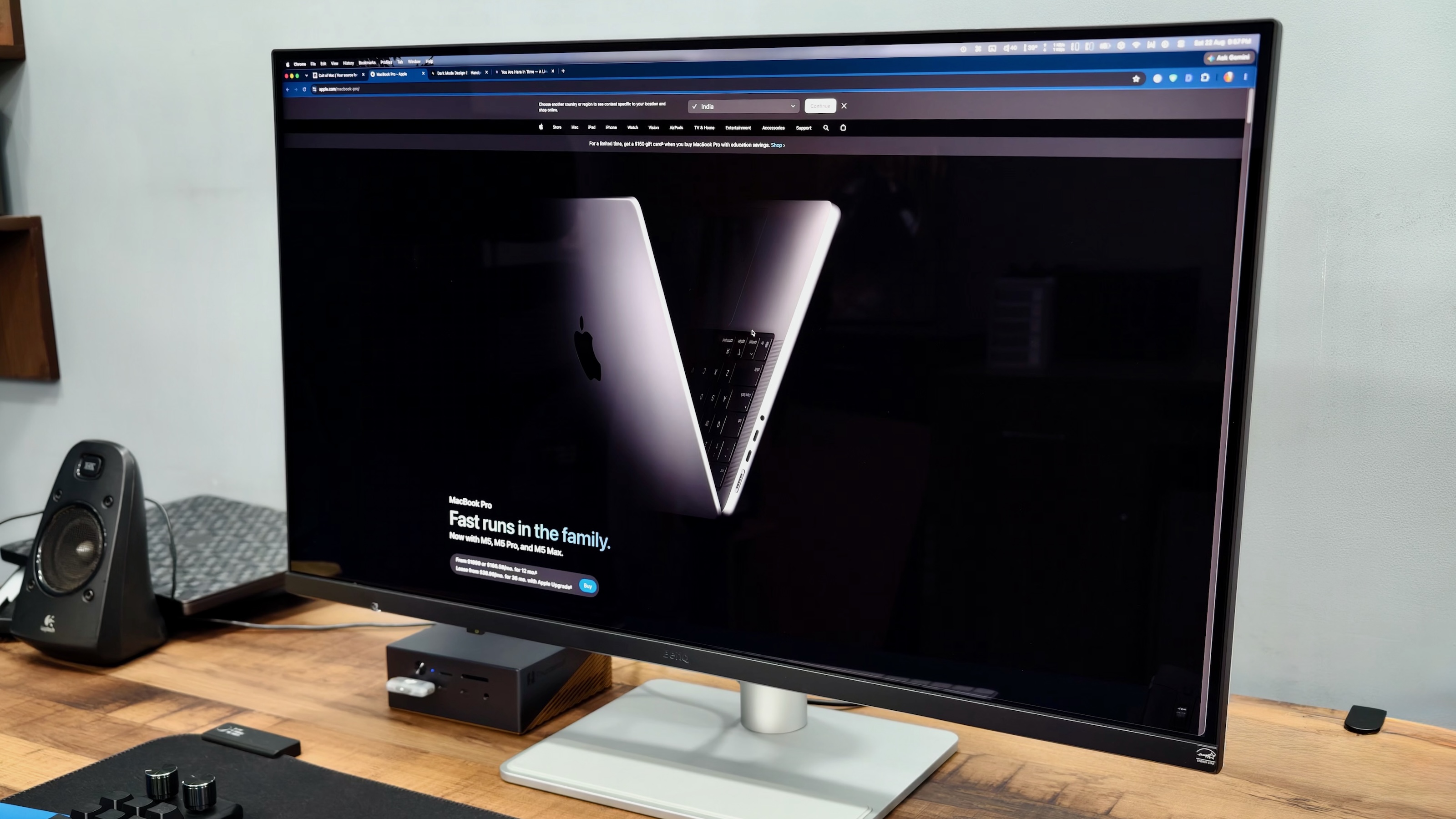
Photo: Rajesh Pandey/Cult of Mac
The BenQ MA320UG features a 31.5-inch LED-backlit IPS panel with a 120Hz refresh rate. It’s not a Retina display; it’s a 4K panel with 140 PPI. A Nano Gloss coating makes colors pop, text appear sharper and blacks look deeper.
While a glossy coating can lead to a mirror-like finish and high glare, BenQ says its Nano Gloss coating delivers the best of both worlds: a glossy finish with the anti-glare properties of matte.
The glossy coating really delivers in everyday use. Blacks appear deeper than I expected from an IPS panel, giving the image strong perceived contrast. The glossy finish is so impressive that I enabled dark mode on macOS Tahoe, which I usually avoid due to most monitors’ poor black levels and contrast.
Still, pointing a bright light source directly at the screen will produce visible reflections. So, if you have a bright light source directly behind you or there’s a lot of natural light coming in through a window, you might find the glare distracting.
In my office, most of the illumination comes from overhead lights. I also use a monitor light bar mounted on top of the display. Still, the MA320UG’s Nano Gloss coating kept the glare well controlled.
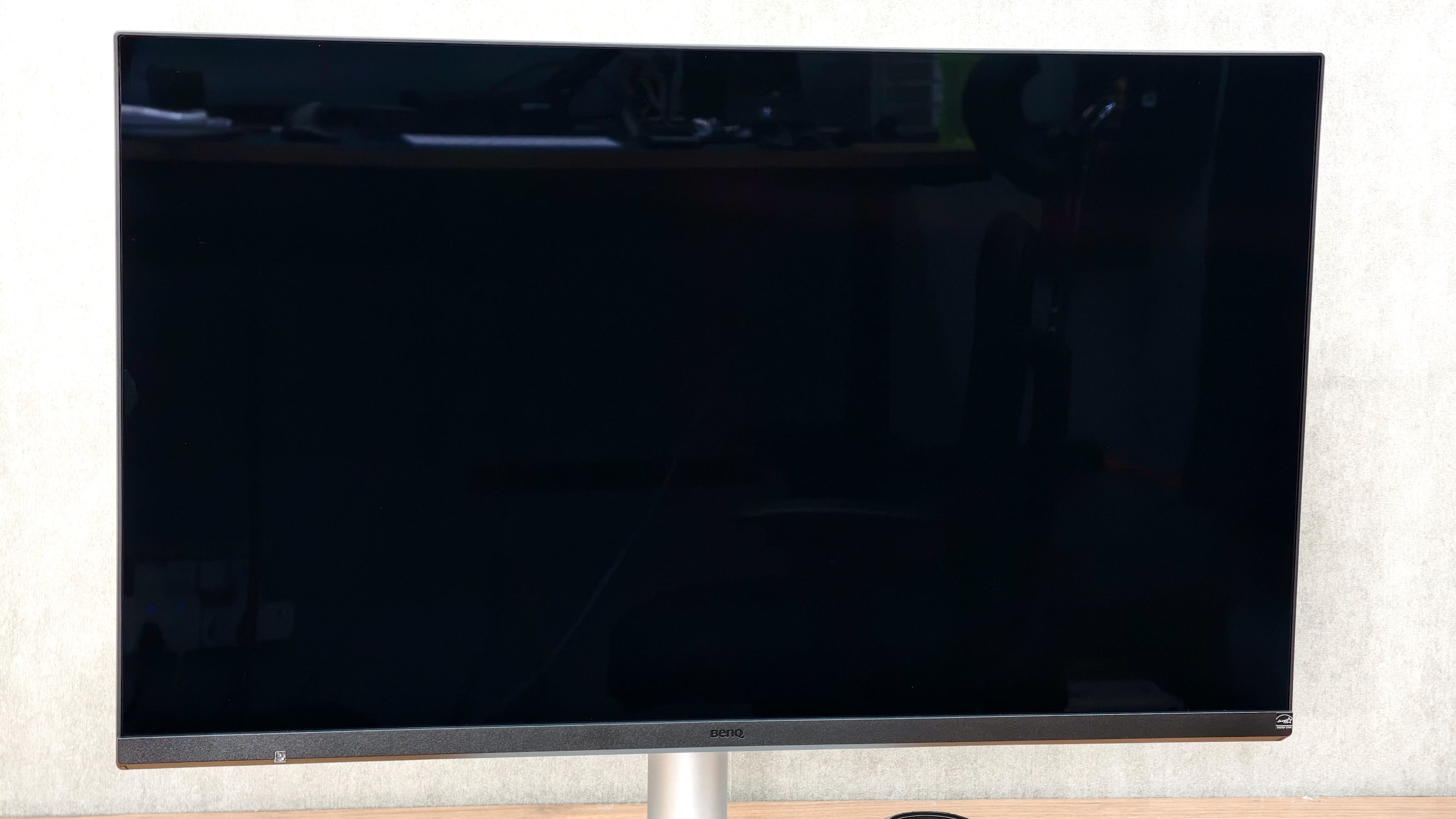
Photo: Rajesh Pandey/Cult of Mac
BenQ includes a microfiber cleaning cloth in the box — a useful addition for keeping the Nano Gloss surface free of dust and smudges. And you will need it, as the glossy coating acts as a lint and dust magnet.
Backlight bleed and IPS glow are common issues with IPS panels, but the MA320UG excels here. I checked my unit across varying brightness levels, including the maximum and minimum settings, and barely noticed any backlight bleed around its edges.
From a panel-quality perspective, the BenQ MA320UG’s 31.5-inch display excels in key areas, delivering vibrant colours, deep blacks and excellent uniformity.
Colors look good, but HDR is best left off
BenQ rates the MA320UG for 99% sRGB and 98% P3 coverage, with support for 1.07 billion colors. Since this is not a professional-grade monitor, it does not come with a factory calibration report.
BenQ claims that in M-mode, the MA320UG’s colors will match those of the MacBook Pro’s display. I tried this out for a few days, and while the colors were close, they were not 100% accurate, at least not to my eyes.
Whites have a slightly cool tint, though the difference is so small that it never bothered me during everyday work.
A bright display with excellent viewing angles
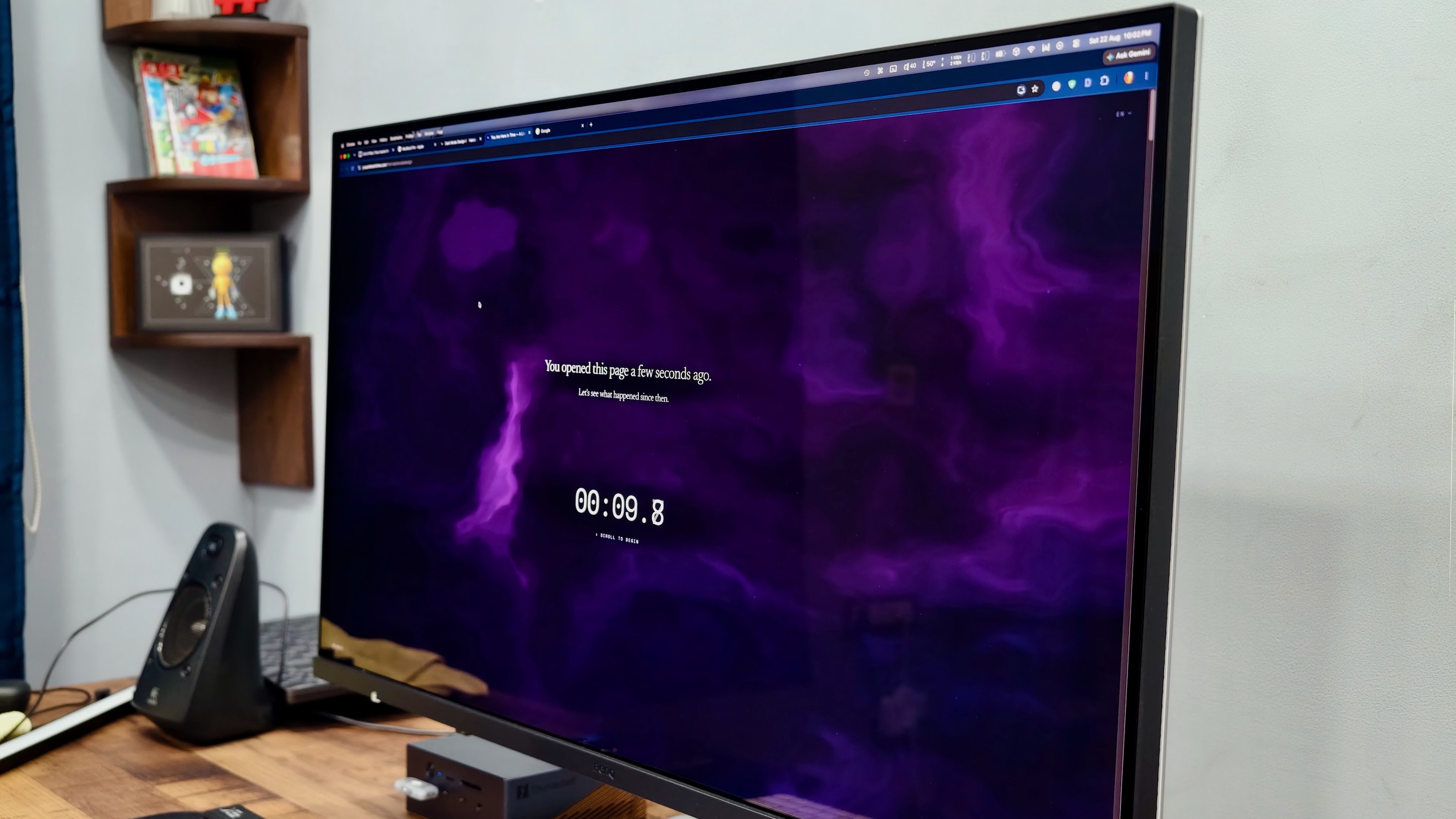
Photo: Rajesh Pandey/Cult of Mac
With a rated 450 nits of peak brightness, the MA320UG can get decently bright. Yes, those numbers are nowhere near close to the Studio Display or the Pro Display XDR. But you really don’t need such a bright display for most everyday tasks. I typically kept the monitor between 35% and 50% brightness in my office. That left plenty of headroom in case I ever needed that extra brightness.
Viewing angles are excellent, too. Colors and contrast remained consistent when looking at the screen from extreme angles. I noticed a slight vignetting effect around the corners. But it was relatively subtle and did not appear when viewing the monitor straight on.
On paper, the MA320UG supports HDR10 and carries VESA DisplayHDR 400 certification. However, this is more of a checkbox feature. A 450-nit peak brightness is not enough for HDR content.
Plus, on the MacBook Pro’s Liquid Retina XDR or Apple’s Studio Display, local dimming allows HDR highlights to become significantly brighter than the rest of the screen. The MA320UG cannot replicate this due to its IPS panel.
Enabling HDR raises the brightness across the entire screen instead of making only the HDR content brighter. So, I left HDR mode off and used the monitor in SDR mode.
The Retina problem
Some may dismiss the BenQ MA320UG for its 4K resolution on a 31.5-inch panel. The 140 PPI pixel density comes nowhere close to the Retina-level 218 PPI that Apple recommends for Mac monitors. That means text will look less sharp than on a 27-inch 5K or a 32-inch 6K screen.
However, after using the MA320UG as my primary monitor for a few weeks, I never found sharpness to be an issue. Admittedly, I did not previously use a Studio Display or a Pro Display XDR as my primary monitor.
For my use case, though, there’s a bigger issue with Retina displays. At its default Retina scaling, a 5K display effectively gives a 2560 x 1440 desktop. While everything looks incredibly sharp, I find the workspace too cramped.
That’s why I prefer running my monitors at a scaled resolution of around 3K. With the BenQ MA320UG, I set the display to a resolution of 3008 x 1692 pixels. This gave me considerably more room without making text and UI elements too small.
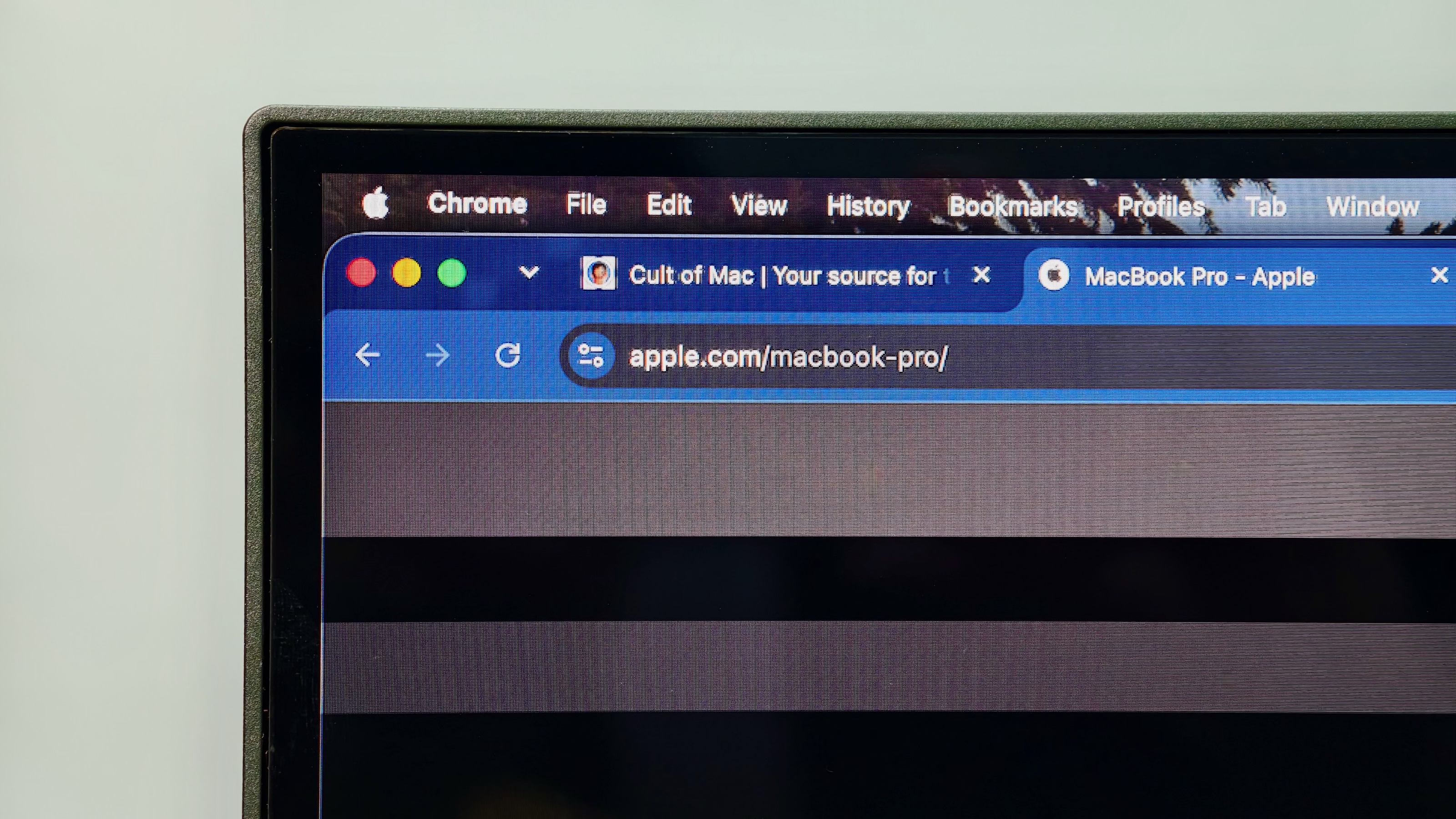
Photo: Rajesh Pandey/Cult of Mac
It’s not like I can’t see the difference in sharpness on the MA320UG versus my MacBook Pro’s Retina display. But for that, I have to come really close to the screen and know exactly what I am looking for. From 25 or 30 inches away, though, the difference in sharpness is negligible.
While it’s hard not to like the Retina sharpness of a 5K or a 6K display, I value more screen space. And the BenQ MA320UG delivers here. But if you are used to a Retina display, the BenQ’s 140 PPI pixel density will be a big step down.
120Hz refresh rate that adjusts to what you’re looking at
Resolution aside, the MA320UG’s 120Hz refresh rate is one of its biggest strengths. Switching from the MacBook Pro’s ProMotion display, the BenQ monitor delivers the same level of smoothness when scrolling through web pages and navigating through Finder windows. All UI results feel noticeably smoother than a 60Hz display.
The monitor supports Variable Refresh Rate (VRR), so it can automatically adjust its refresh rate between 48-120Hz depending on the content.
Admittedly, I wanted to run the display at 3360 x 1890 resolution for even more screen space, but switching to it limited the maximum refresh rate to 100Hz. This limitation only applies to that specific resolution. The 120Hz VRR refresh rate is available at the full 4K resolution (3840 x 2160 pixels).
Excellent connectivity, frustrating software
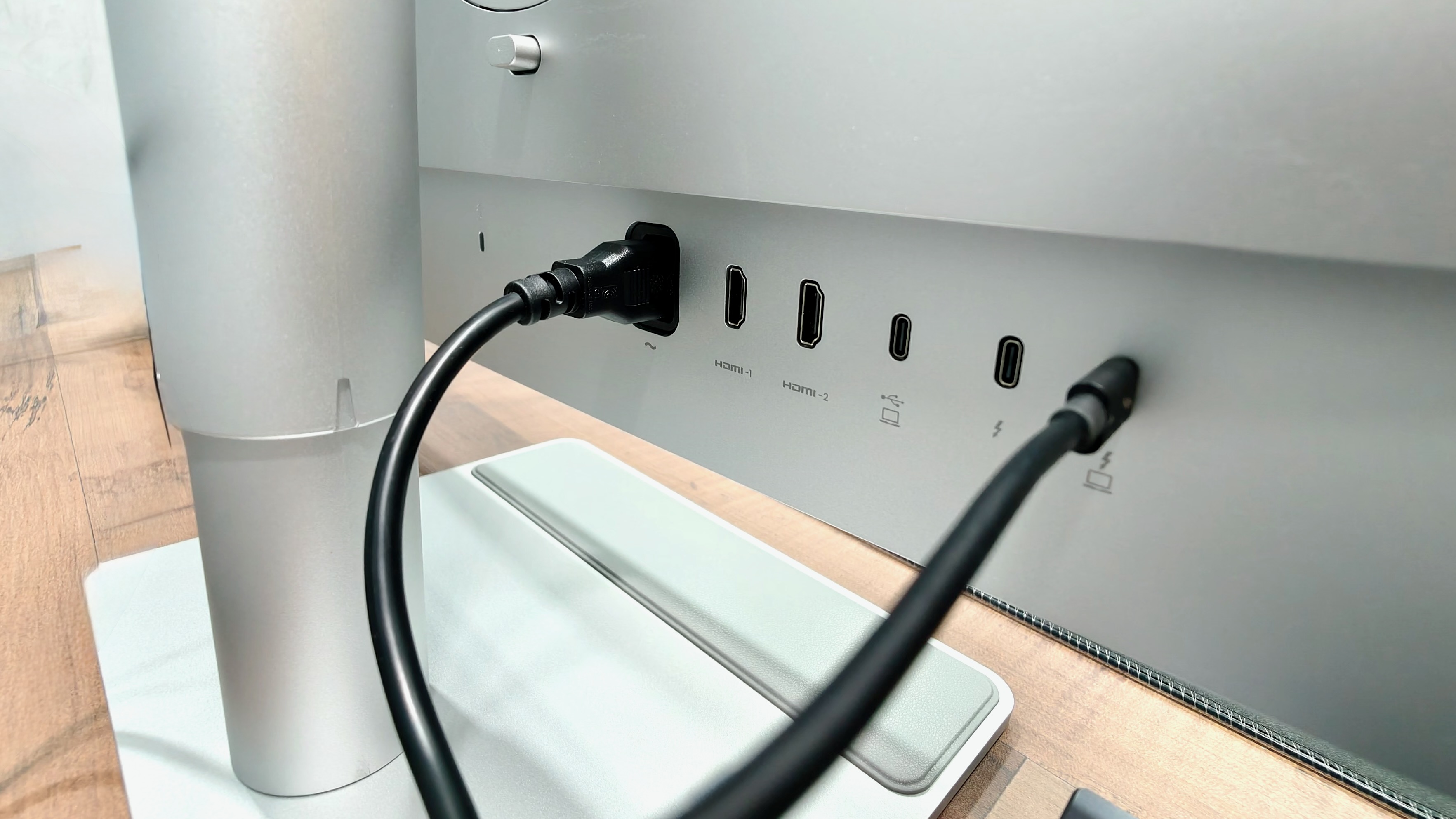
Photo: Rajesh Pandey/Cult of Mac
The BenQ MA320UG doubles as a capable Thunderbolt hub, with enough ports to connect a Mac, another display and several accessories.
Its main Thunderbolt 4 port carries video and data while delivering up to 96W of power. That’s sufficient for a MacBook Air and even the 14-inch MacBook Pro. But if you use a 16-inch MacBook Pro, the 96W power may not be enough under heavy load. This is not an issue for my regular use case.
The BenQ MA320UG comes with the following connectivity options:
| Port or feature | Specification | What you can use it for |
|---|---|---|
| Thunderbolt 4 upstream | 40Gbps, DisplayPort Alt Mode and 96W power delivery | Connecting and charging a MacBook over one cable |
| Thunderbolt 4 downstream/output | Daisy-chaining and up to 15W power delivery | Driving a second monitor or connecting a Thunderbolt accessory |
| USB-C upstream/host input | DisplayPort Alt Mode, data and 35W power delivery | Connecting a second computer for video, data and KVM switching |
| USB-C downstream | USB 3.2 Gen 2 at 10Gbps and up to 15W charging | Connecting an SSD, phone or other USB-C accessory. Located at the bottom edge of the monitor for easy access |
| Two USB-A ports | USB 3.2 Gen 2 at 10Gbps and up to 7.5W per port | Connecting receivers, storage and other USB accessories. Located at the bottom edge of the monitor for easy access |
| Two HDMI 2.1 ports | Two additional video inputs | Connecting other computers, streaming devices or game consoles |
| Headphone jack | 3.5mm audio output | Connecting headphones or external speakers |
| Smart KVM | Shares connected USB peripherals between two host systems | Switching a keyboard, mouse and other USB accessories between computers connected through the 96W Thunderbolt 4 upstream port and the 35W USB-C host input |
I connected the MA320UG’s upstream Thunderbolt 4 port to the Ugreen Thunderbolt 5 dock in my setup. I then used the monitor’s Thunderbolt 4 output to daisy-chain and drive a second display.
This allowed the BenQ monitor to sit in the middle of my Thunderbolt setup without requiring another direct connection to my Mac. More importantly, it freed up another port on my Thunderbolt dock.
The two USB-A ports also proved useful in everyday use. I plugged my wireless mouse receiver into one and powered the monitor light bar from the other. Each port provides up to 7.5W, while the downstream USB-C port supplies up to 15W. There is a separate USB-C input that supports video, data and up to 35W charging.
Through the monitor’s settings, you can enable Power-off Charging, which keeps supplying power to connected USB devices even when the display is switched off. This makes the ports useful for charging phones and other accessories even when away from the desk.
The built-in KVM switch is another useful addition for anyone using two computers. It lets you share the same keyboard and mouse between a Mac and another Mac or Windows PC. BenQ handles its Smart KVM configuration through Display Pilot 2, while more advanced cross-device features will require installing the app on both computers.
Display Pilot 2 is a necessity
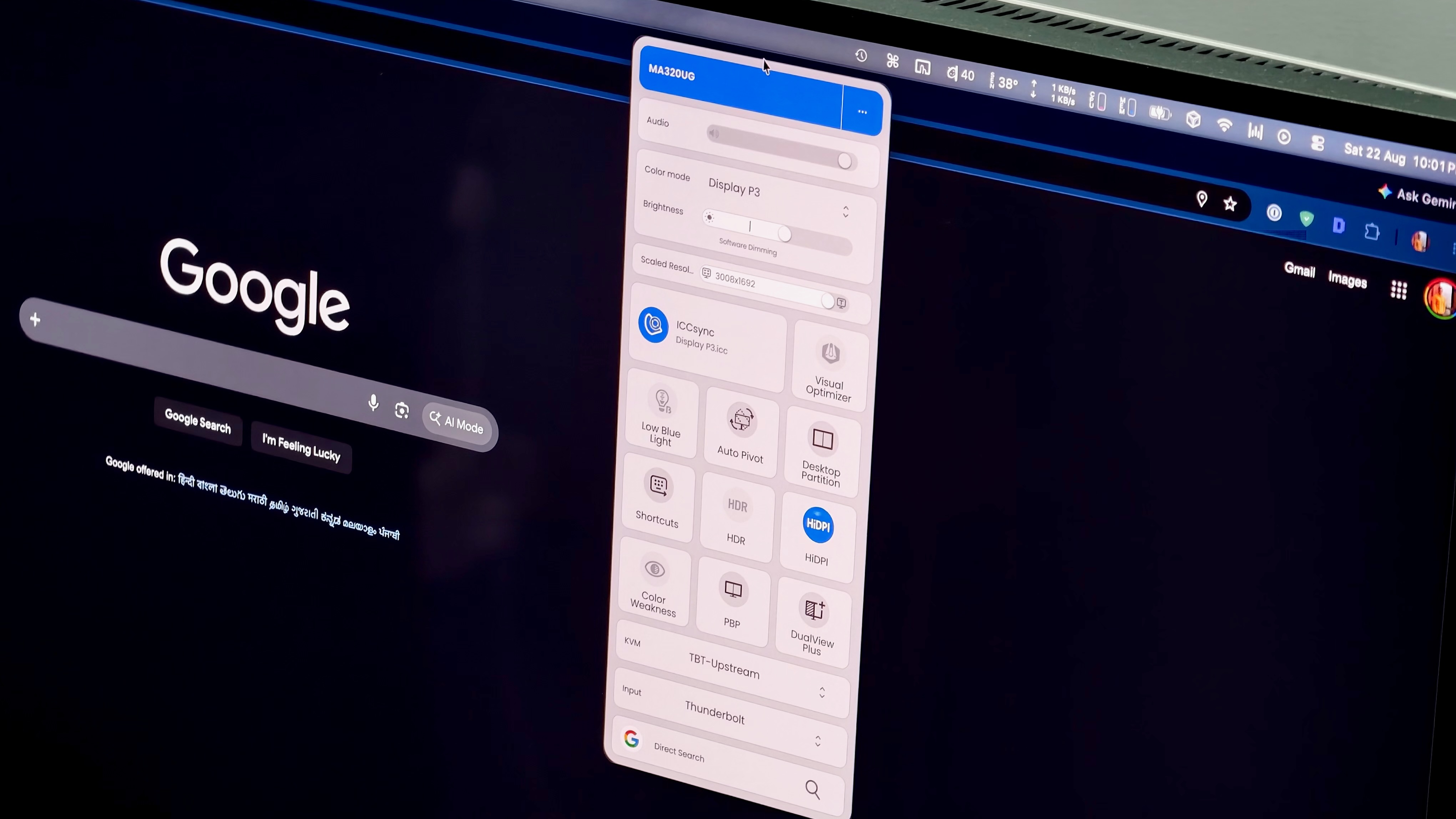
Photo: Rajesh Pandey/Cult of Mac
To get the MA320UG’s full Mac integration, you must install BenQ’s Display Pilot 2 app. It enables Mac keyboard controls, color-mode switching, M-book mode, ICC-profile synchronization, KVM configuration, power behavior and other advanced display settings. BenQ also offers features such as Focus-mode synchronization, automatic brightness matching, Desktop Partition, DualView, PIP/PBP and quick controls for resolution and HDR.
Display Pilot 2’s most useful feature is Mac keyboard support. As long as the app is running, I can use the F1 and F2 keys to control the MA320UG’s brightness just as I would on my MacBook Pro’s internal display. The app provides access to the monitor’s color profiles, including M-book mode, which is intended to bring its colors closer to those of a MacBook display.
The problem is that Display Pilot 2 feels less like an optional companion and more like a requirement. The monitor’s built-in on-screen display only allows brightness adjustment, speaker volume control and active input selection.
Everything else, including basic power behavior, sleep and wake options, color modes and other advanced settings, requires the app. Plus, I certainly don’t want another app running in the background on my Mac for something as basic as brightness control and color mode switching.
Worse, Display Pilot 2 always appears in the macOS app switcher. There is no option to hide the app and operate it solely as a menu-bar utility. I need to keep it running in the background for the F1 and F2 brightness keys to work.
Even the app’s interface could use some work. What’s more annoying is that Display Pilot 2 requires signing in to your Google or Apple account for settings backup and synchronization. If you don’t sign in, the app works in guest mode.
A lot of monitor for $830
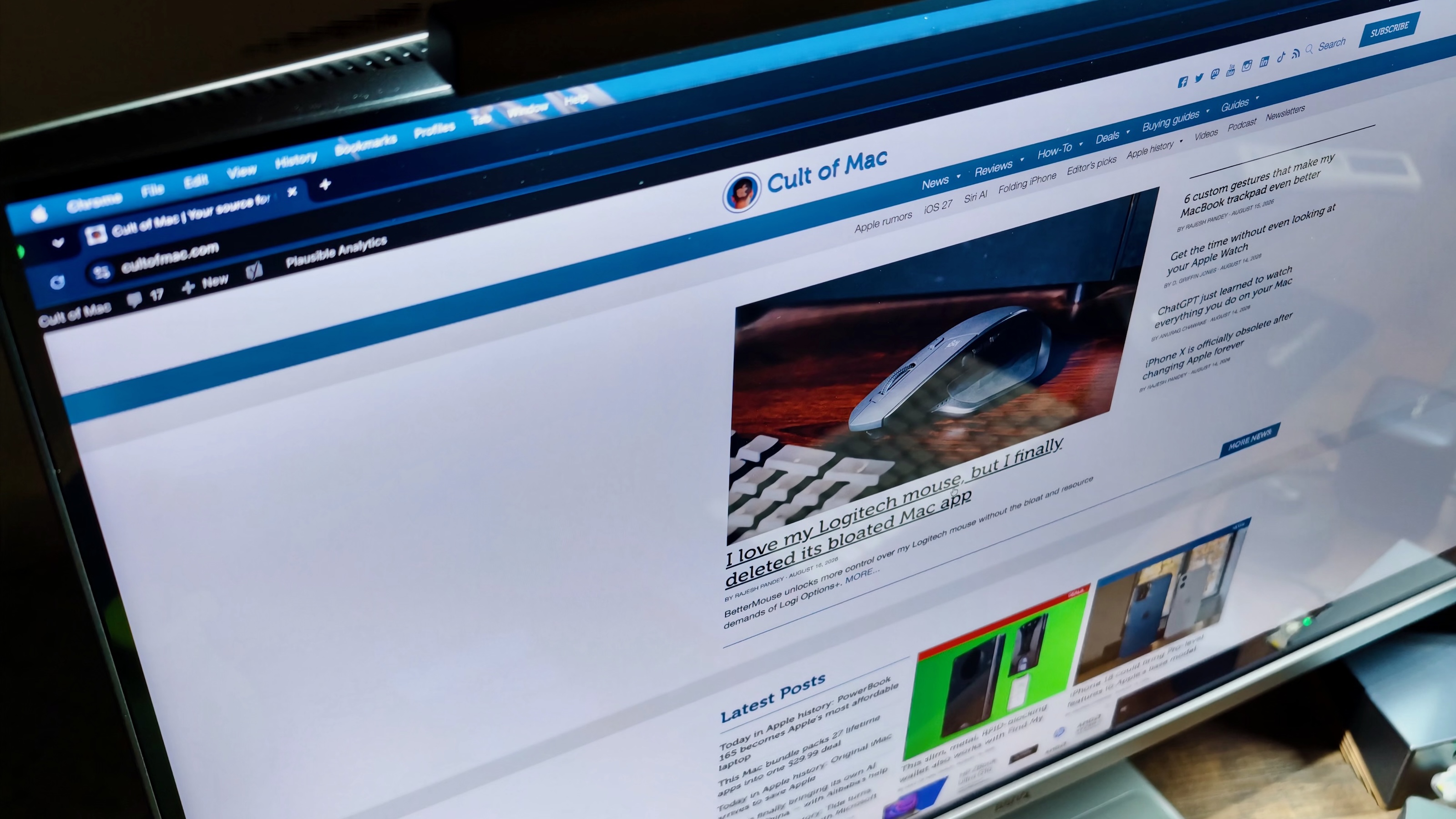
Photo: Rajesh Pandey/Cult of Mac
The BenQ MA320UG costs $829.99. So, it’s not a budget 4K monitor. For that price, you get a lot of monitor: a 32-inch panel with a glossy finish, 120Hz variable refresh rate, extensive Thunderbolt connectivity and Mac-focused software features.
At that price, the MA320UG costs almost half as much as Apple’s Studio Display, which starts at $1,599 with a tilt-adjustable stand. Configure Apple’s monitor with height adjustment, and its price rises to $1,999.
The Studio Display still justifies its premium in several areas. It offers sharper 5K Retina resolution, an aluminum enclosure, a built-in webcam, far better speakers and tighter integration with macOS.
The BenQ wins with its larger 31.5-inch panel, 120Hz refresh rate, broader connectivity and significantly more usable screen space at my preferred scaling. It also comes with a longer three-year limited warranty vs. the Studio Display’s one-year warranty.
Ultimately, the better choice depends on what you value. Buy the Studio Display if Retina sharpness, premium construction and an integrated camera matter most. The MA320UG offers better value if you want a larger workspace, smoother 120Hz motion and enough connectivity to serve as the hub of a Mac setup.
If you don’t care about the 120Hz refresh rate, get the BenQ MA320U. It offers almost the same features as the UG model minus the 120Hz refresh rate and costs only $649.99.
★★★★☆
Pricing and availability
The BenQ MA320UG carries an MSRP of $829.99. It is available through Amazon, B&H Photo, Adorama and other authorized retailers.
In the United States, the BenQ monitor comes with a three-year limited warranty.
The BenQ MA320UG combines a vibrant 31.5-inch 4K Nano Gloss panel with a 120Hz refresh rate and extensive Thunderbolt connectivity. The adjustable stand, 96W MacBook charging, KVM support and daisy-chaining capabilities make it an excellent hub for a Mac desk setup.
- Vibrant 31.5-inch Nano Gloss panel
- 120Hz variable refresh rate
- Excellent Thunderbolt and USB connectivity
- Adjustable stand with VESA support
- Poor 140PPI pixel density
- No integrated webcam
- Heavy reliance on Display Pilot 2 app
BenQ provided Cult of Mac with a review unit for this article. See our reviews policy, and check out more in-depth reviews of Apple-related items.

Rajesh has been writing about consumer technology for over a decade, with a strong focus on iPhones, Macs and Apple’s ecosystem. He enjoys digging into Apple software updates, hardware changes, and discovering new Mac apps that make work faster and more enjoyable.
You can reach out to him at mail[at]rajeshpandey.me.

